RSVP Tab
Access the Scheduled Meeting
On the MeetingPal Home Page, locate the left-hand menu. Select Meetings.
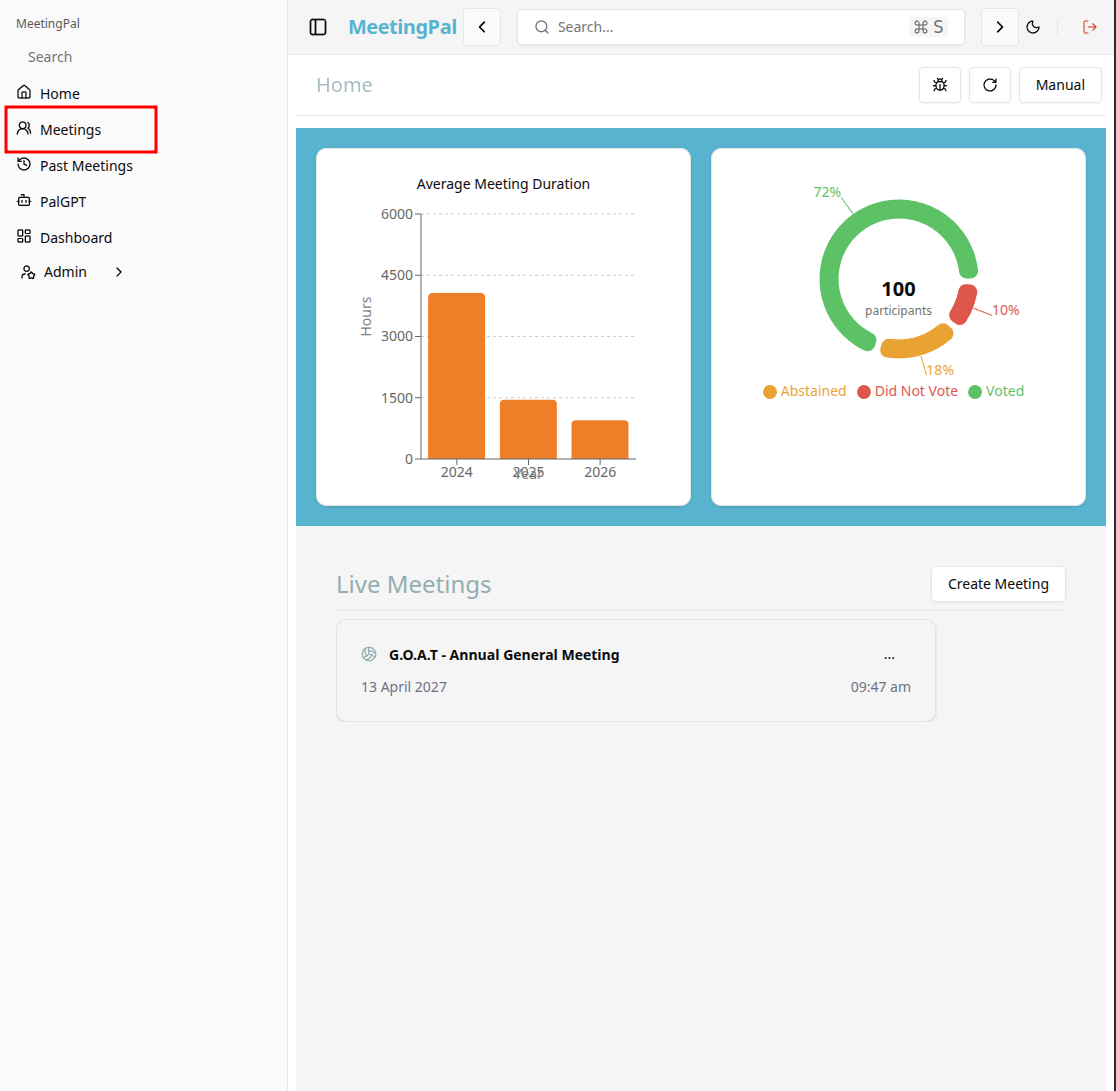
Start editing the meeting
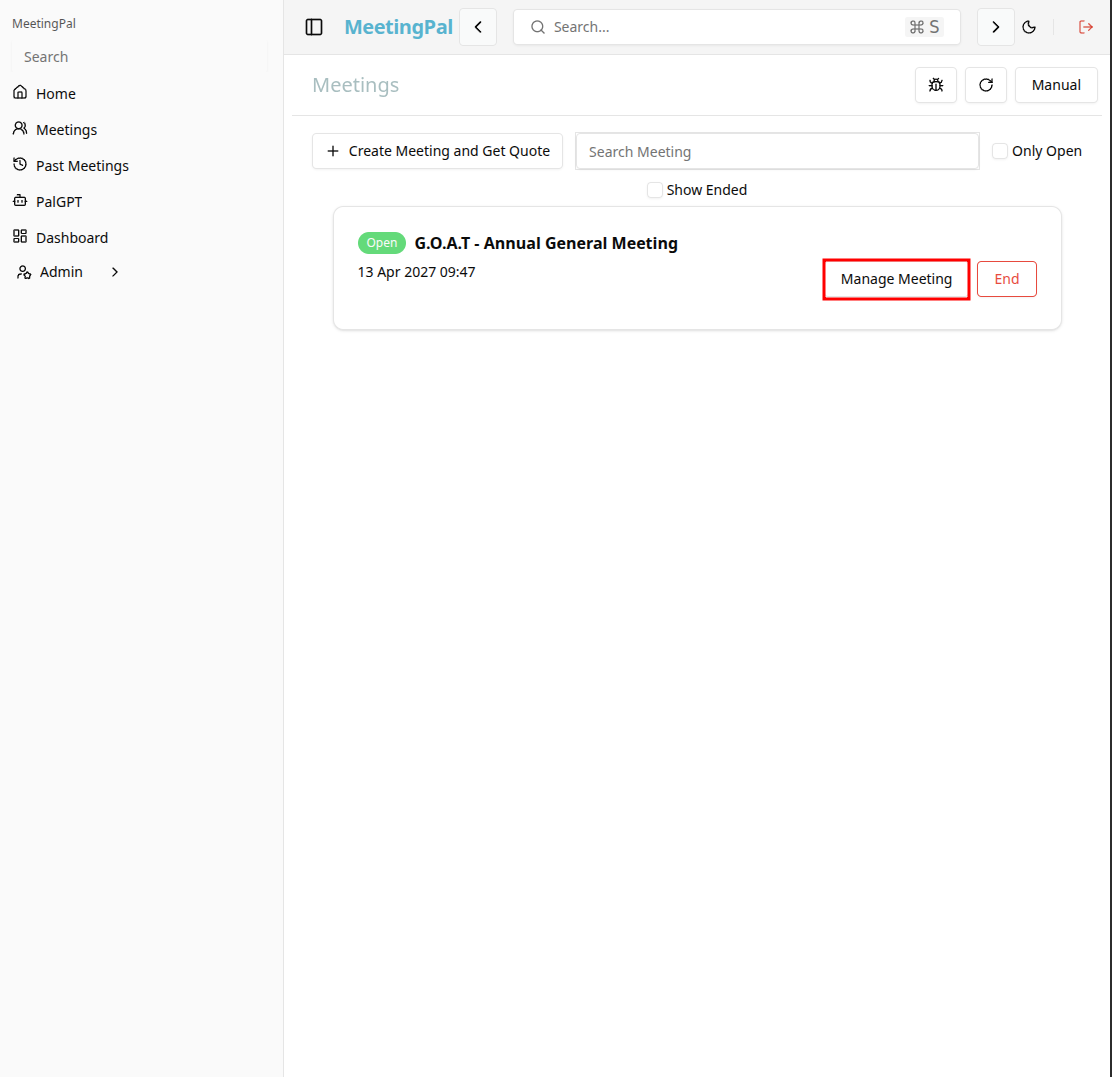
In the meetings page ,you will see all your meetings and the meetings that you are scheduled to attend.
Click on the 'Manage Meeting' button to begin editing the selected meeting.
Open the RSVP Tab
In the selected meeting’s dropdown menu, click RSVP.
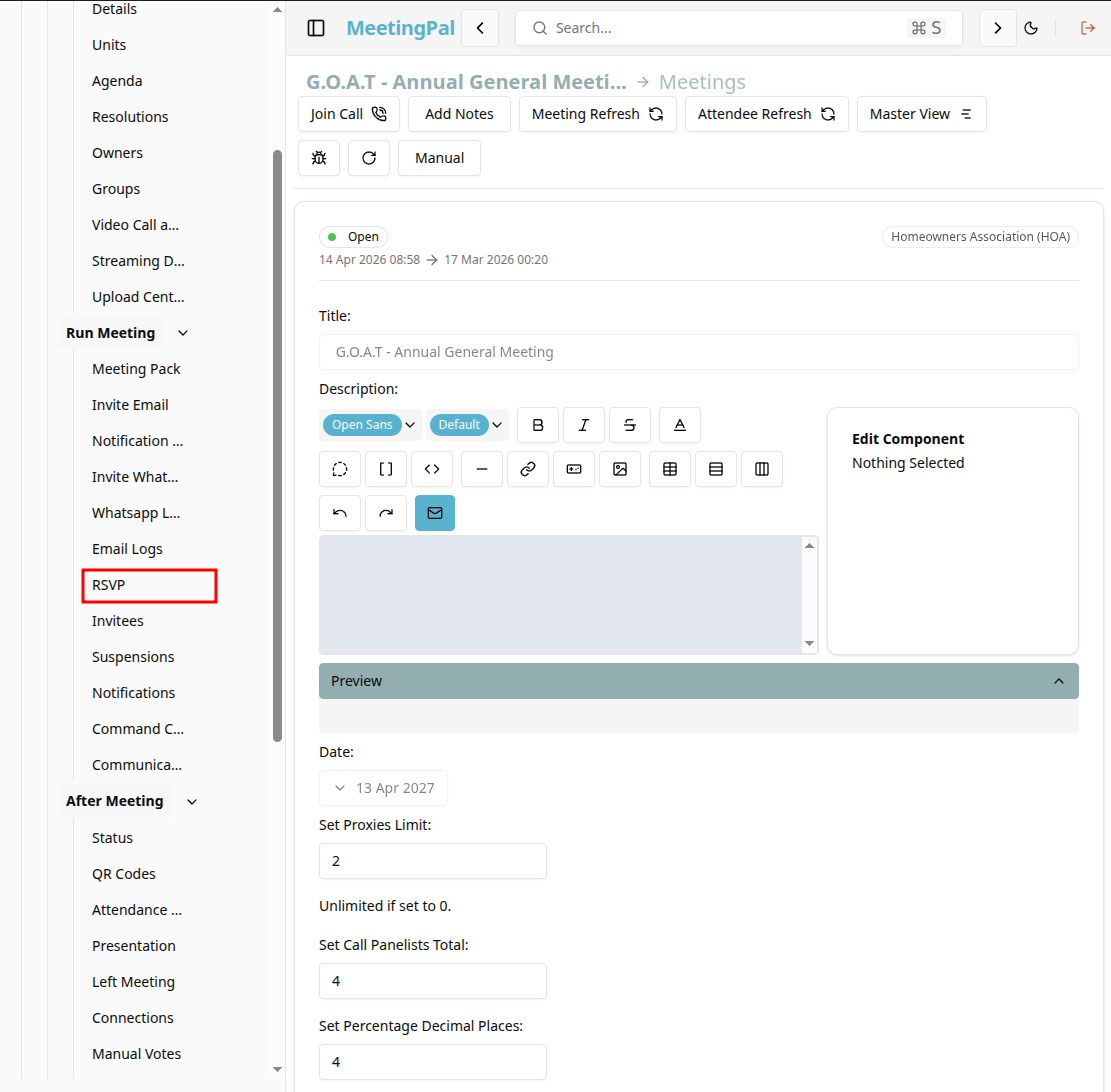
The RSVP page will open.
Understanding the RSVP Page
The RSVP page provides an overview of all attendee responses to the meeting invitation.
You can use this page to:
- View who has accepted, declined, or not yet responded.
- Monitor attendance totals.
- Identify attendees who may require follow-up.
- Review response dates and times.
- Export RSVP information for reporting.
Review RSVP Statuses
Each attendee will typically display one of the following statuses:
- Accepted – The attendee has confirmed they will attend.
- Declined – The attendee has indicated they will not attend.
- Tentative – The attendee may attend but has not confirmed.
- No Response – The attendee has not yet replied to the invitation.
Use these statuses to understand expected attendance.
Search and Filter Responses
Use the search bar and filters to quickly locate attendees.
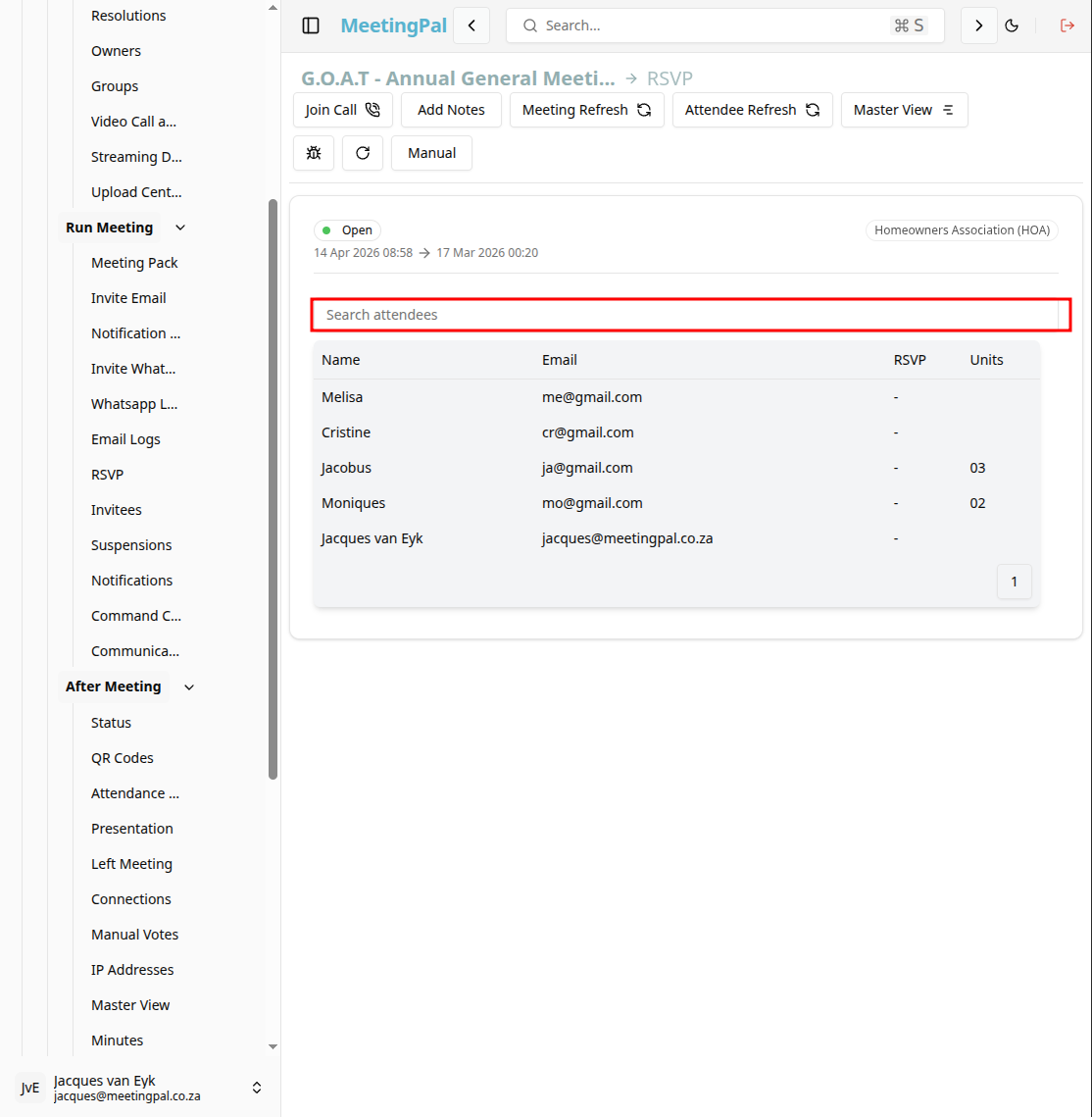
You may be able to filter by:
- RSVP status.
- Owner or unit.
- Group.
- Attendance type.
This is useful when identifying invitees who still need to respond.
Follow Up with Non-Respondents
To remind attendees who have not replied:
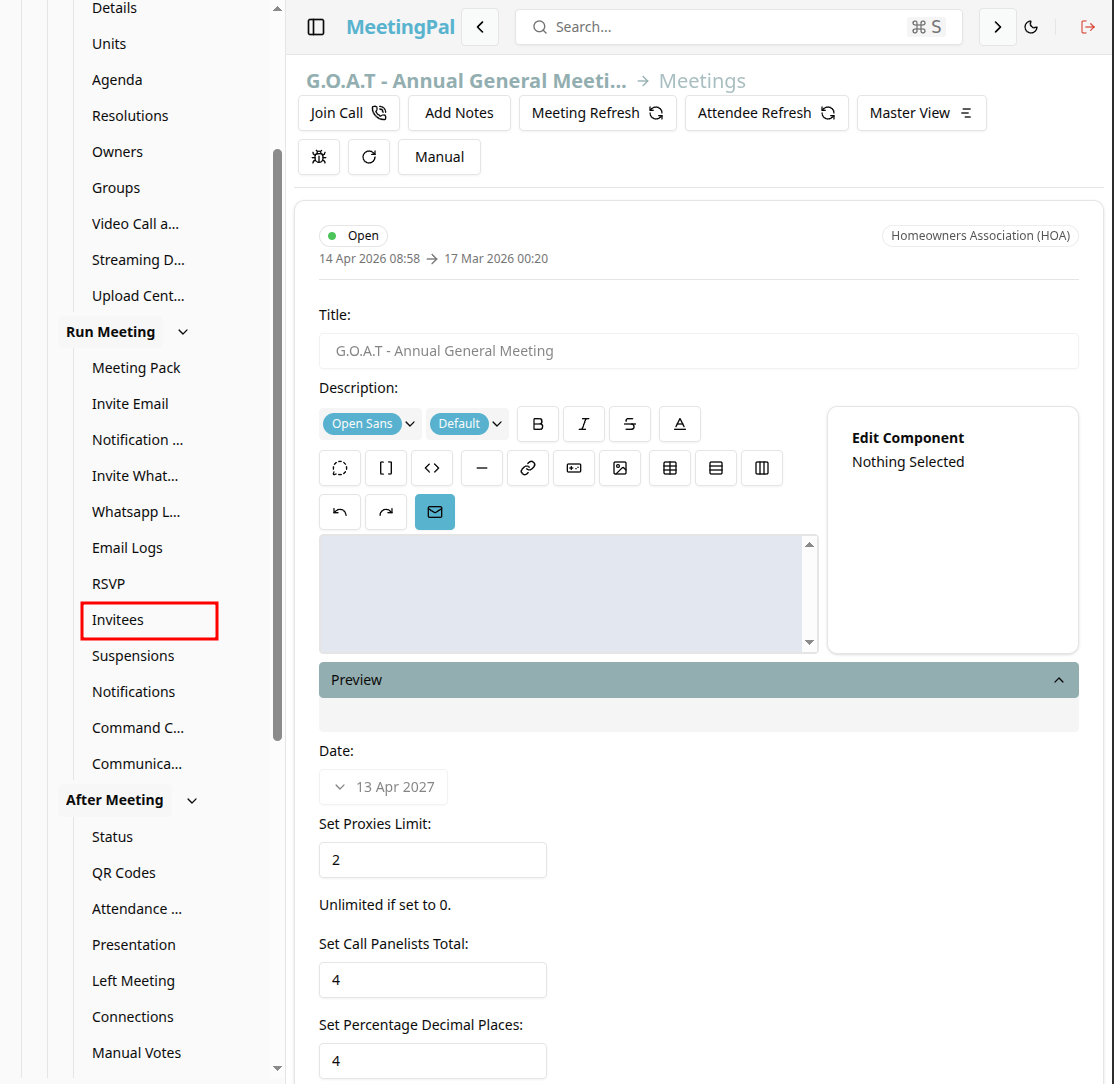
Navigate to the Invitees page.
Click Notify Users.
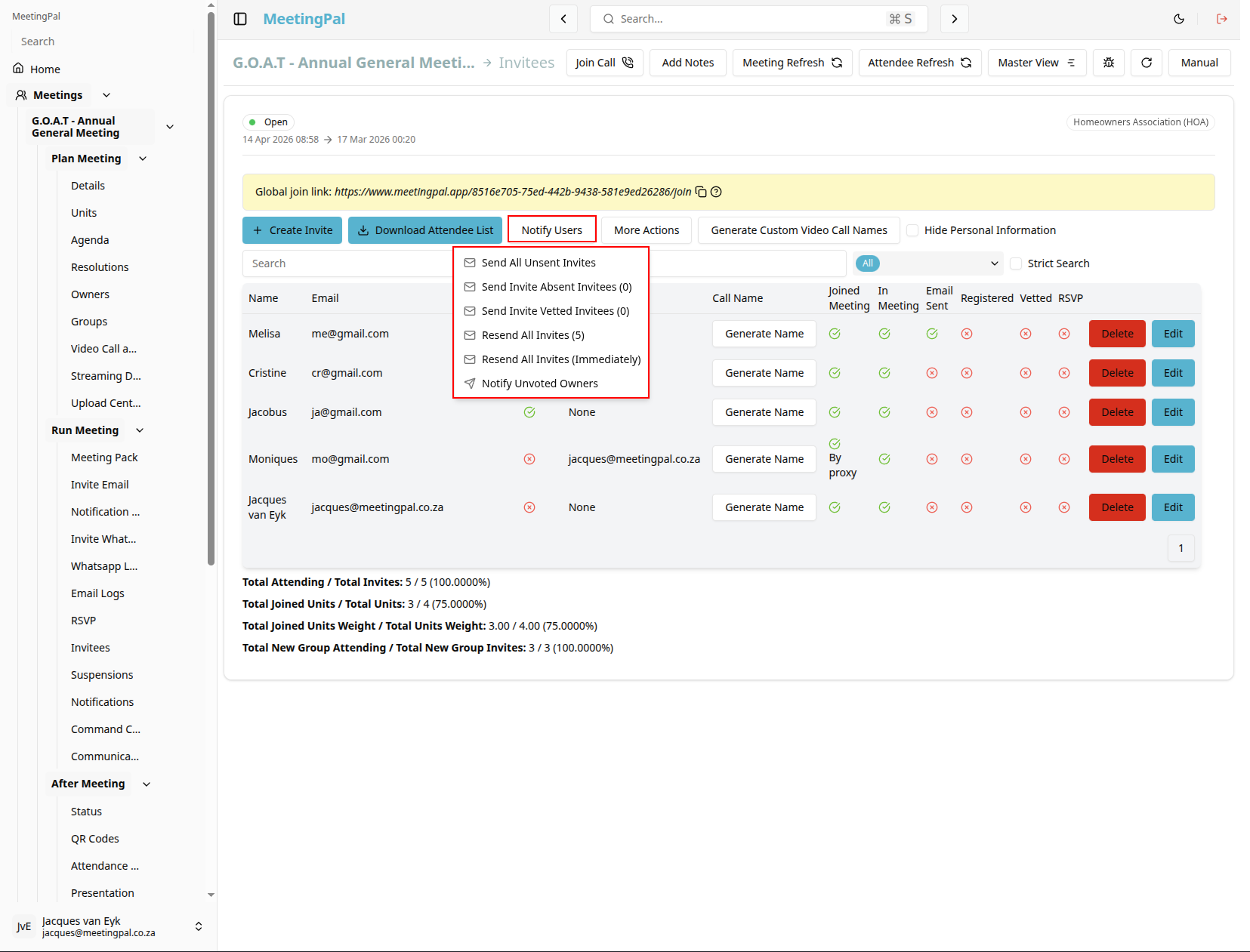
Select an appropriate reminder option.
Send the reminder email or WhatsApp message.
This can help improve attendance confirmation rates before the meeting.
Use RSVP Information for Meeting Planning
The RSVP tab is useful for:
- Confirming whether quorum is likely to be met.
- Estimating the number of attendees.
- Preparing seating or catering arrangements.
- Identifying members who may need proxy assignments.
- Monitoring participation before the meeting starts.
Best Practices
Send invitations well in advance of the meeting.
Monitor RSVP responses regularly.
Follow up with non-respondents.
Review quorum requirements before the meeting date.
Important Notes
RSVP responses are updated automatically when attendees respond using their invitation links.
Some response options may vary depending on your organization’s MeetingPal configuration.
RSVP data may affect attendance planning and quorum forecasting.