Download Tab
Access the Scheduled Meeting
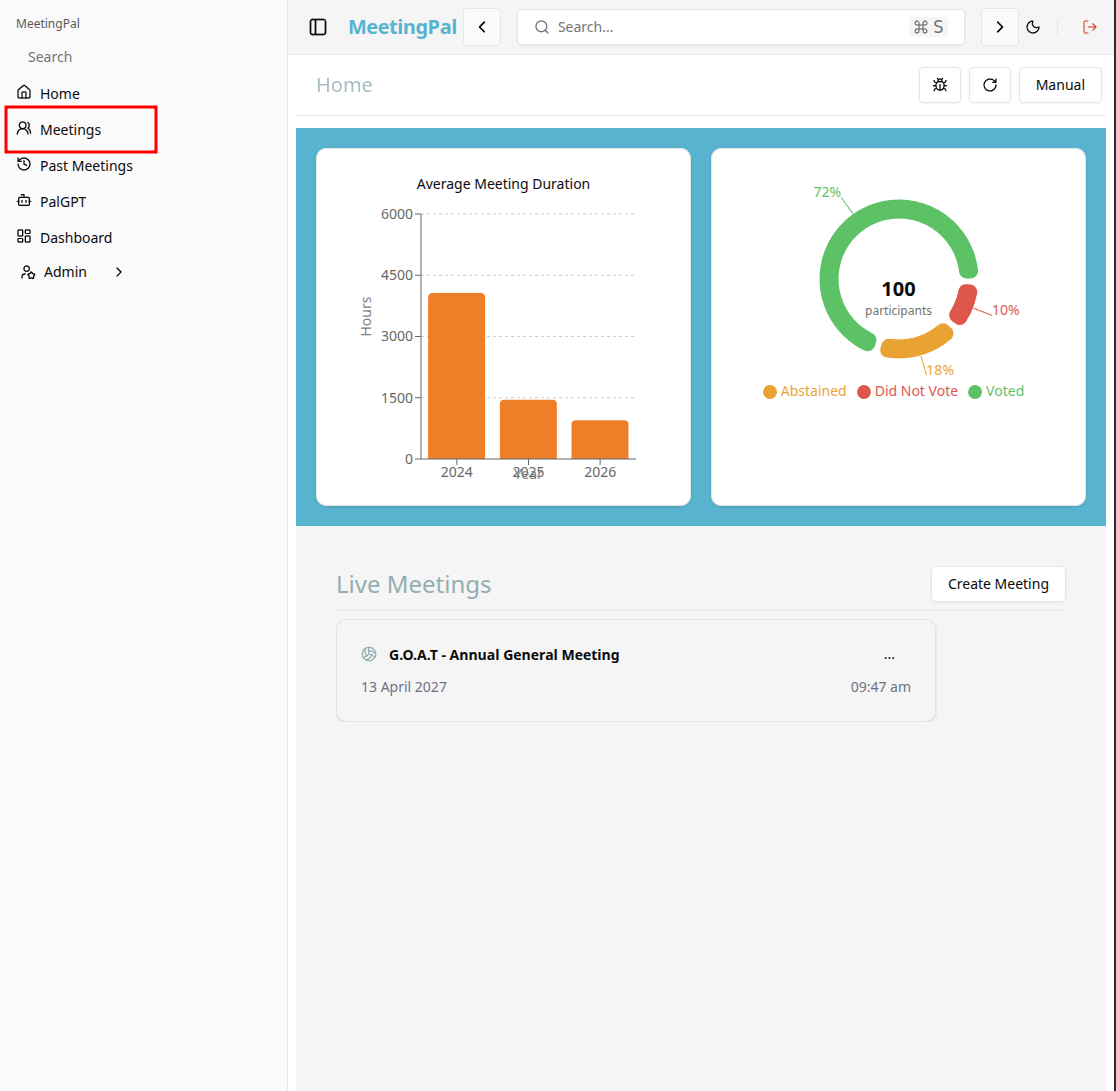
On the MeetingPal Home Page, locate the left-hand menu. Select Meetings.
Start editing the meeting
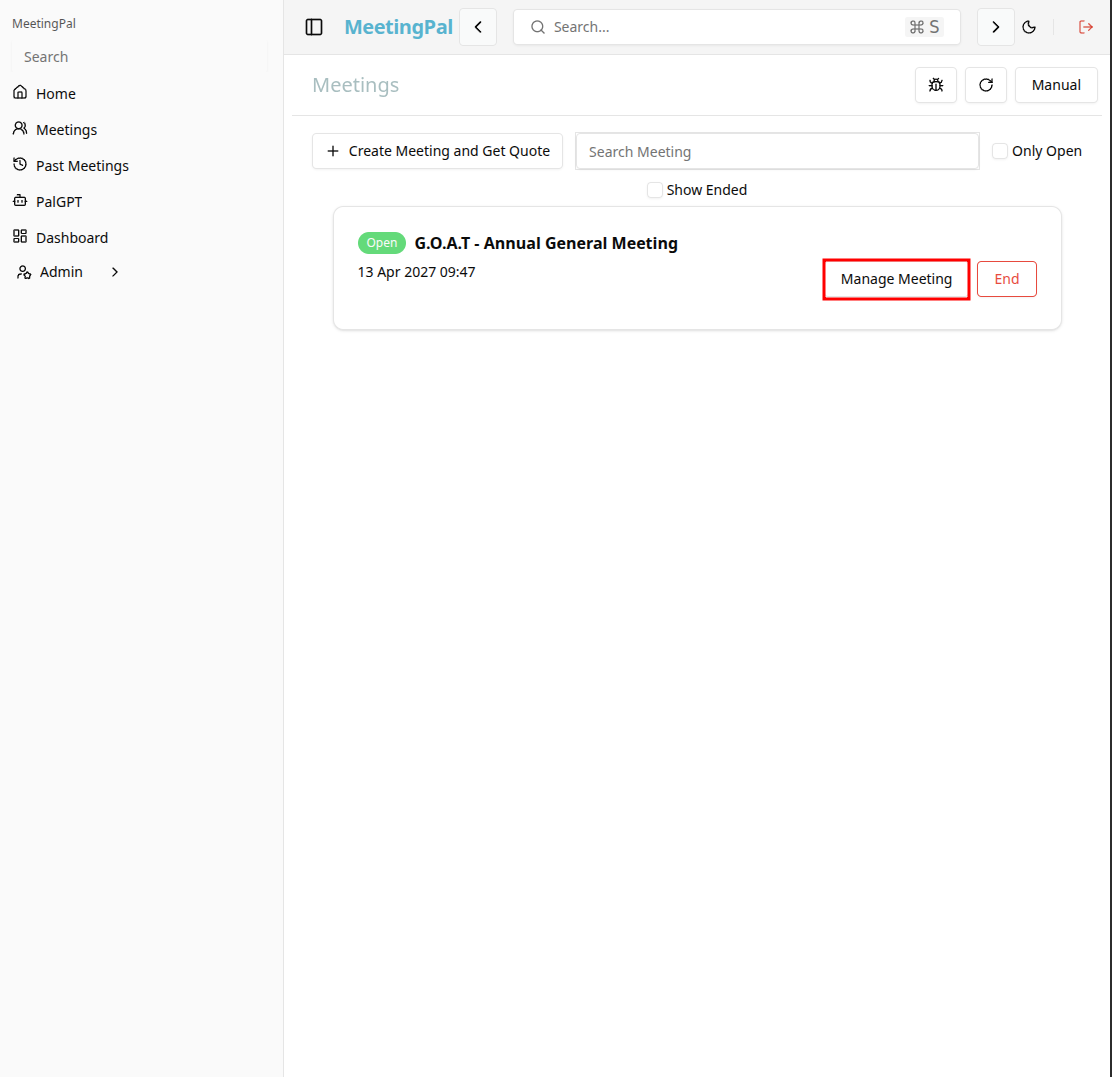
In the meetings page ,you will see all your meetings and the meetings that you are scheduled to attend.
Click on the 'Manage Meeting' button to begin editing the selected meeting.
Open the Download Tab
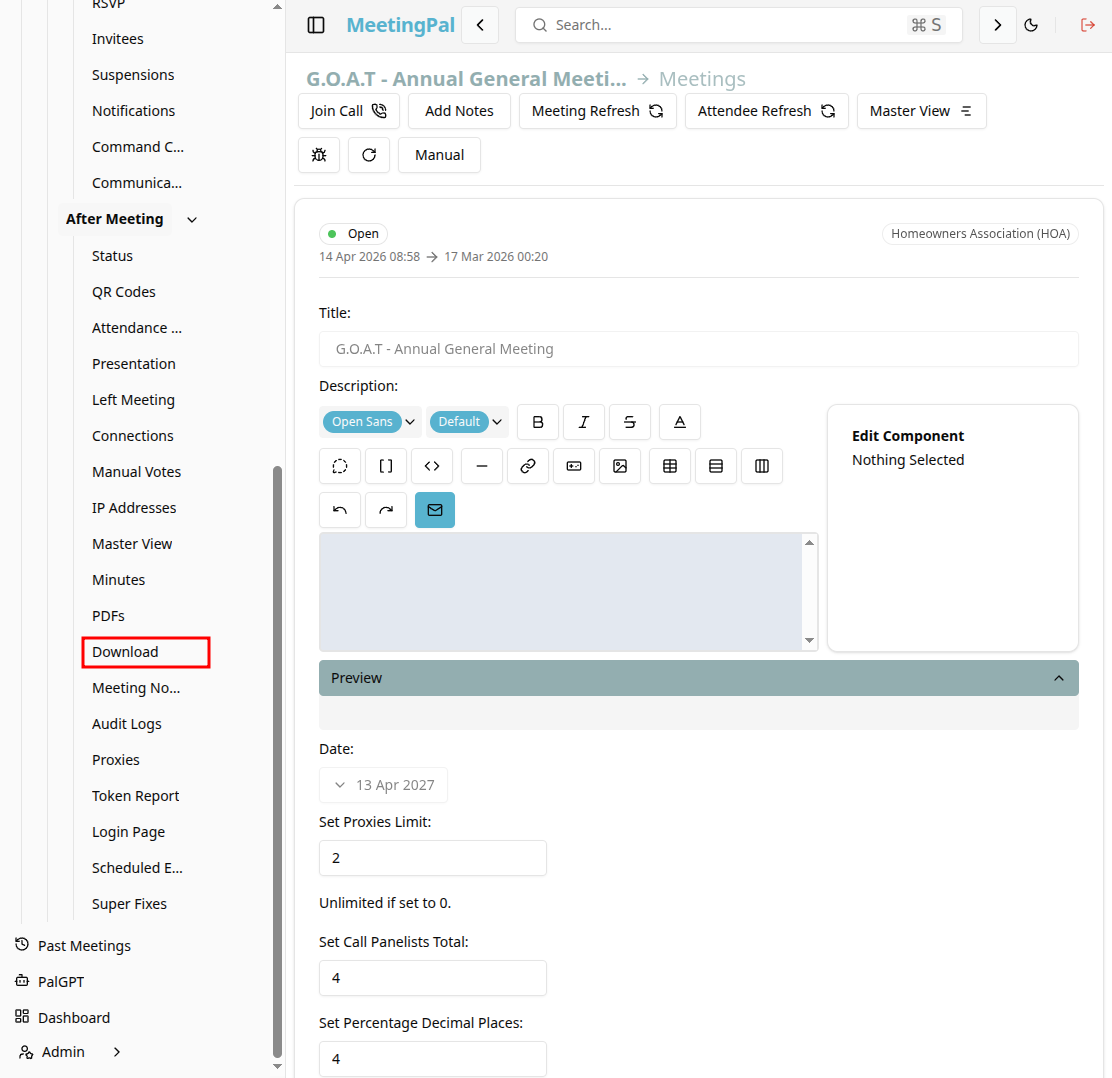
In the selected meeting’s dropdown menu, click Download.
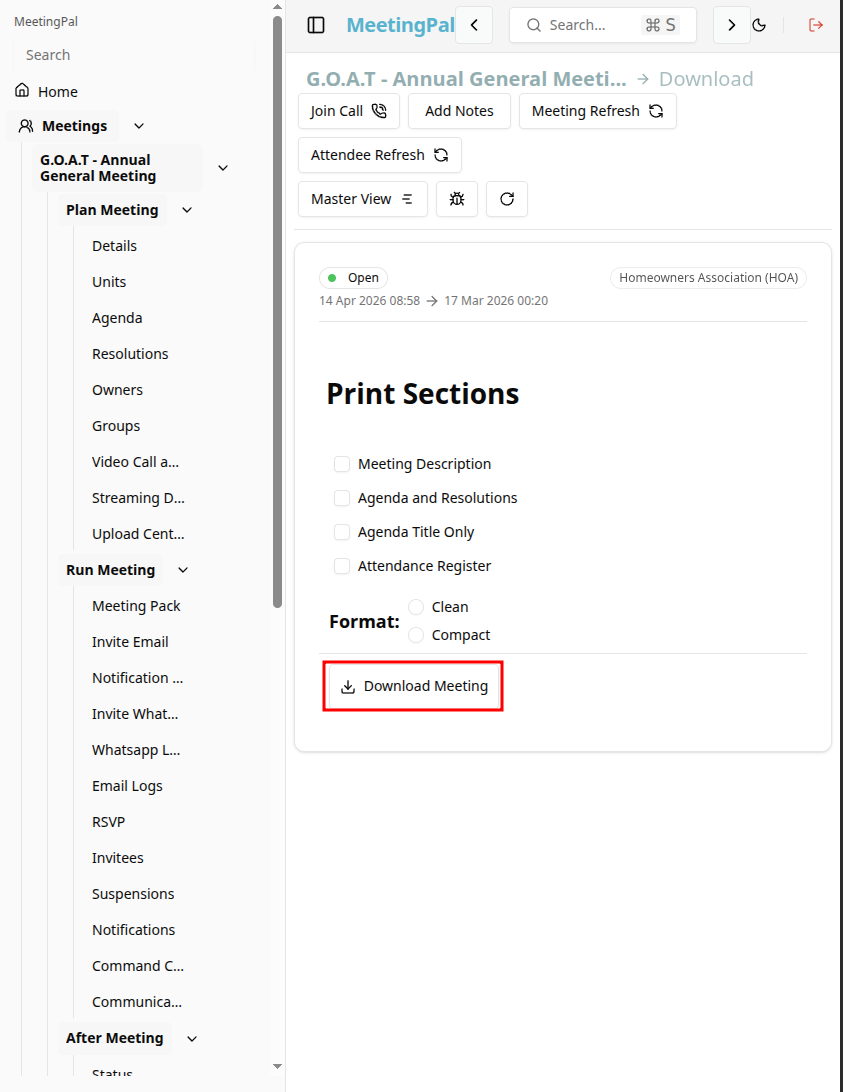
The Download page will open.
Understanding the Download Page
The Download page provides a central location where you can export and download meeting-related files and reports.
From this page, you can download the meeting, containing items such as:
- Agenda
- Resolution Register
- Attendance Register
- Voting Results
Regenerate the downloadable Meeting file after changes
If you update meeting information such as agenda items, resolutions, attendance, or minutes:
Return to the Download tab.
Click Download Meeting again to create a refreshed version of the document.
This ensures the latest information is included.
Common Uses for the Download Tab
The Download tab is useful for:
- Distributing meeting documents to attendees.
- Creating audit and governance records.
- Sharing attendance and voting reports.
- Archiving final meeting documentation.
Best Practices
Regenerate files after significant updates.
Review downloaded documents before distributing them.
Store final versions securely for future reference.
Use the Download tab as your primary export center for meeting documents.
Important Notes
Available download options depend on your organization’s MeetingPal configuration.
Large files may take time to generate.
Access to certain reports may depend on your user permissions.
Previously generated files may need to be refreshed to include recent changes.