Agenda
Creating a New Agenda Item
Access the Scheduled Meeting
On the MeetingPal Home Page, locate the left-hand menu. Select Meetings.
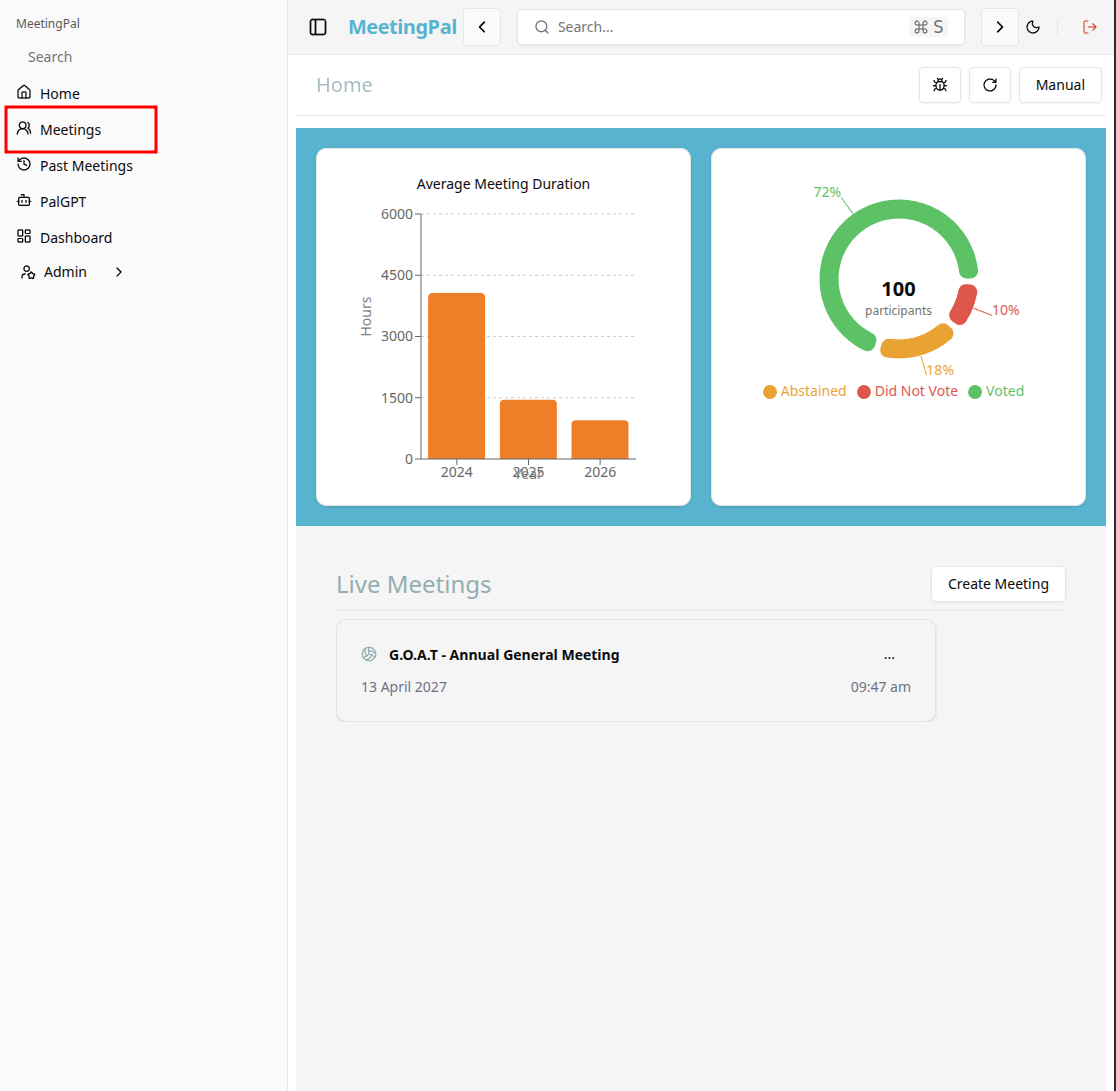
Start editing the meeting
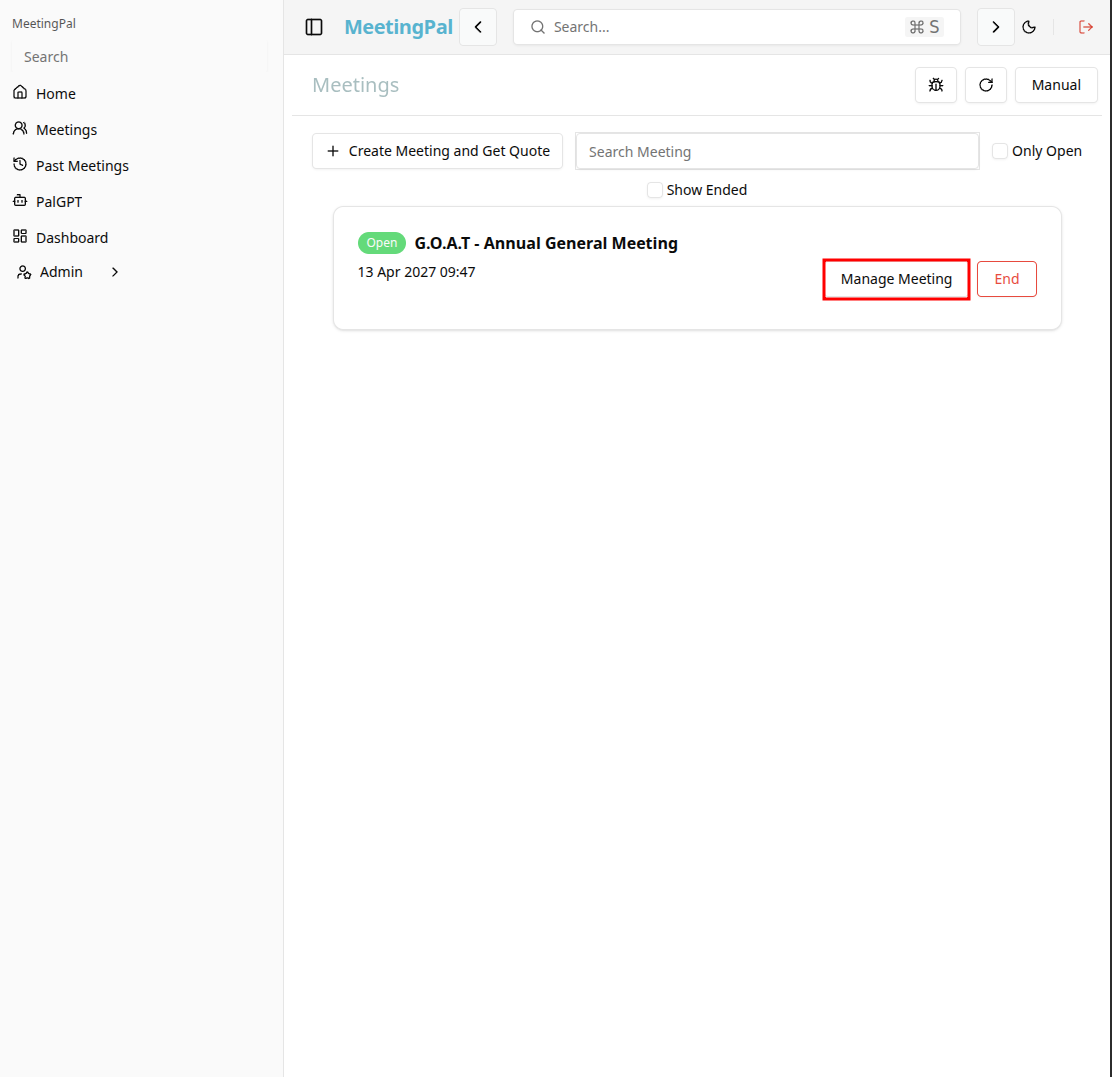
In the meetings page ,you will see all your meetings and the meetings that you are scheduled to attend.
Click on the 'Manage Meeting' button to begin editing the selected meeting.
Open the Agenda Section
In the selected meeting’s dropdown menu, click Agenda.
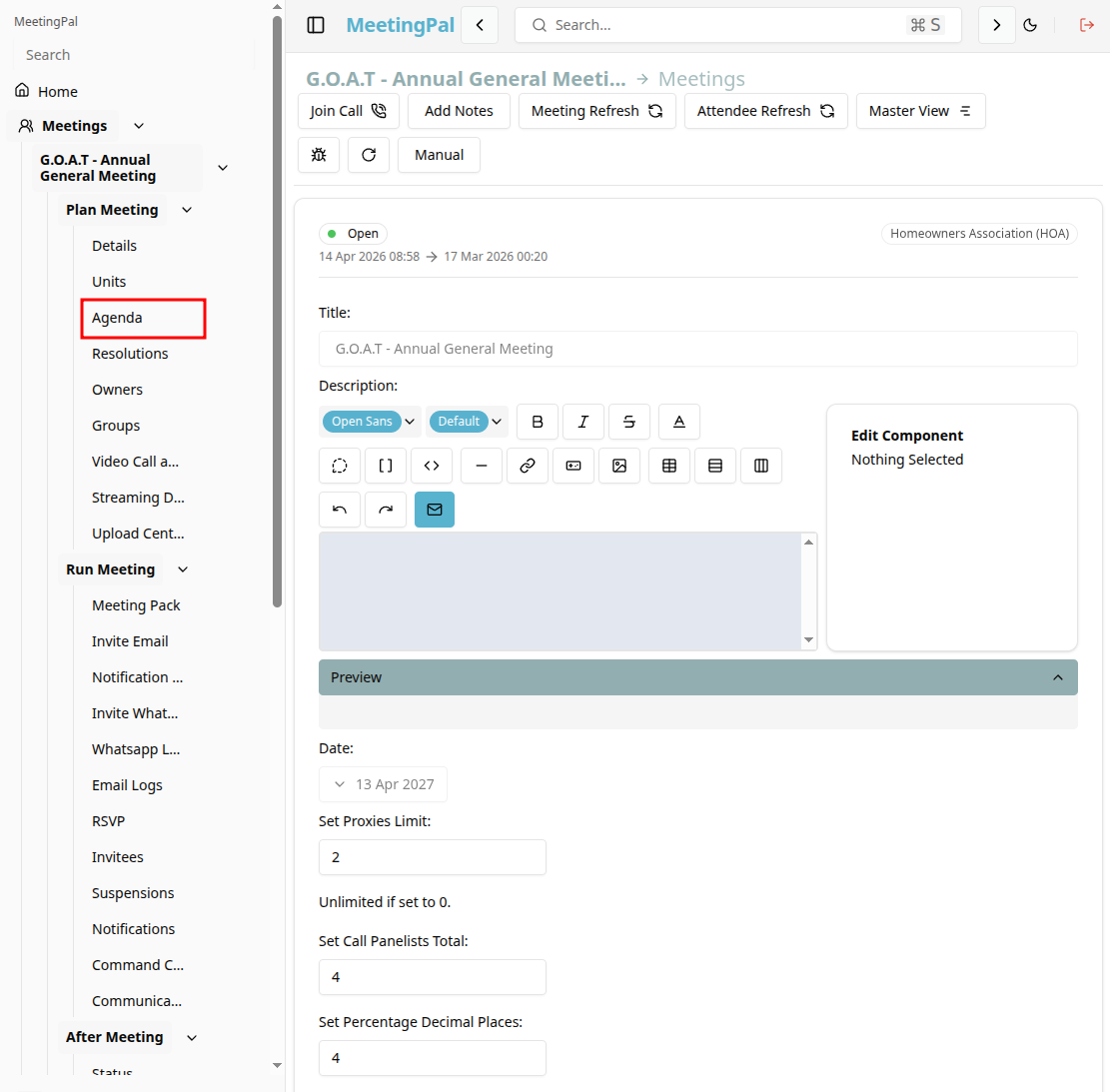
The Agenda Page will open, displaying the current agenda structure for the meeting.
Add a New Agenda Item
On the Agenda Page, click the Add Agenda Item button.
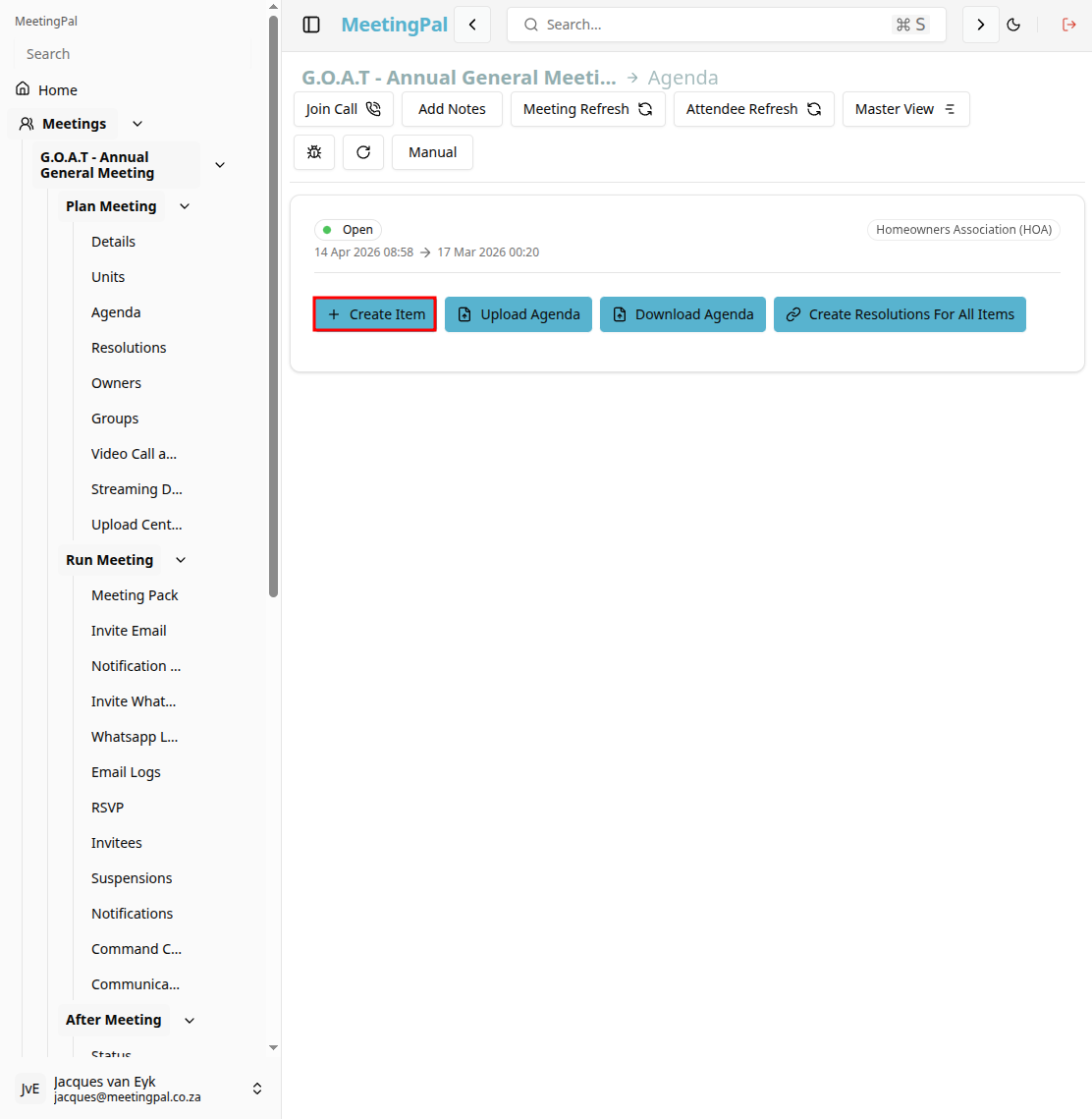
A new agenda item form or pop-up window will appear.
Enter Agenda Item Details
Complete the required fields for the new agenda item.
You may be required to enter:
- Agenda Item Title
- Description or Notes
- Agenda Sequence Number
- Presenter or Responsible Person
- Time Allocation
- Supporting Documents or Attachments
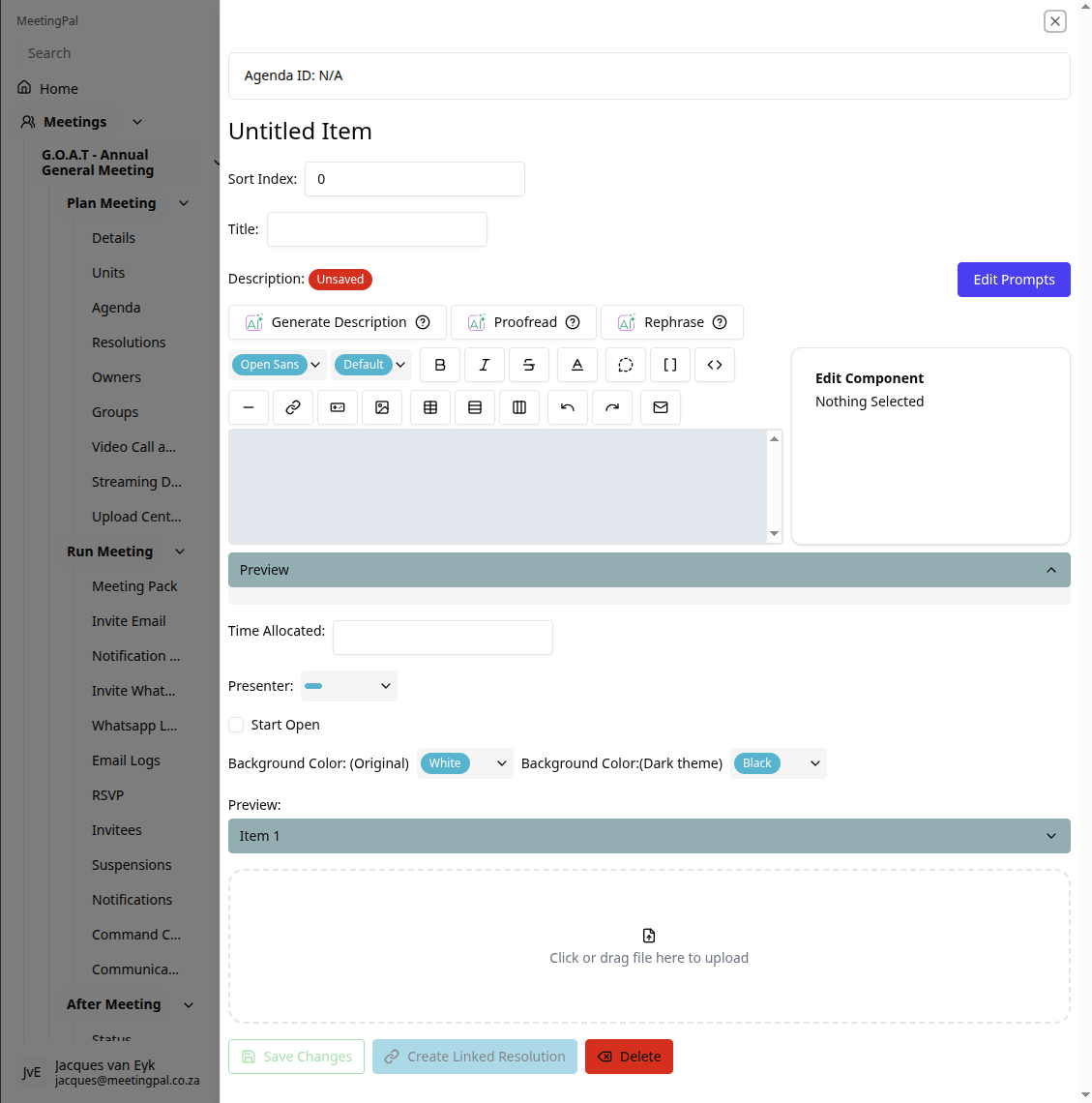
Ensure all information is accurate before saving.
Configure Agenda Item Settings
Depending on your meeting configuration, you may also be able to:
- Mark the item as confidential.
- Enable attendee voting or discussion options.
- Add resolutions linked to the agenda item.
- Restrict visibility to selected attendees.
- Attach reference documents or reports.
Review the Agenda Order
After saving:
- Confirm the new agenda item appears in the correct sequence.
- Verify that all attachments and settings were saved correctly.
- Adjust the agenda order if necessary using drag-and-drop or sequence controls.
Important Notes
Agenda items can usually be edited or removed before the meeting starts.
Some agenda settings may depend on your organization’s MeetingPal permissions and meeting configuration.
Ensure supporting documents are uploaded before distributing meeting packs or attendee invites.