Meeting Pack Tab
Access the Scheduled Meeting
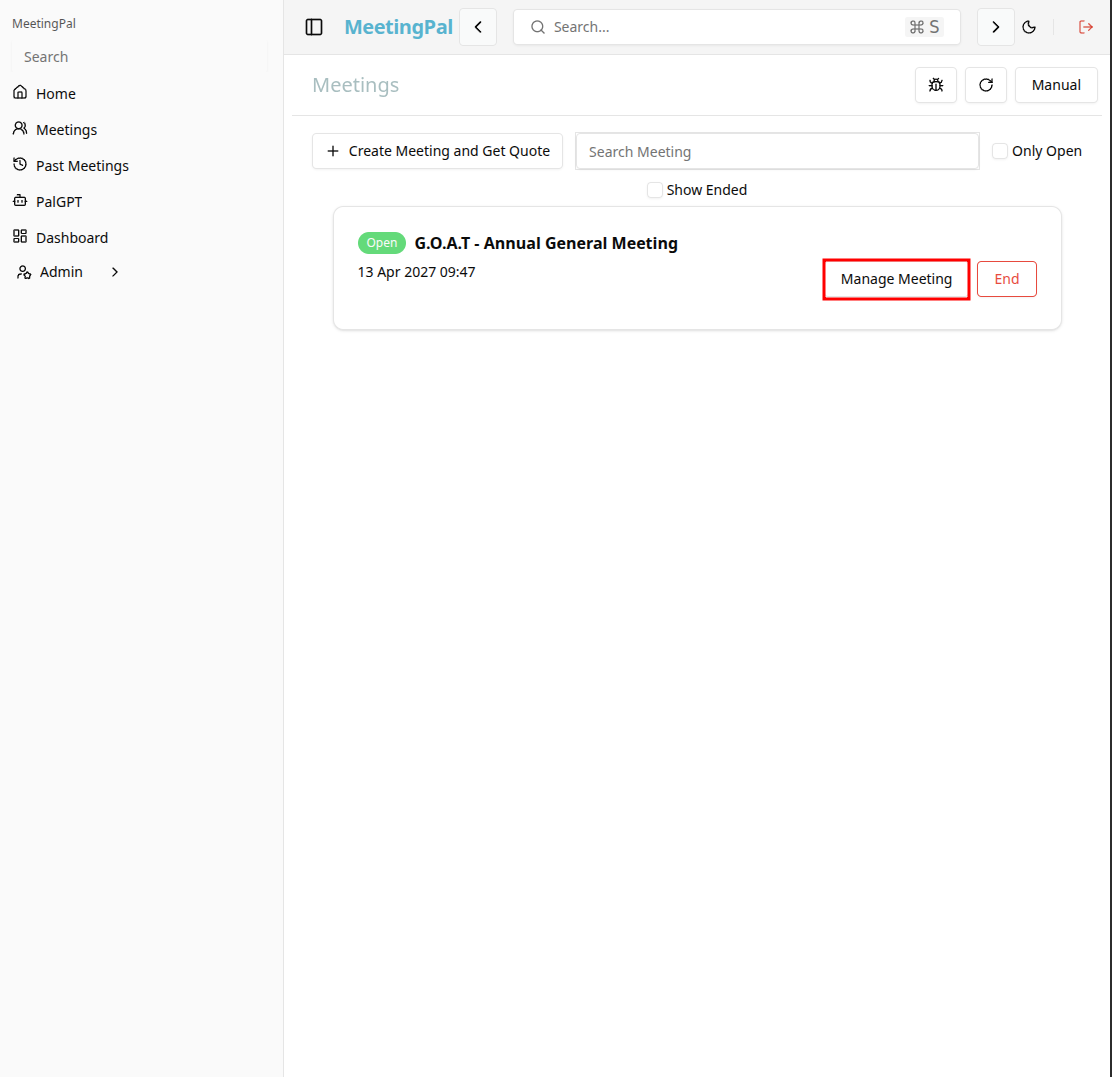
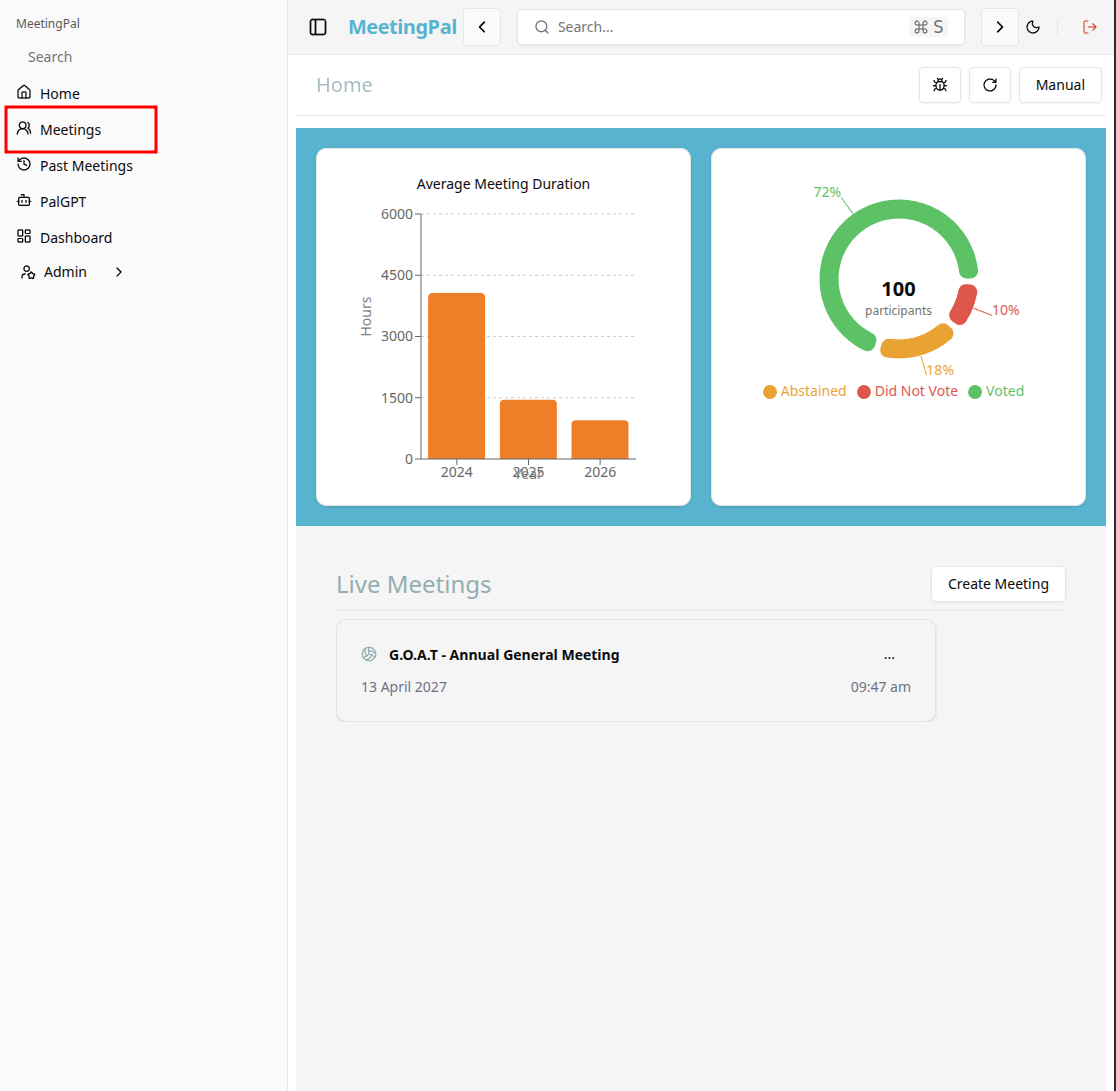
On the MeetingPal Home Page, locate the left-hand menu. Select Meetings.
From the dropdown list, locate and select the scheduled meeting for which you want to generate or manage the meeting pack.
Open the Meeting Pack Tab
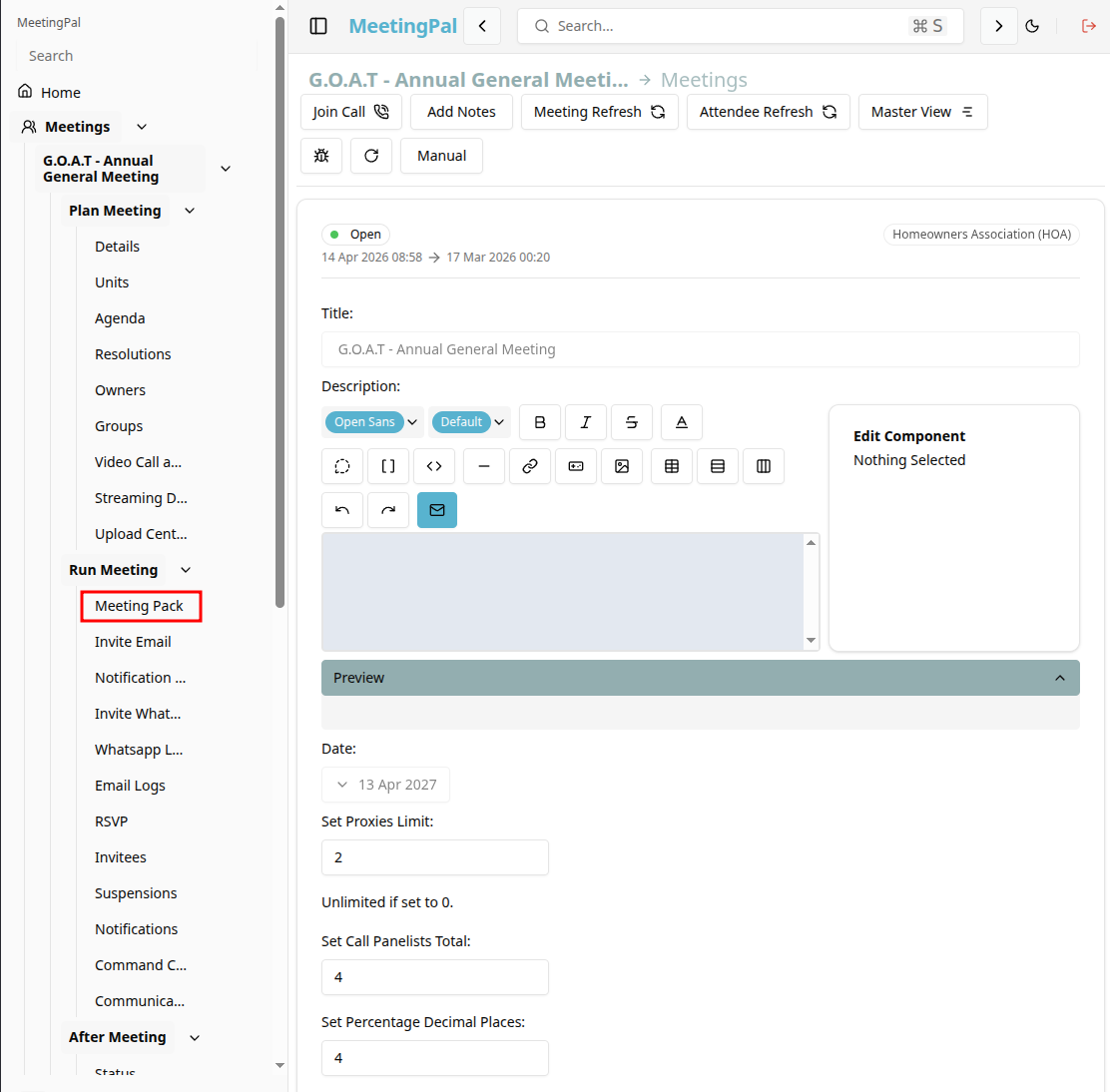
In the selected meeting’s dropdown menu, click Meeting Pack.
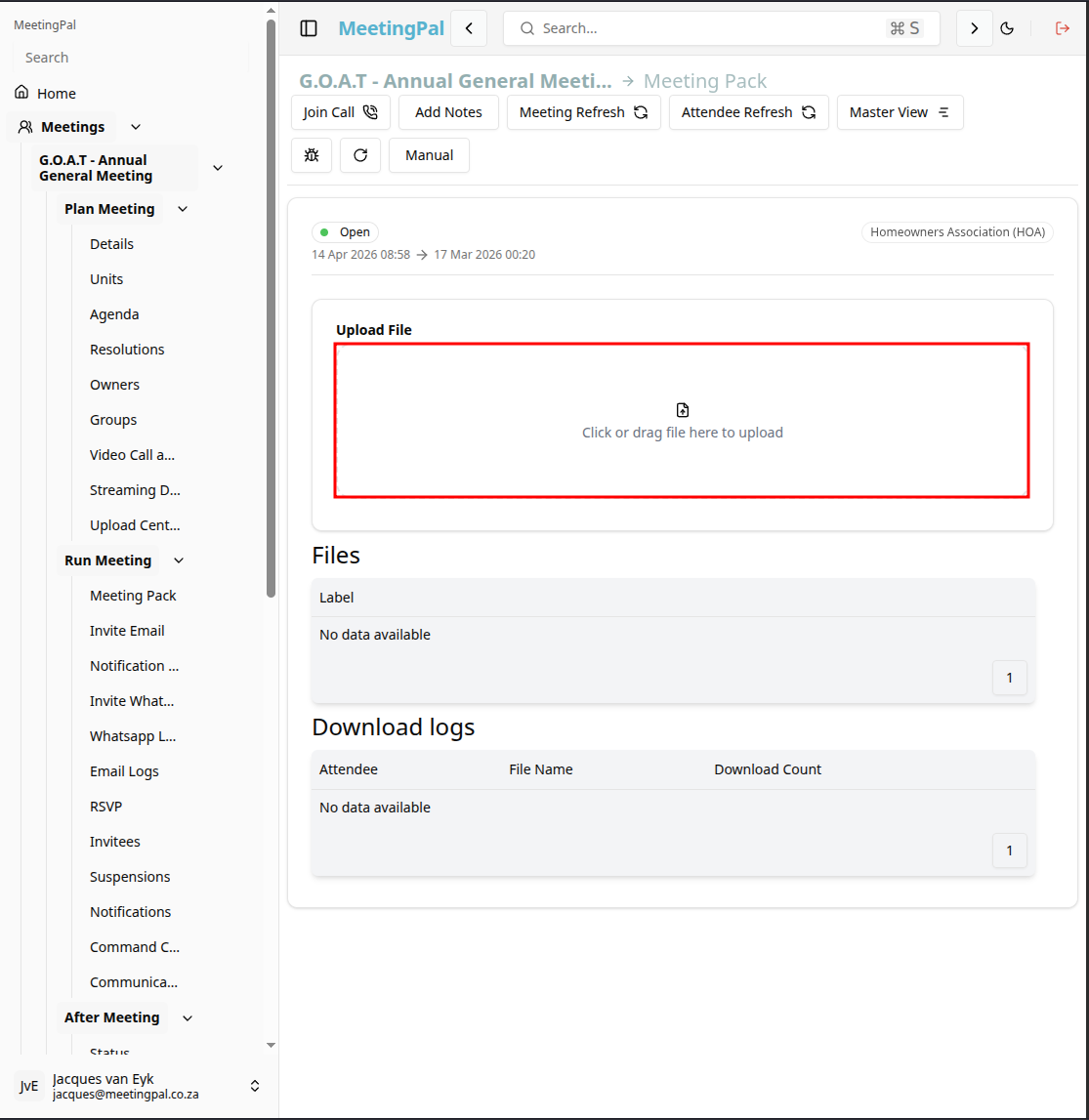
The Meeting Pack page will open.
Understanding the Meeting Pack Page
The Meeting Pack page allows you to:
- Generate a compiled document containing the meeting agenda and attachments.
- Preview the meeting pack before distribution.
- Download the meeting pack as a PDF.
- Regenerate the pack after making changes.
- Share the meeting pack with attendees.
Generate the Meeting Pack
Click the Generate Meeting Pack or Build Pack button.
- MeetingPal will compile:
- The meeting agenda.
- Agenda item attachments.
- Resolution documents.
- Supporting documents from Upload Central.
- Wait for the generation process to complete.
Preview the Meeting Pack
Once generated, click Preview to open the compiled document.
- Review the meeting pack to ensure:
- All agenda items are included.
- Attachments appear in the correct order.
- Page numbering is correct.
- Formatting is consistent.
- No documents are missing.
Download the Meeting Pack
Click Download PDF or Download Meeting Pack.
Save the file to your computer for review or offline distribution.
Regenerate the Meeting Pack After Changes
If you update the agenda or attachments:
- Return to the Meeting Pack tab.
- Click Regenerate Meeting Pack.
- Preview the updated pack to verify the changes.
Always regenerate the meeting pack after making any document or agenda updates.
Share the Meeting Pack
The meeting pack can be distributed by:
- Attaching it to email invites.
- Providing attendees with a download link.
- Making it available through the attendee portal.
Ensure the final version is generated before sending invites.
Best Practices
Upload all supporting documents before generating the meeting pack.
Review the final PDF carefully before distribution.
Regenerate the pack after any updates.
Use clear document titles to improve navigation within the pack.
Important Notes
Meeting Pack generation time may vary depending on the number and size of attachments.
Large documents may increase processing time.
Only documents attached to agenda items and resolutions will typically be included.
Some organizations may have custom templates or branding applied automatically.