Connections Tab
Access the Scheduled Meeting
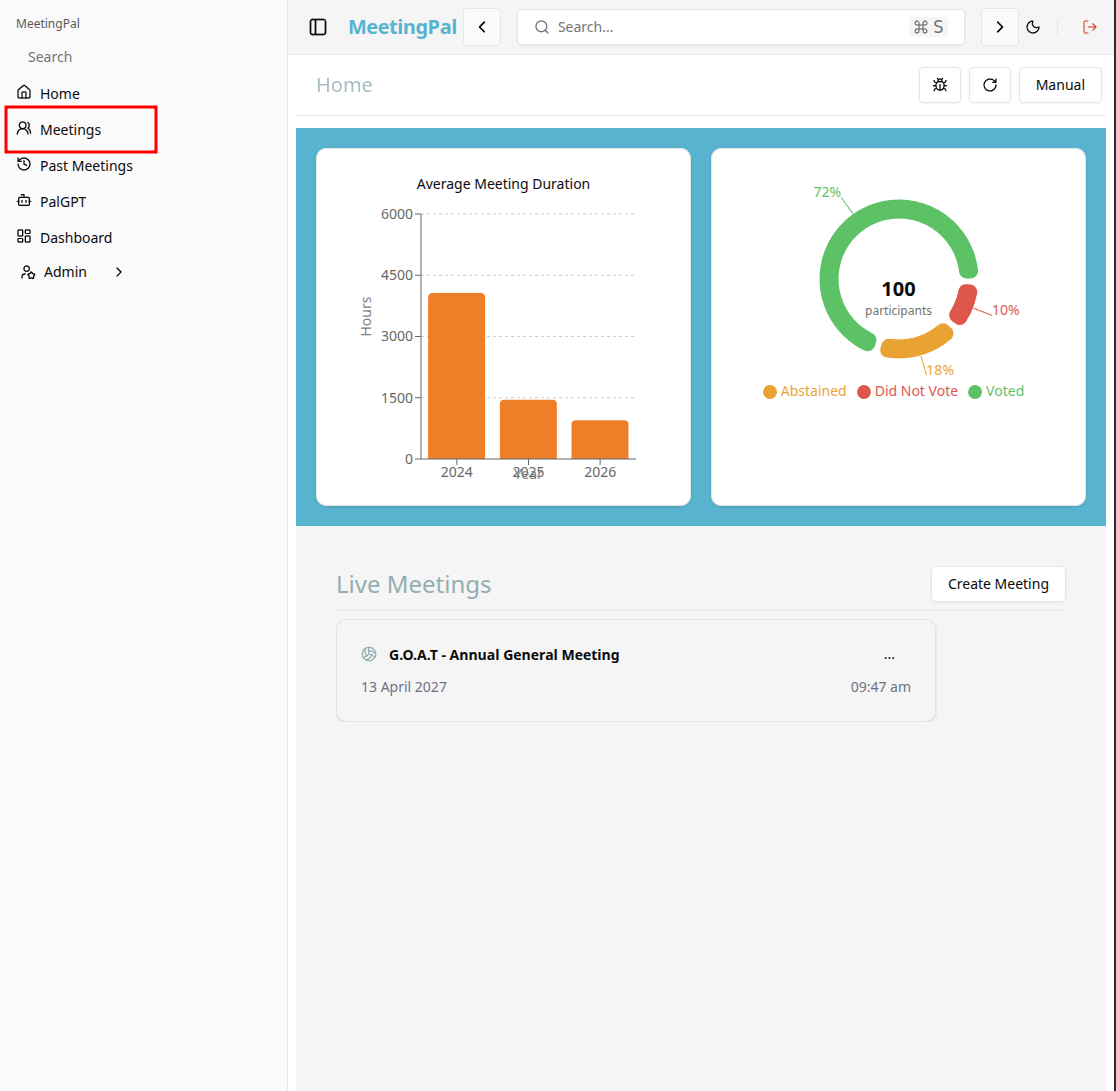
On the MeetingPal Home Page, locate the left-hand menu. Select Meetings.
Start editing the meeting
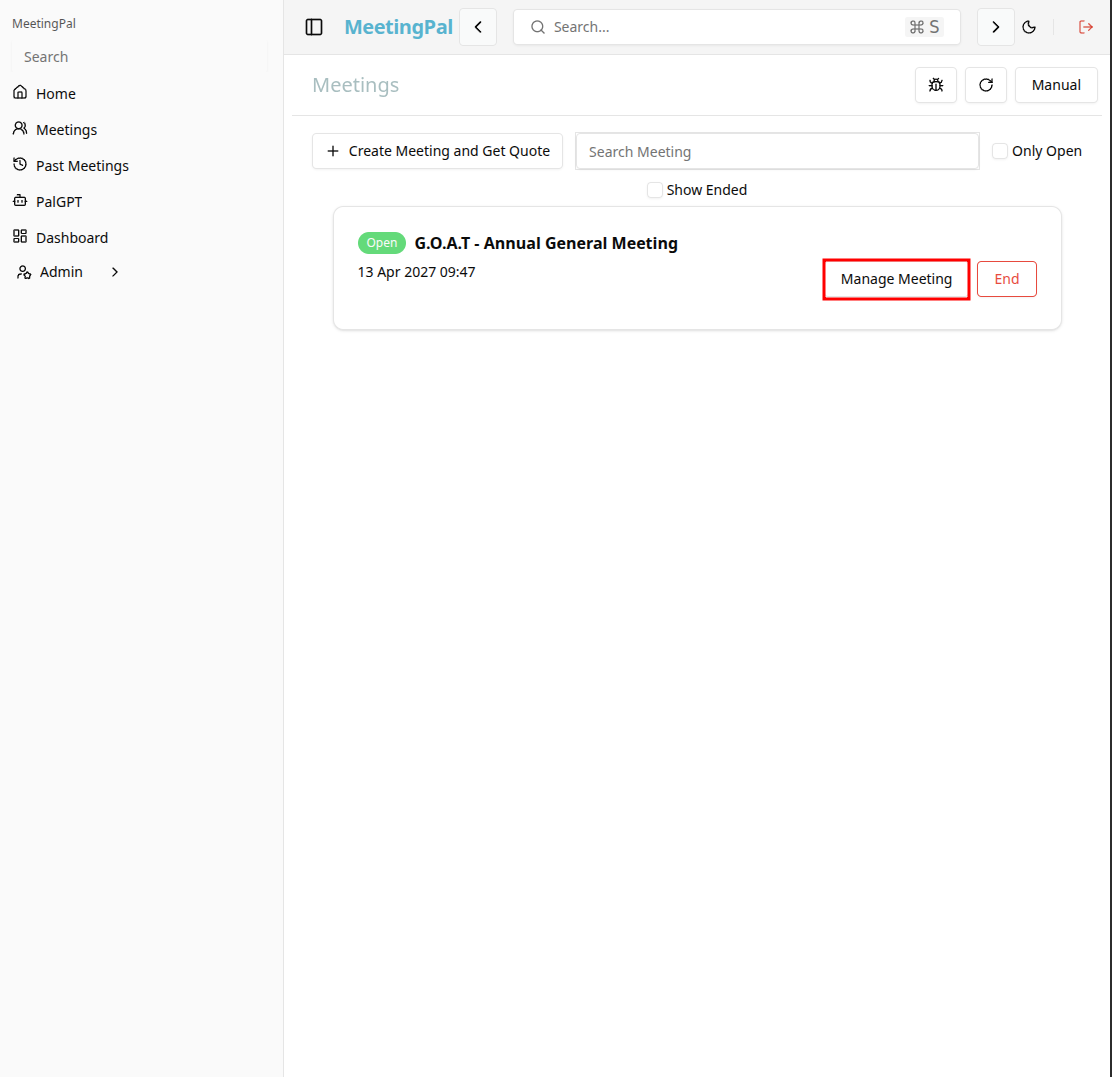
In the meetings page ,you will see all your meetings and the meetings that you are scheduled to attend.
Click on the 'Manage Meeting' button to begin editing the selected meeting.
Open the Connections Tab
In the selected meeting’s dropdown menu, click Connections.
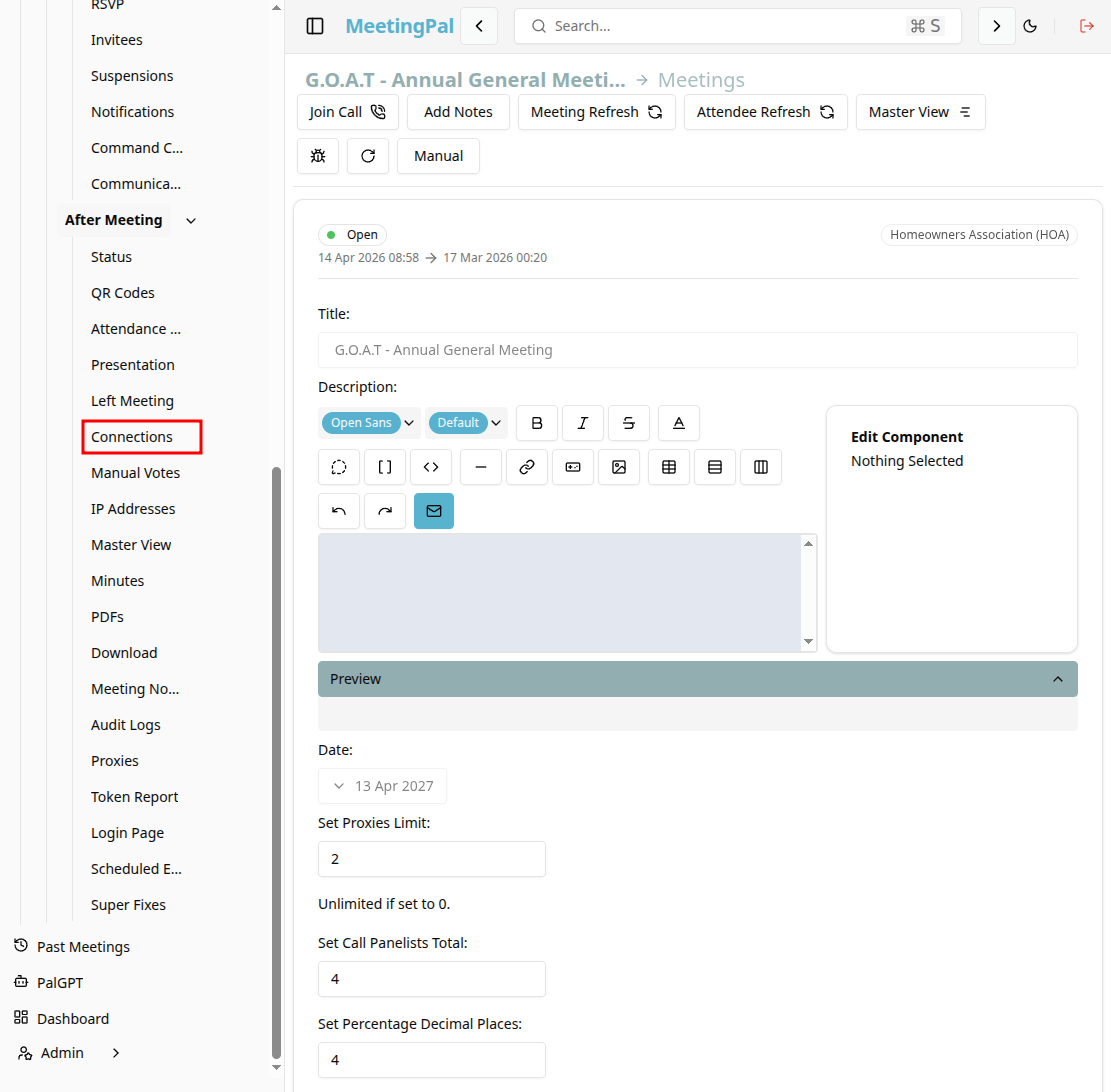
The Connections page will open.
Understanding the Connections Page
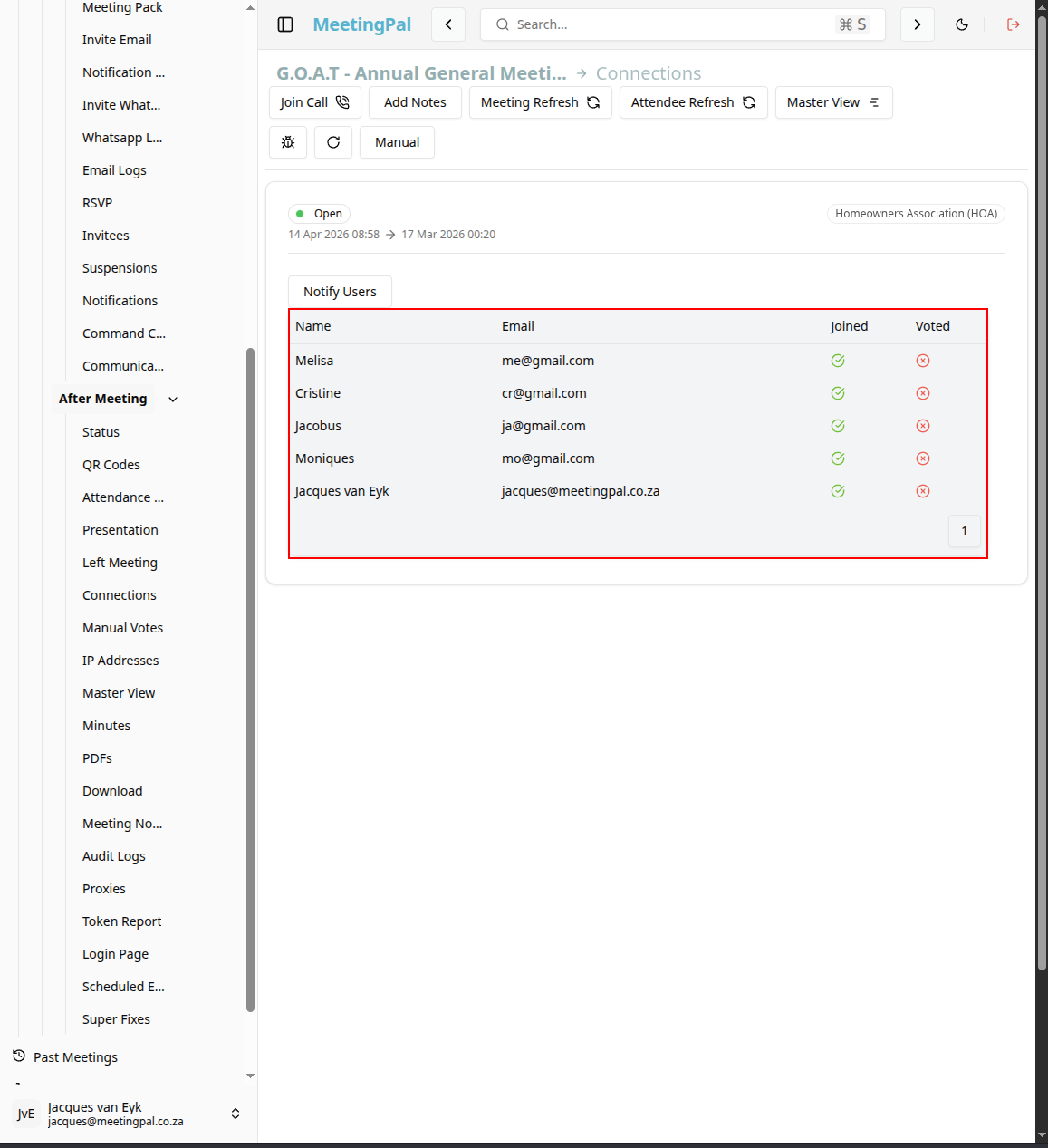
The Connections page provides a real-time view of all attendees who are currently connected to the meeting.
From this page, you can:
- View attendees who are actively connected.
- Confirm who is currently joined.
- Monitor live attendance during the meeting.
- Monitor who has already voted.
Review Connection Details
Each connection record may display:
- Attendee Name
- Attendee Email
- Attendee Join status
- Attendee Vote status
Monitor Live Attendance
The Connections page is particularly useful during the meeting to:
- Confirm which attendees are currently online.
- Verify attendance before opening votes.
- Identify attendees who may have connection problems.
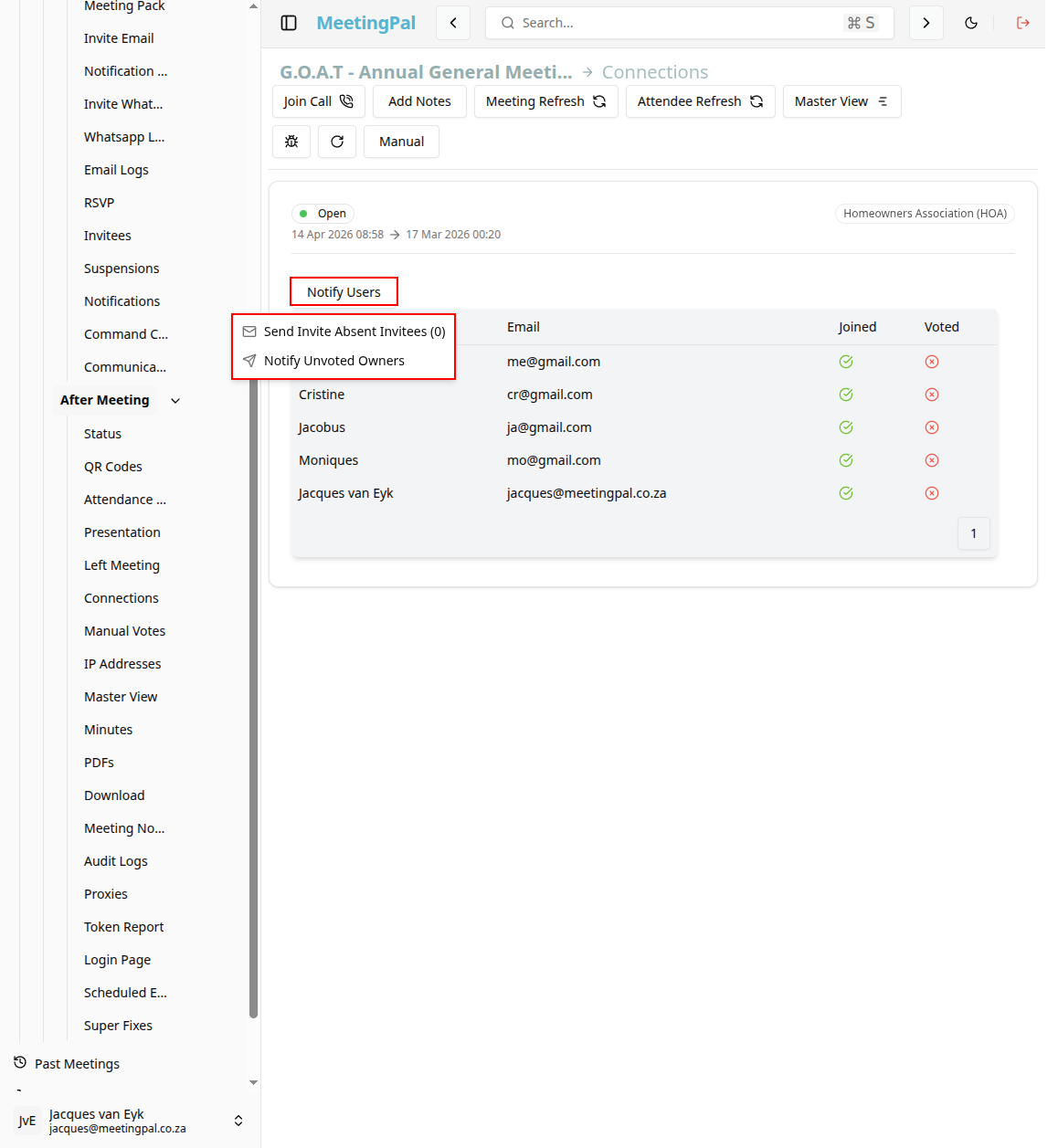
Notify invitees and owners
You can notify absent invitees and owners who has not voted.
Common Uses for the Connections Tab
The Connections tab is useful for:
- Monitoring online attendance in real time.
- Confirming attendee logins.
- Notify invitees and owners
Best Practices
Keep the Connections tab open during virtual or hybrid meetings.
Monitor connectivity before important votes.
Assist attendees who disconnect unexpectedly.