Master View Tab
Access the Scheduled Meeting
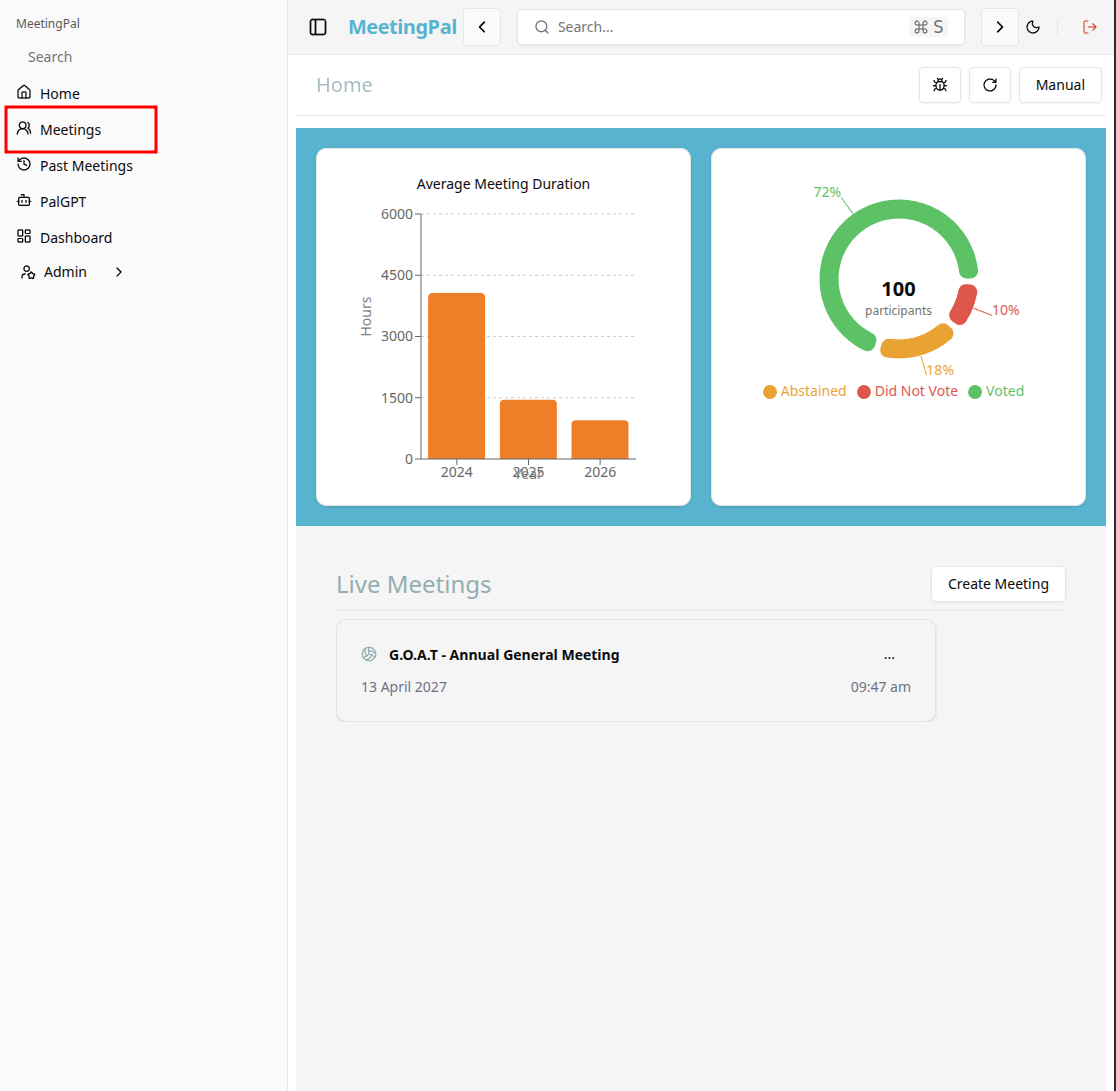
On the MeetingPal Home Page, locate the left-hand menu. Select Meetings.
Start editing the meeting
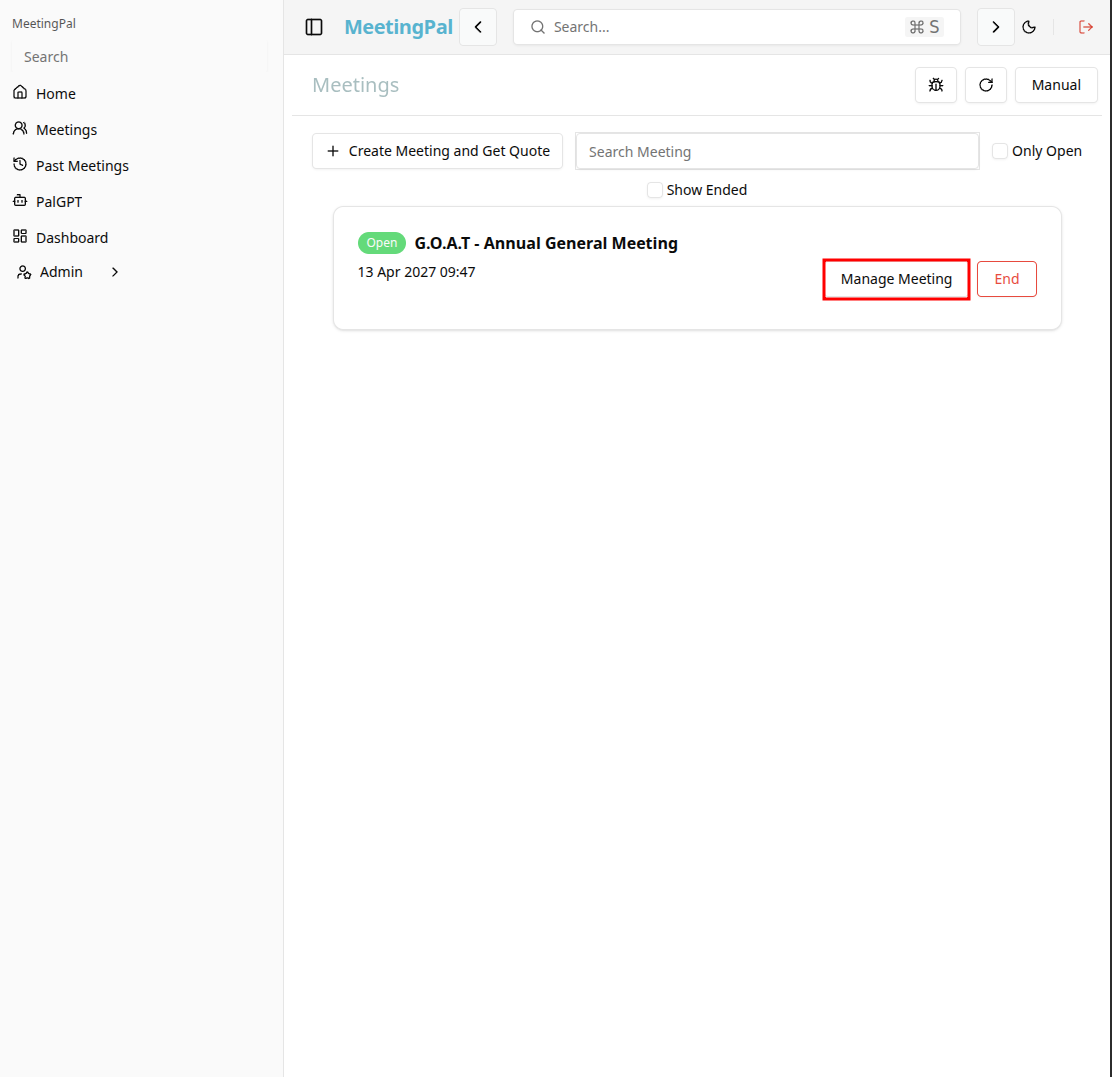
In the meetings page ,you will see all your meetings and the meetings that you are scheduled to attend.
Click on the 'Manage Meeting' button to begin editing the selected meeting.
Open the Master View Tab
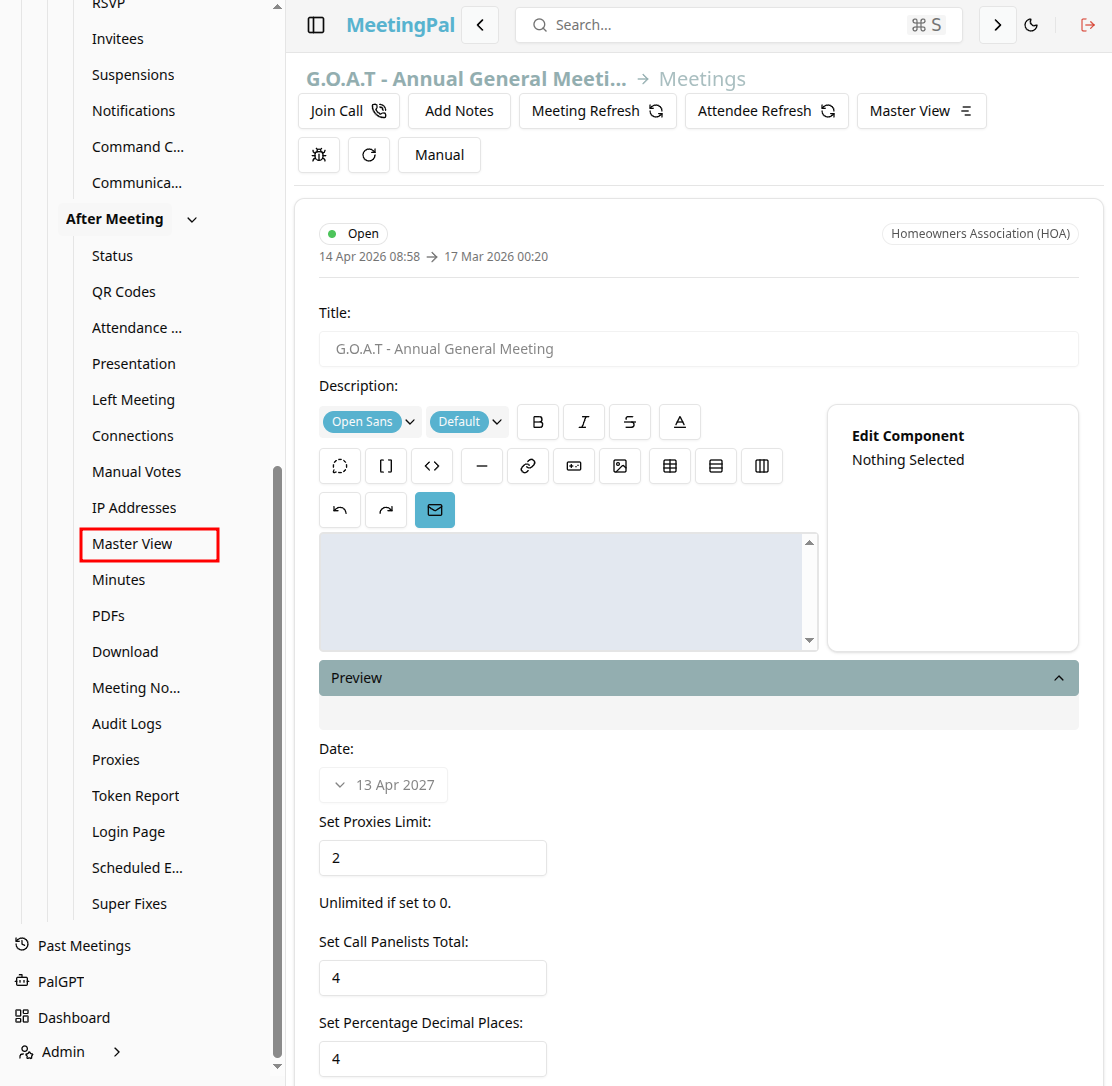
In the selected meeting’s dropdown menu, click Master View.
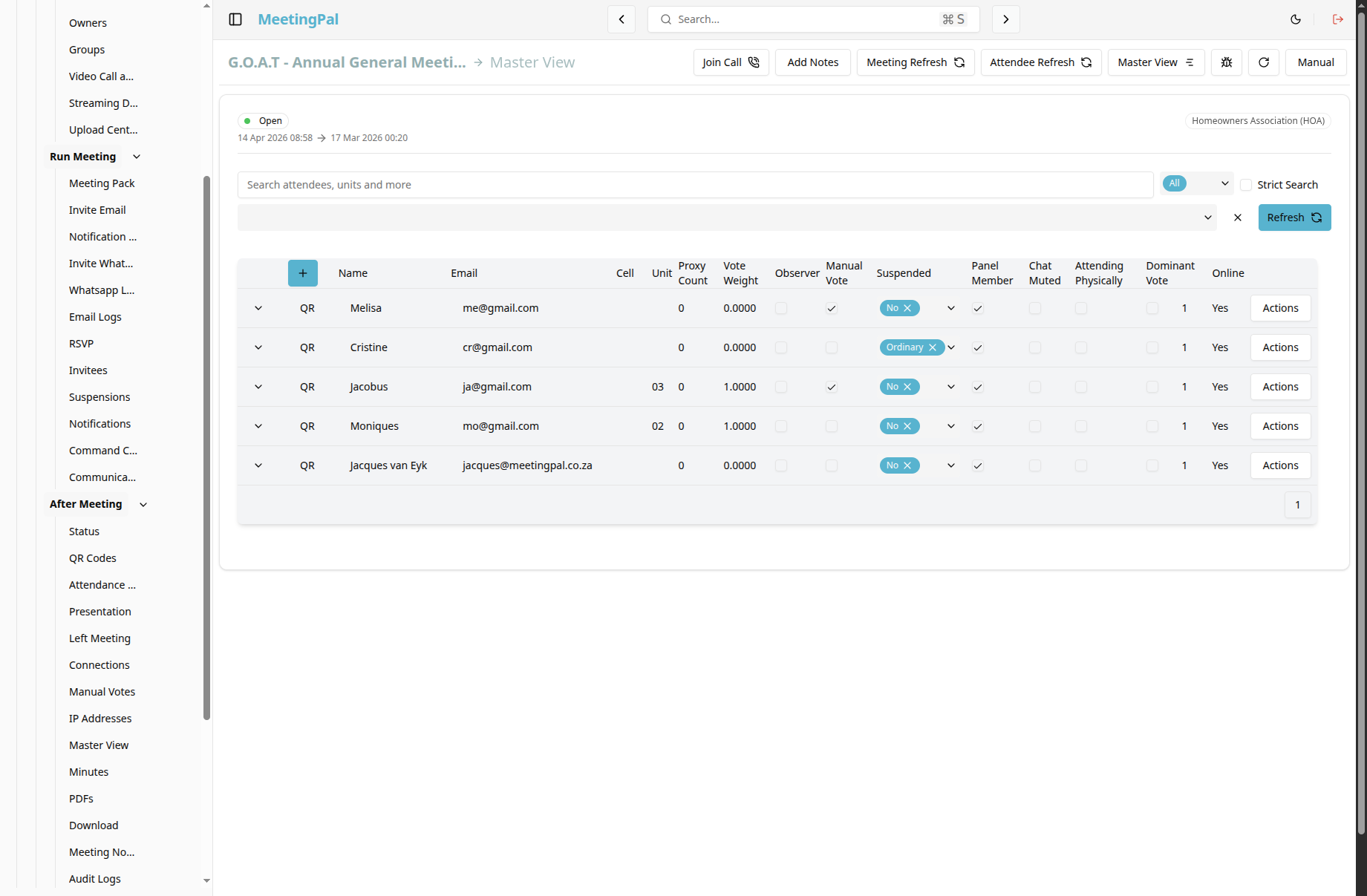
The Master View page will open.
Understanding the Master View Page
The Master View page provides a comprehensive dashboard that displays all invitees that are planned to attend the meeting.
From this page, you can monitor:
- Current attendance.
- Attendees.
- Vote weight.
- Proxy assignments.
- Unit assignments.
- Suspension status.
- Muted status.
- Panel member status.
- Attending physically or not.
- Dominant vote or not.
- The QR code/ Link to join for each invitee.
- Observer status.
Important Notes
The information on the Master View page updates dynamically as meeting activity changes.
The Master View page is particularly useful for chairpersons, facilitators, and meeting administrators.