Meeting Notes Tab
Access the Scheduled Meeting
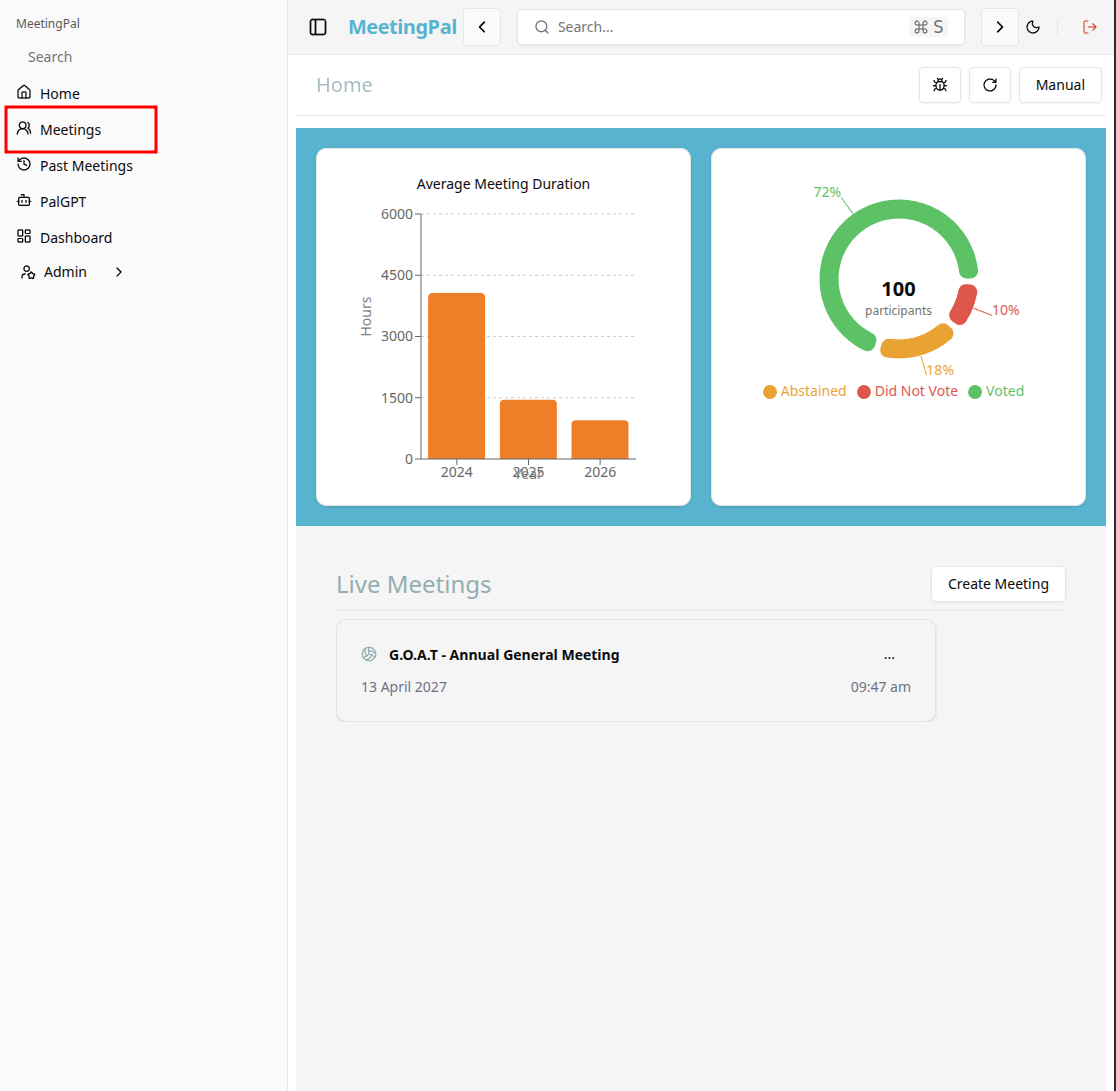
On the MeetingPal Home Page, locate the left-hand menu. Select Meetings.
Start editing the meeting
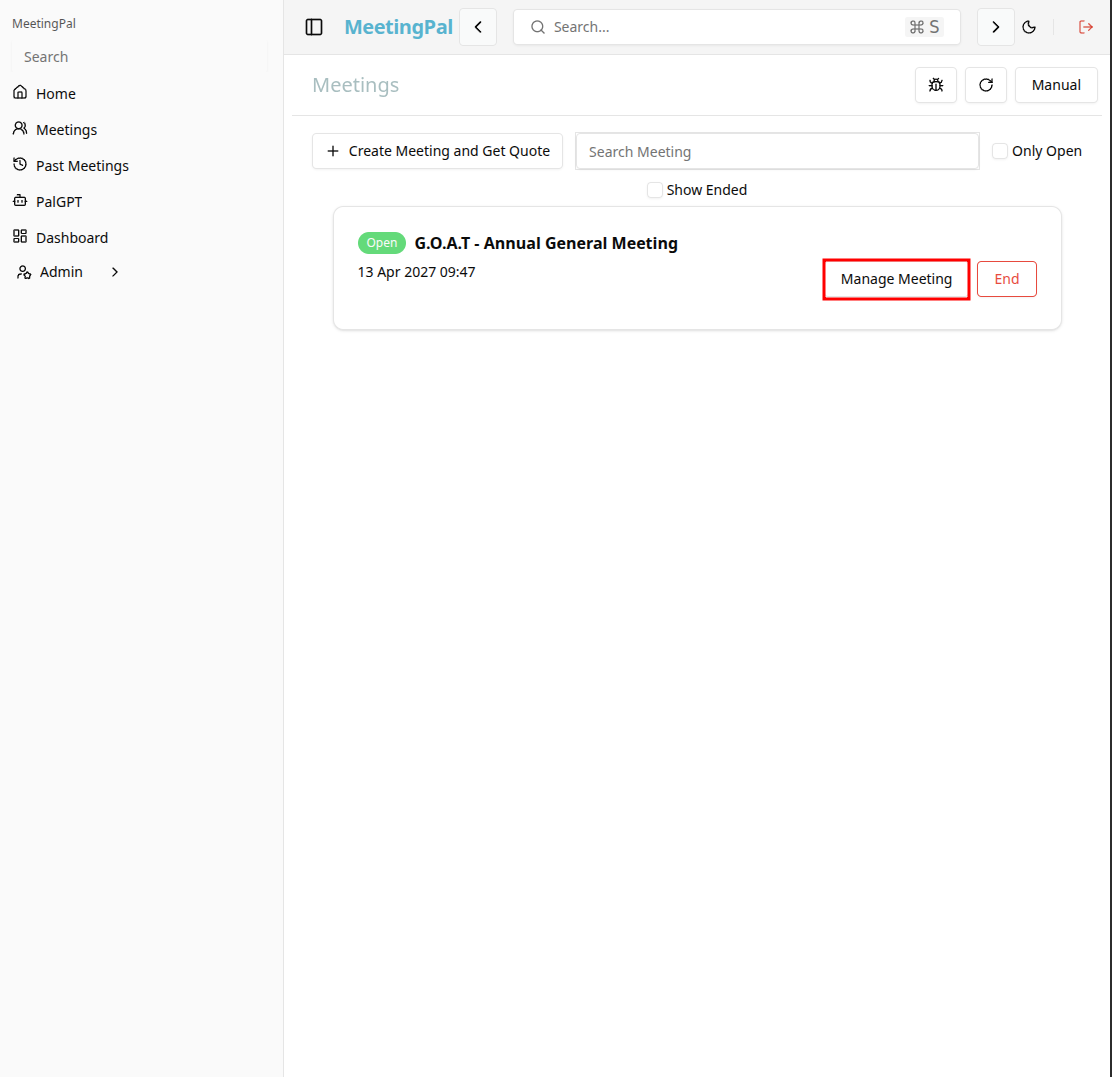
In the meetings page ,you will see all your meetings and the meetings that you are scheduled to attend.
Click on the 'Manage Meeting' button to begin editing the selected meeting.
Open the Meeting Notes Tab
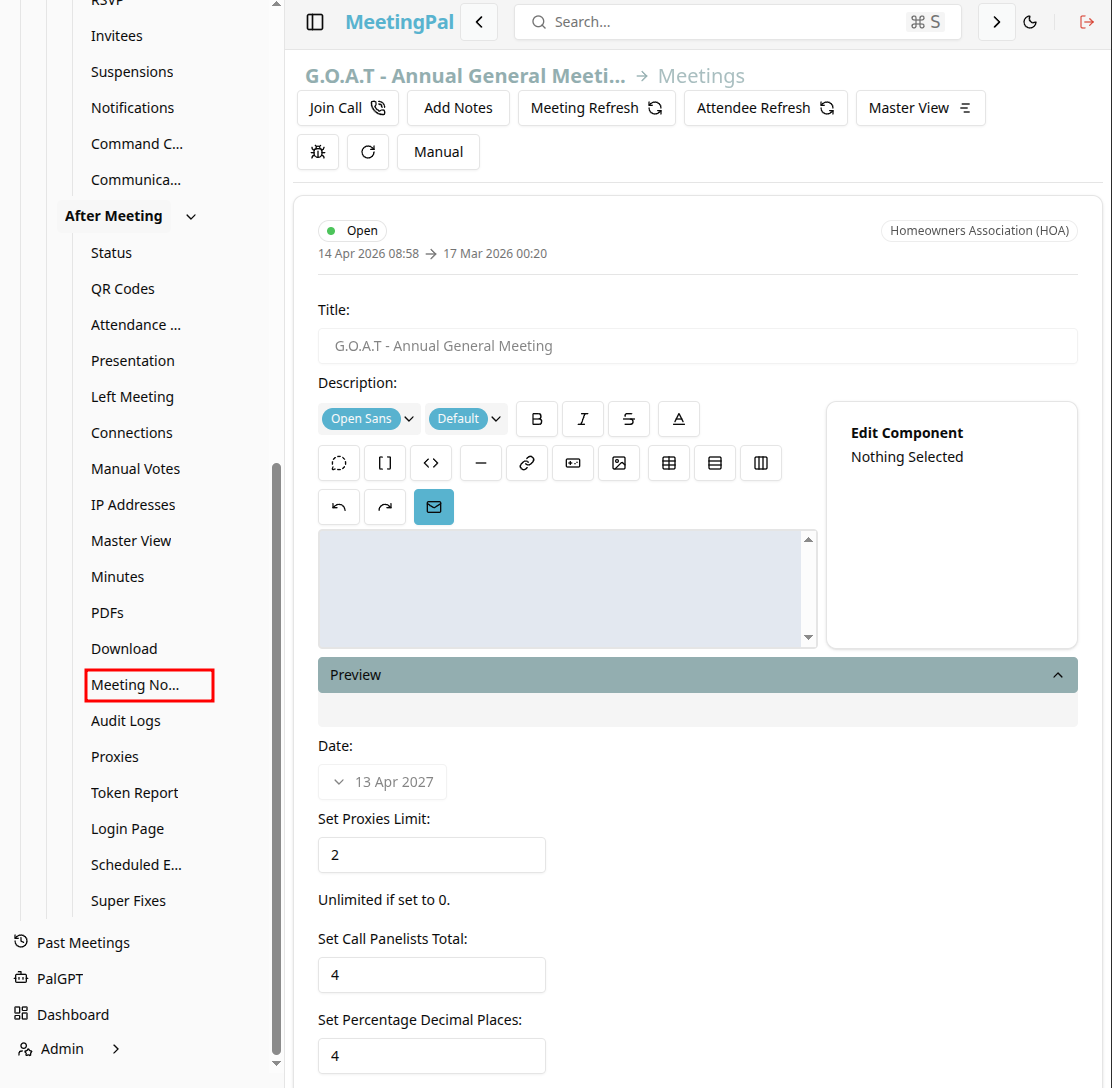
In the selected meeting’s dropdown menu, click Meeting Notes.
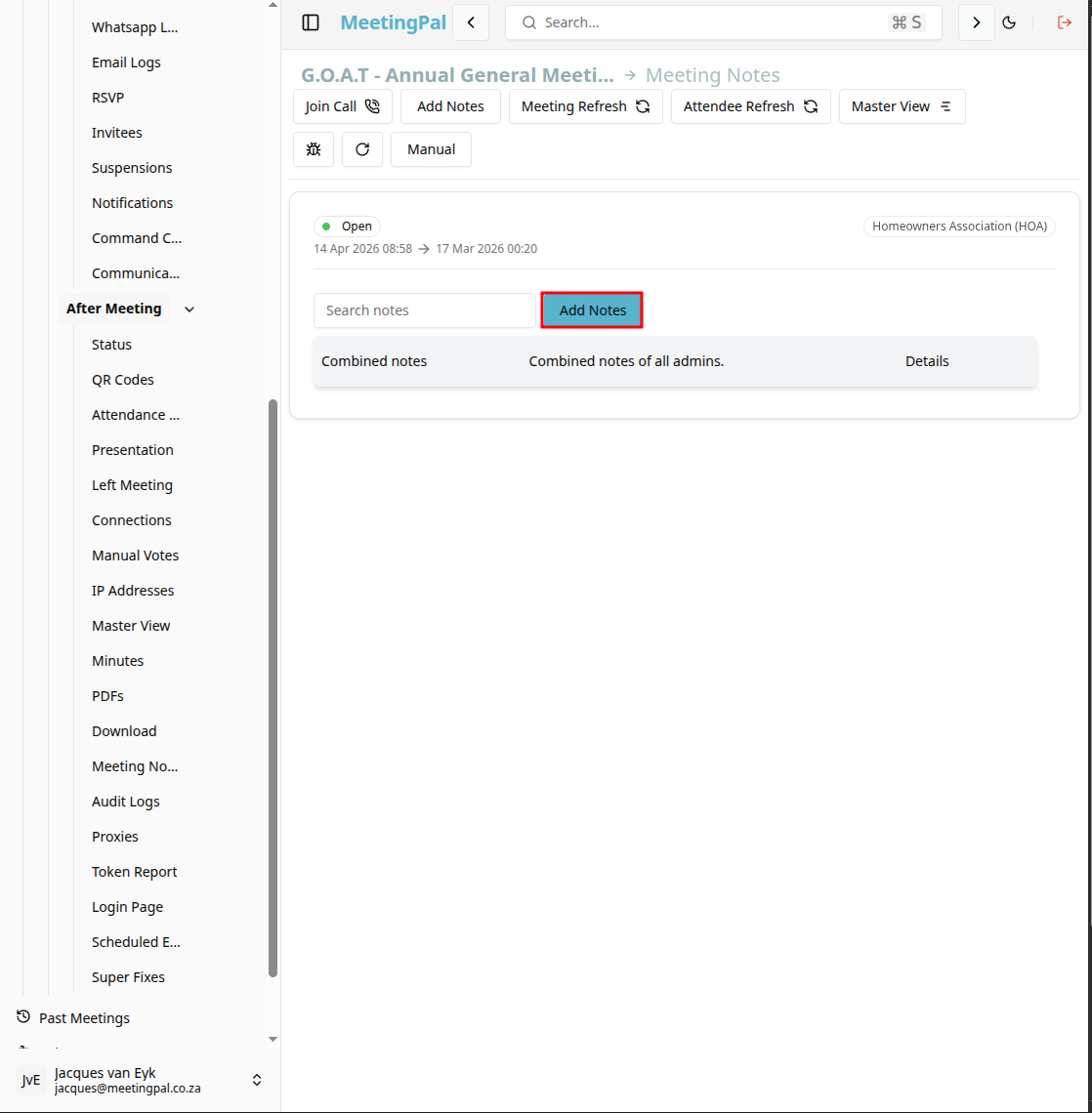
The Meeting Notes page will open.
Understanding the Meeting Notes Page
The Meeting Notes page provides a workspace for capturing informal notes throughout the meeting.
From this page, you can:
- Record discussion points.
- Capture action items.
- Note decisions and follow-up tasks.
- Keep private administrative notes.
- Save notes for future reference.
Add New Notes
Click into the notes editor. Type your notes as the meeting progresses.
Typical content may include:
- Key discussion points.
- Questions raised.
- Follow-up actions.
- Responsible persons.
- Deadlines.
- Click Save Notes to preserve your changes.
Update Existing Notes
Open the Meeting Notes tab at any time.
Edit the content as needed by clicking the details button.
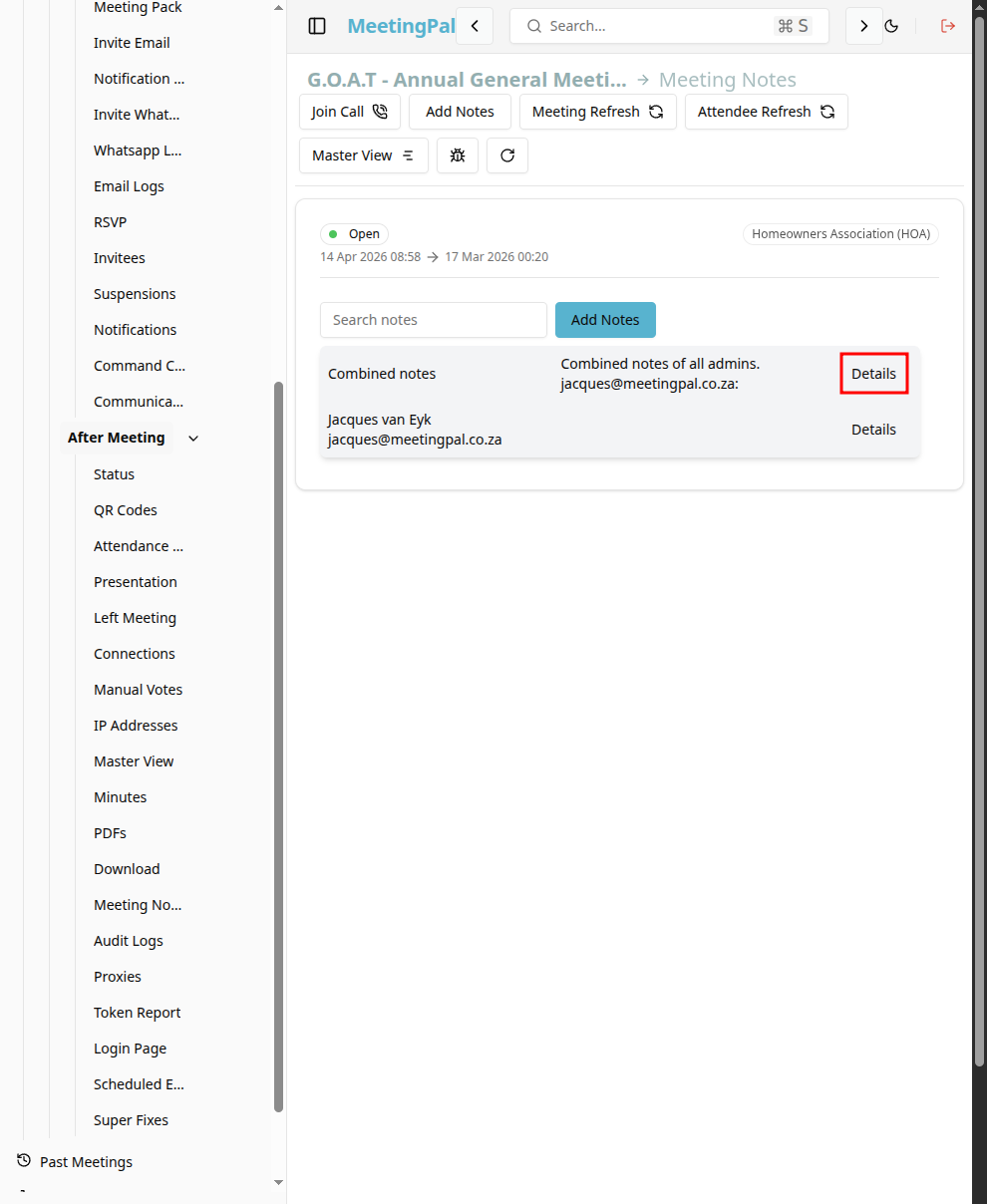
Click Save Notes again.
Meeting notes can be updated before, during, or after the meeting.
Common Uses for Meeting Notes
The Meeting Notes tab is useful for:
- Capturing informal notes.
- Recording action items.
- Tracking follow-up responsibilities.
- Supporting preparation of formal minutes.
Best Practices
Record notes during the meeting while discussions are fresh.
Save changes regularly.
Important Notes
Meeting Notes are typically informal working notes and may differ from the official minutes.
Notes can be edited at any time by authorized users.