Notifications Tab
Access the Scheduled Meeting
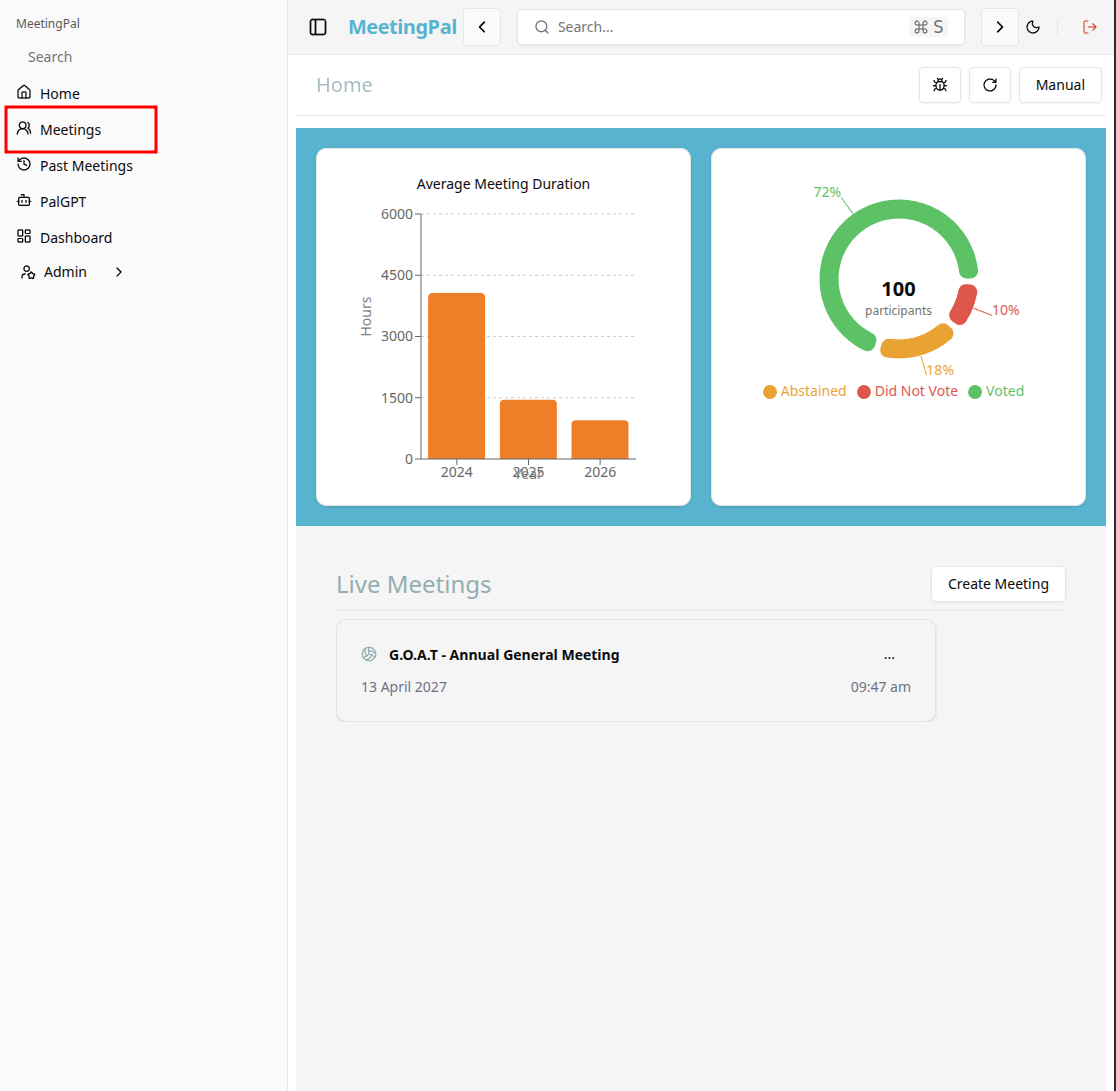
On the MeetingPal Home Page, locate the left-hand menu. Select Meetings.
Start editing the meeting
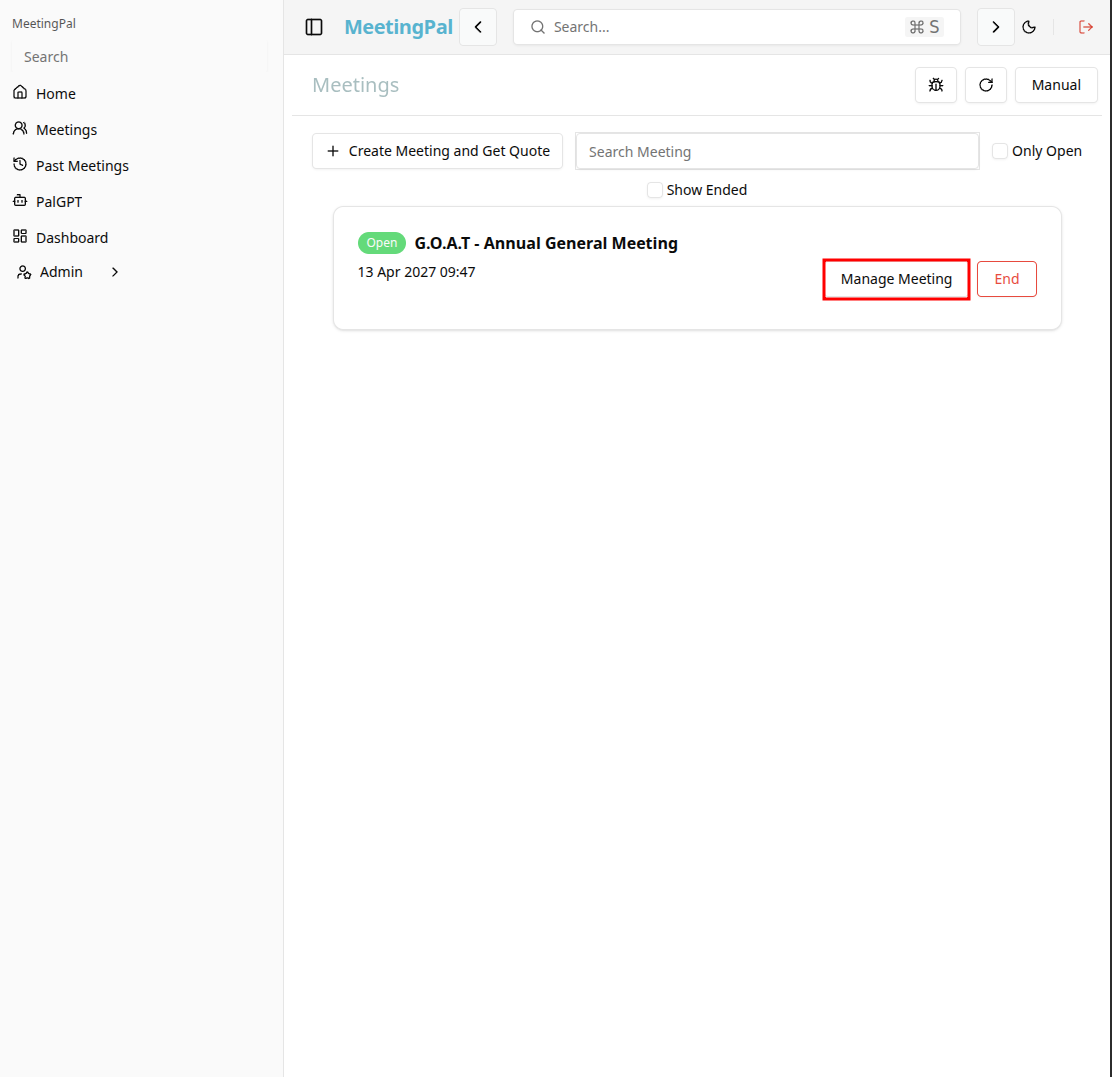
In the meetings page ,you will see all your meetings and the meetings that you are scheduled to attend.
Click on the 'Manage Meeting' button to begin editing the selected meeting.
Open the Notifications Tab
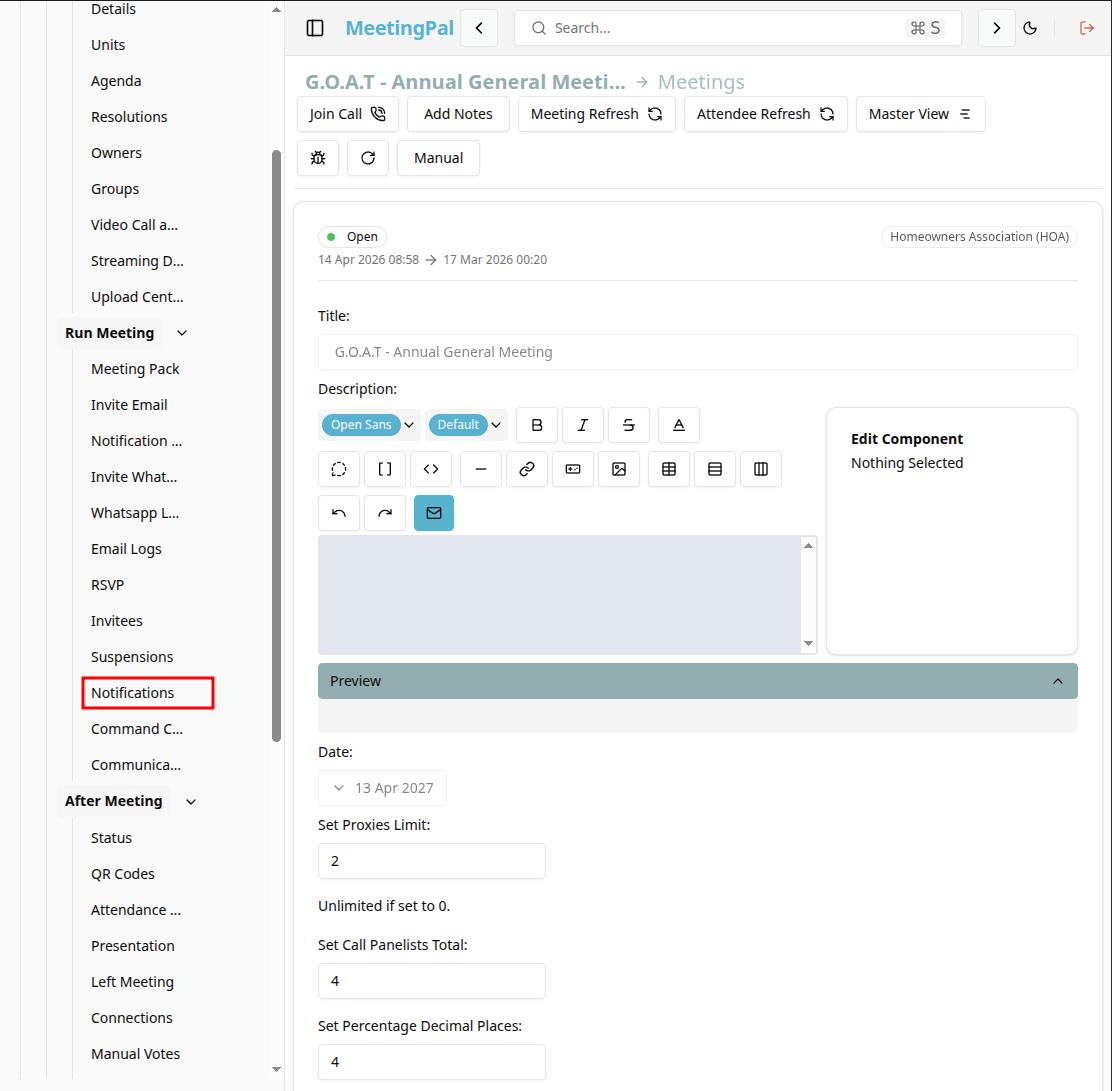
In the selected meeting’s dropdown menu, click Notifications.
The Notifications page will open.
Understanding the Notifications Page
From the Notifications page you can set-up an custom notification to be displayed at the top of the attendees' browser/app window.
You can choose between 3 different types of notifications:
- Success
- Warn
- Error
Add a Notification
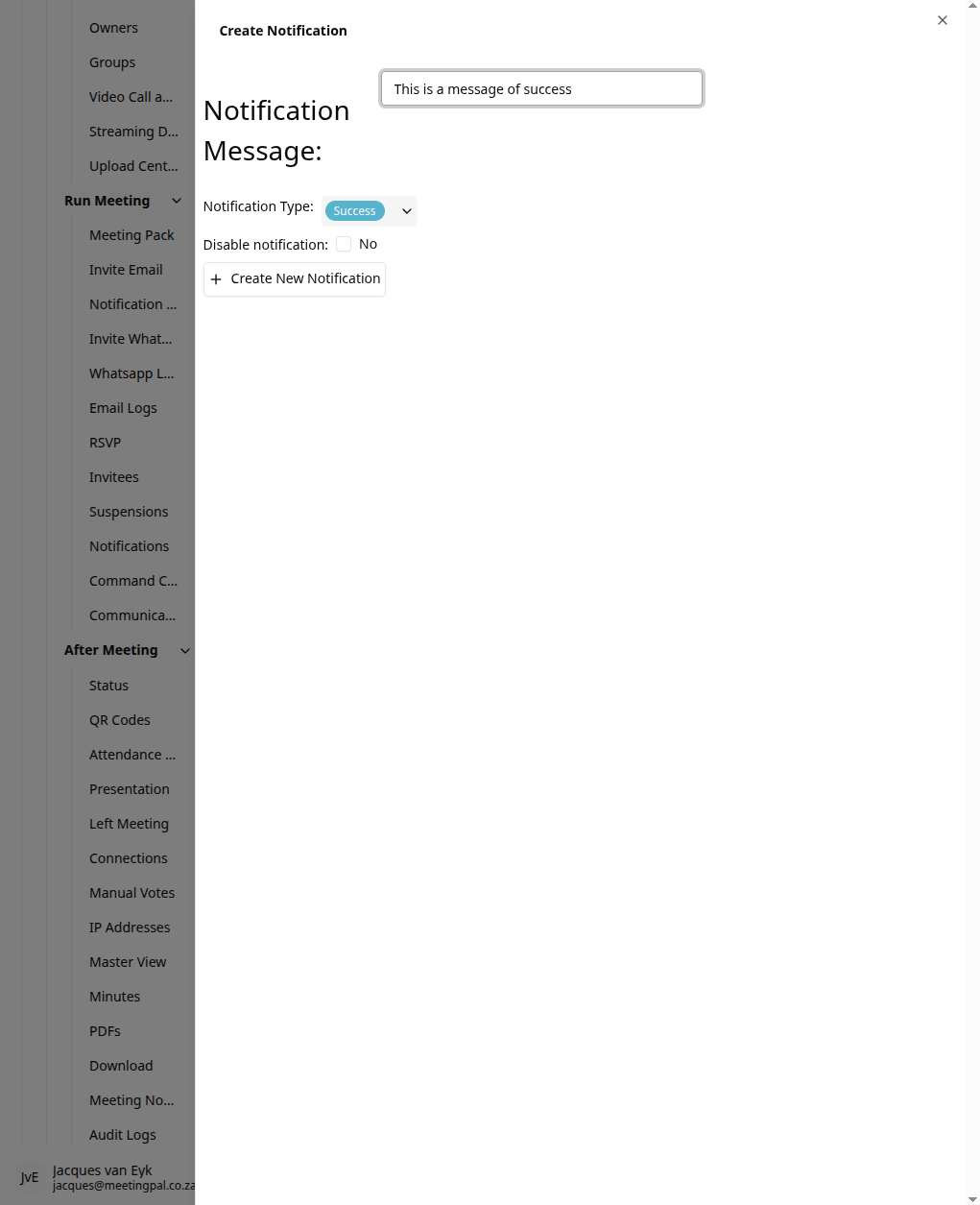
You can click on the 'Create New Notification' button.
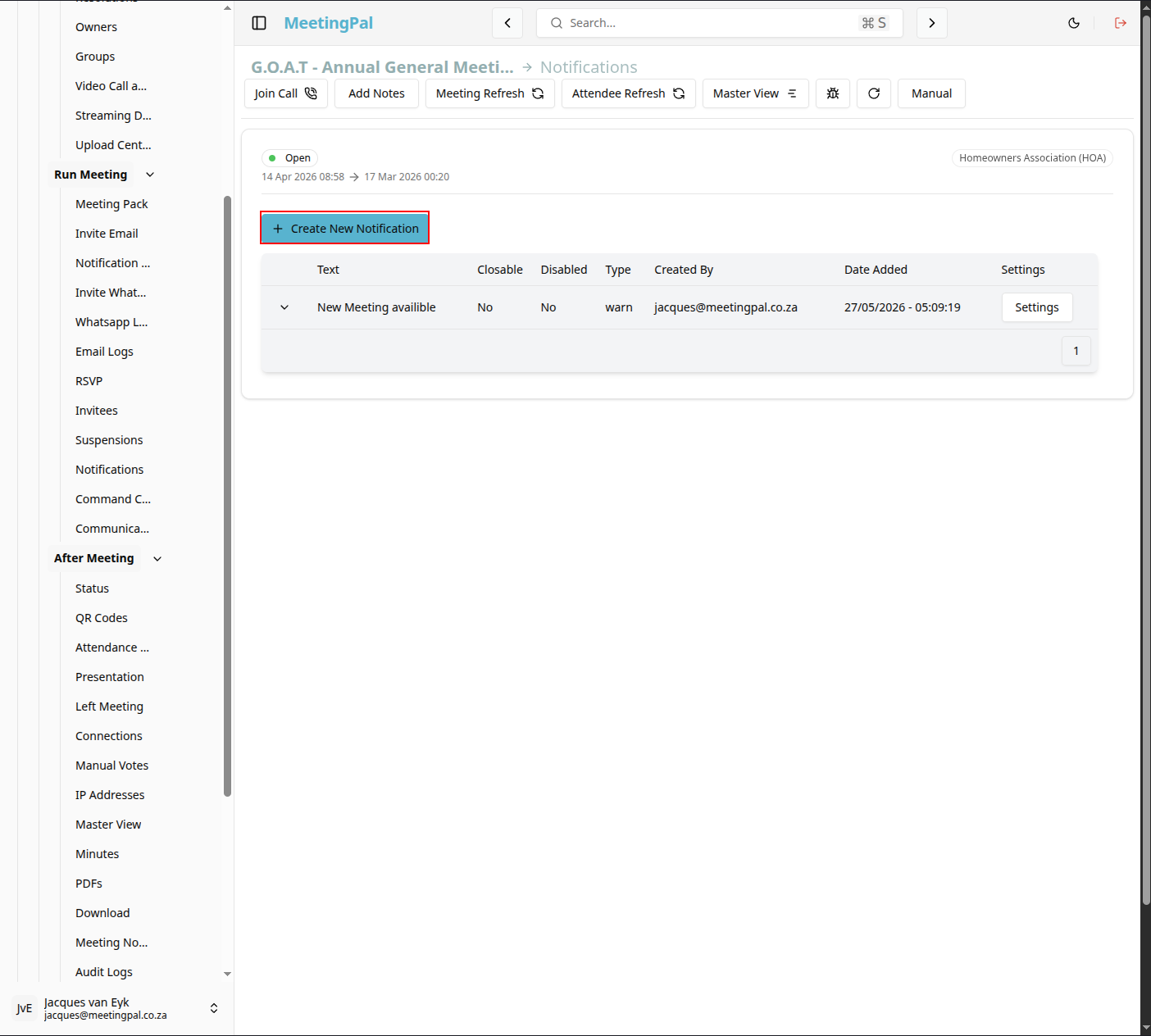
This will open a window of the new notification's settings.
Best Practices
Follow up on failed deliveries promptly.
Keep communication records for governance and compliance purposes.
Important Notes
The Notifications tab is a reporting and monitoring tool; actual messages are typically sent from Invite Email, Invite WhatsApp, or Notification Sender.
Available delivery methods depend on your organization’s configuration.