Presentation Tab
Access the Scheduled Meeting
On the MeetingPal Home Page, locate the left-hand menu. Select Meetings.
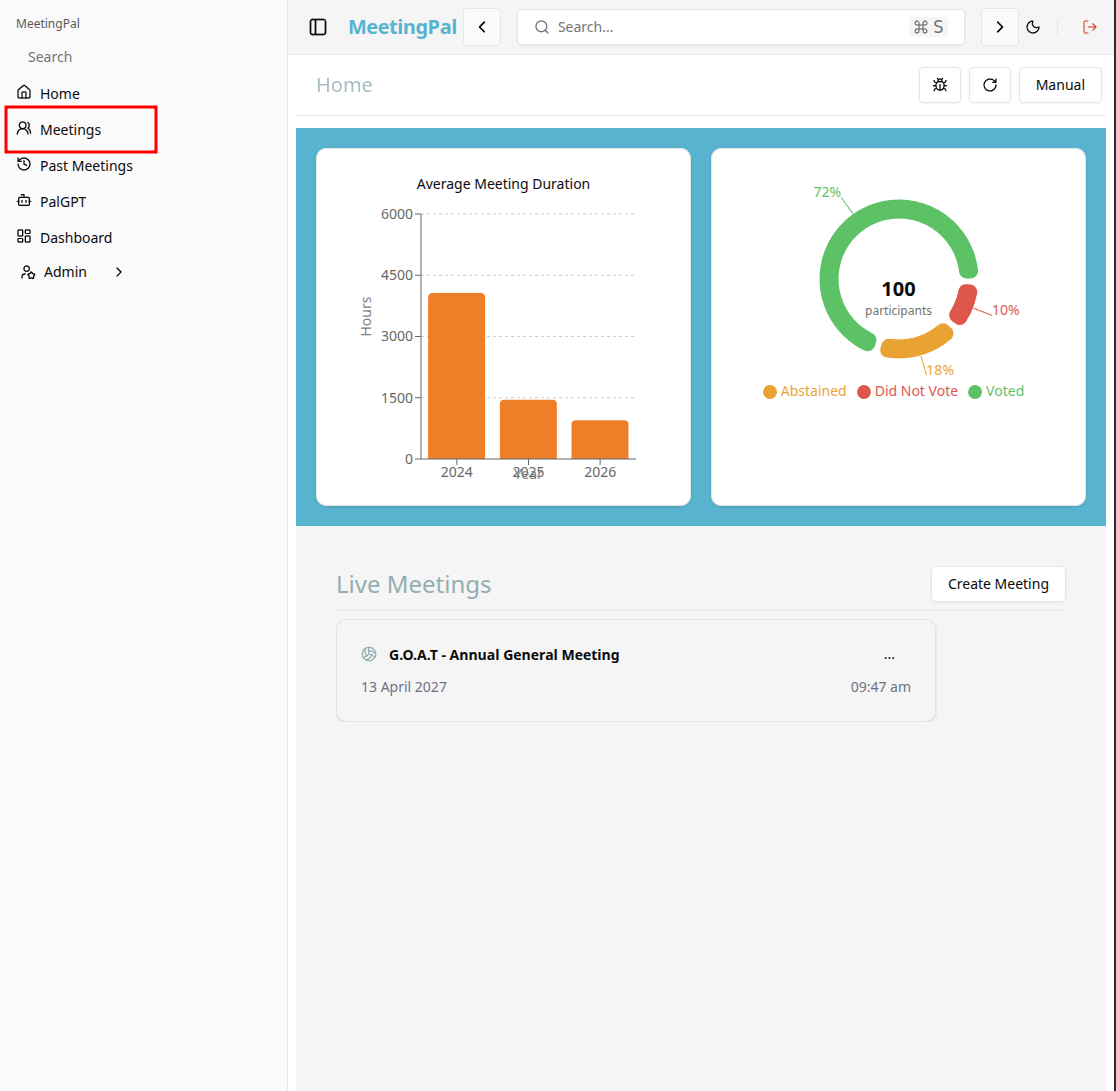
Start editing the meeting
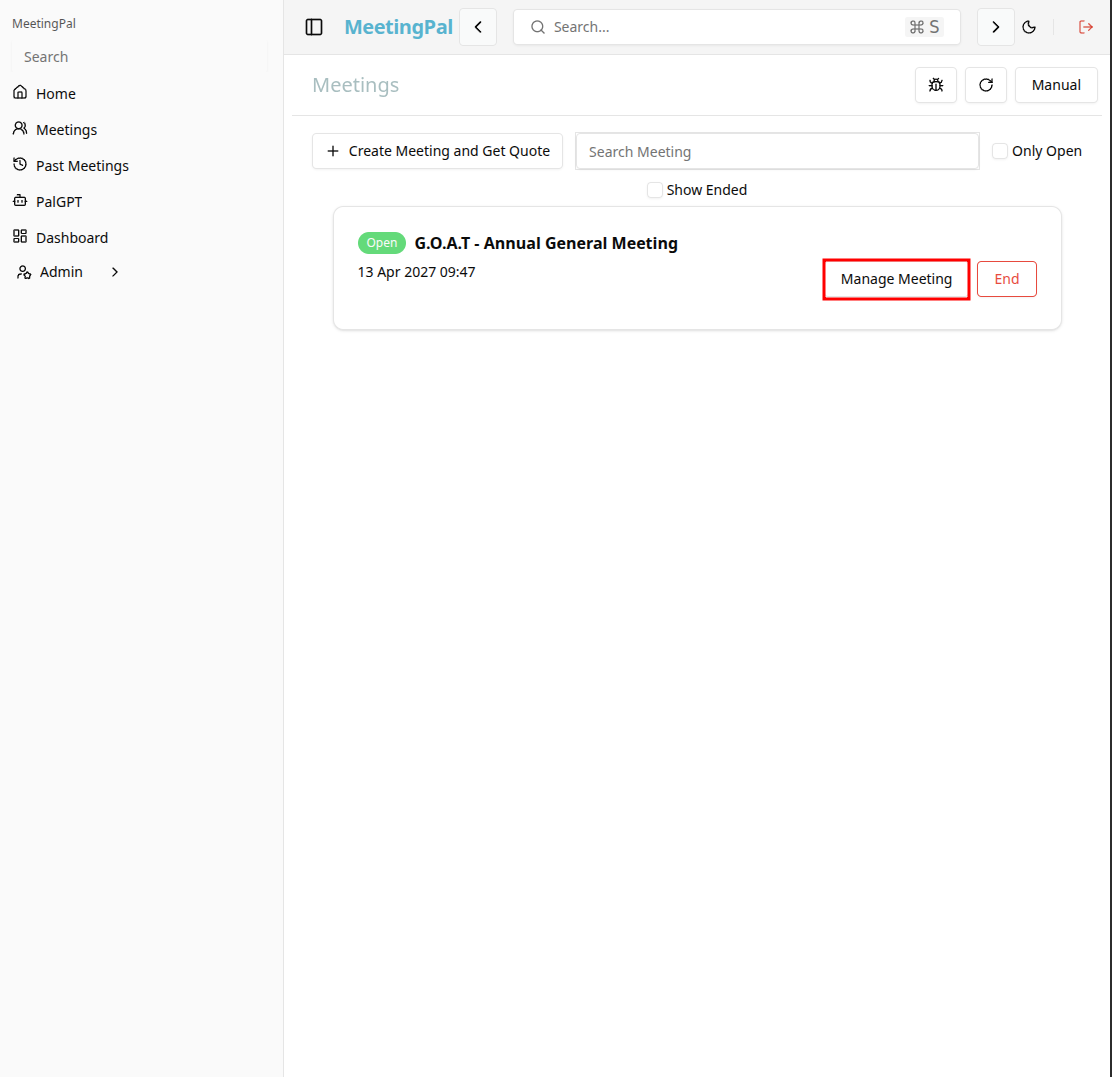
In the meetings page ,you will see all your meetings and the meetings that you are scheduled to attend.
Click on the 'Manage Meeting' button to begin editing the selected meeting.
Open the Presentation Tab
In the selected meeting’s dropdown menu, click Presentation.
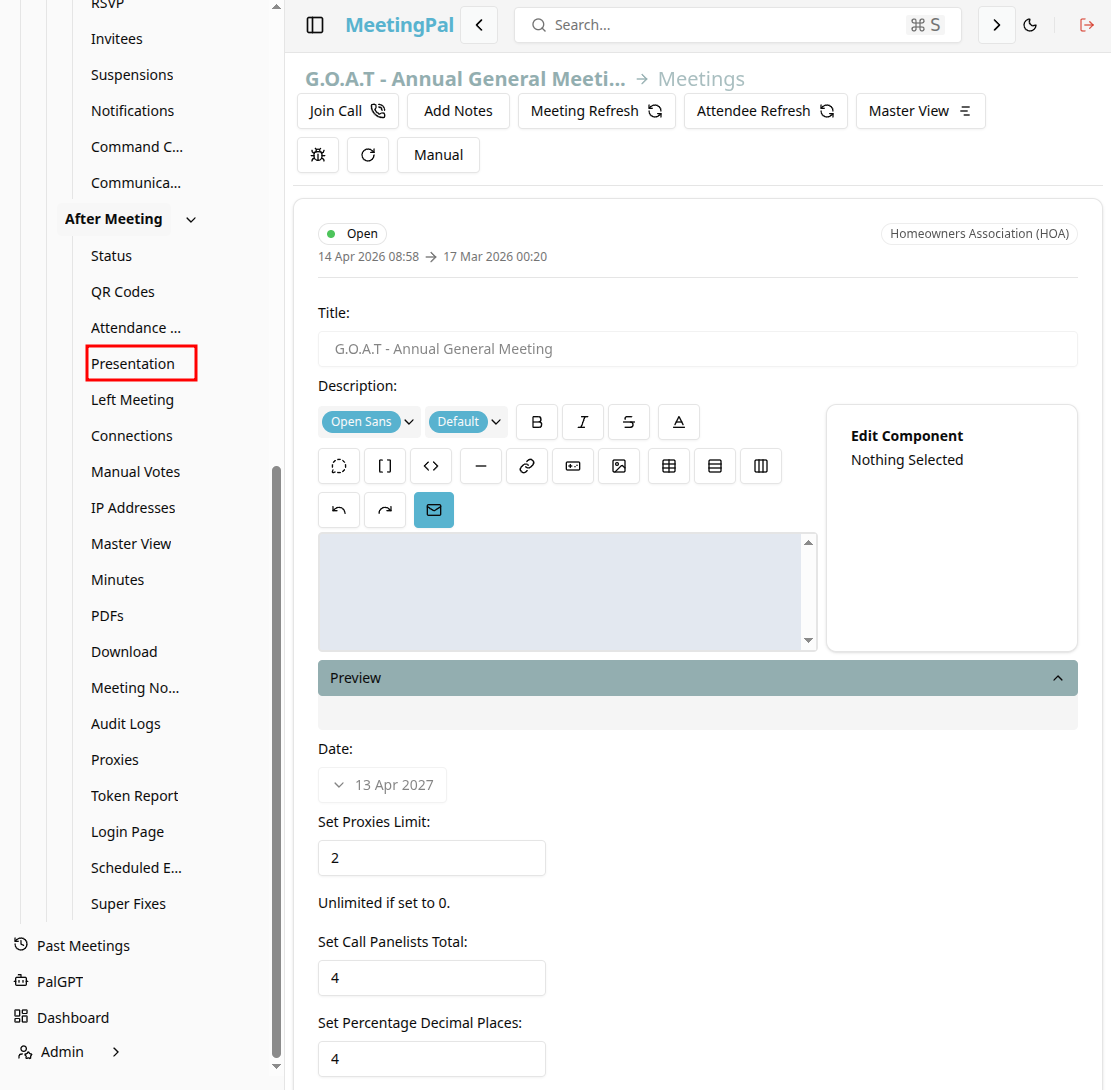
The Presentation page will open in presentation mode.
Understanding the Presentation Page
The Presentation page provides a full-screen view of your meeting content for use during the live meeting.
From this page, you can:
- Present agenda items and resolutions.
- Show live voting results.
- Open and close voting for resolutions
Navigate Through the Presentation
Use the available controls to move through the meeting content.
Navigation options may include:
Next Item Previous Item
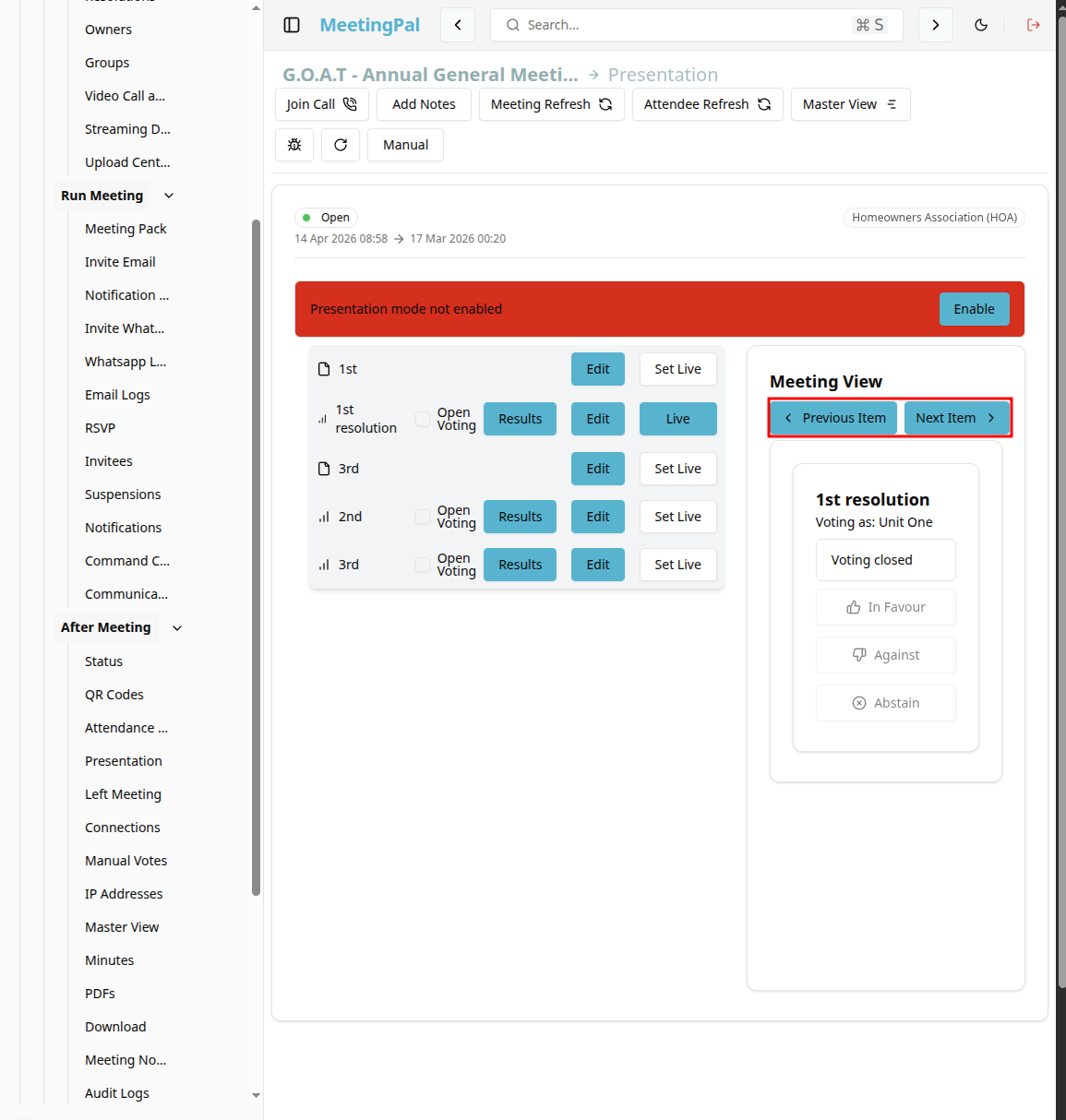
This allows the chairperson to control the pace of the meeting.
Display Live Voting Results
To display the results of an resolution, click the Results button.
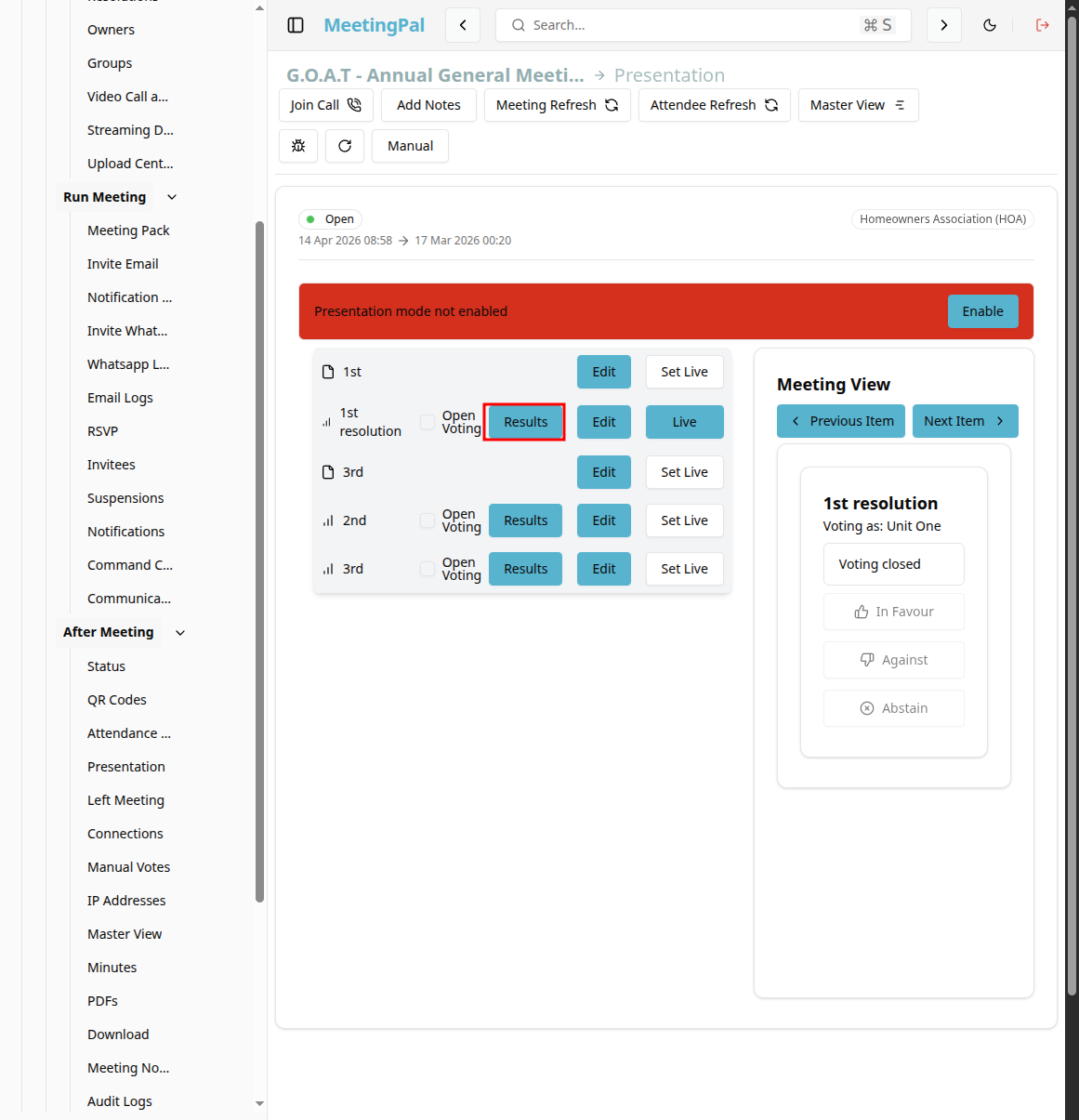
When a vote is opened, the Presentation page may display:
Total votes cast. Votes in favour, against, and abstaining. Weighted voting totals. Outcome status.
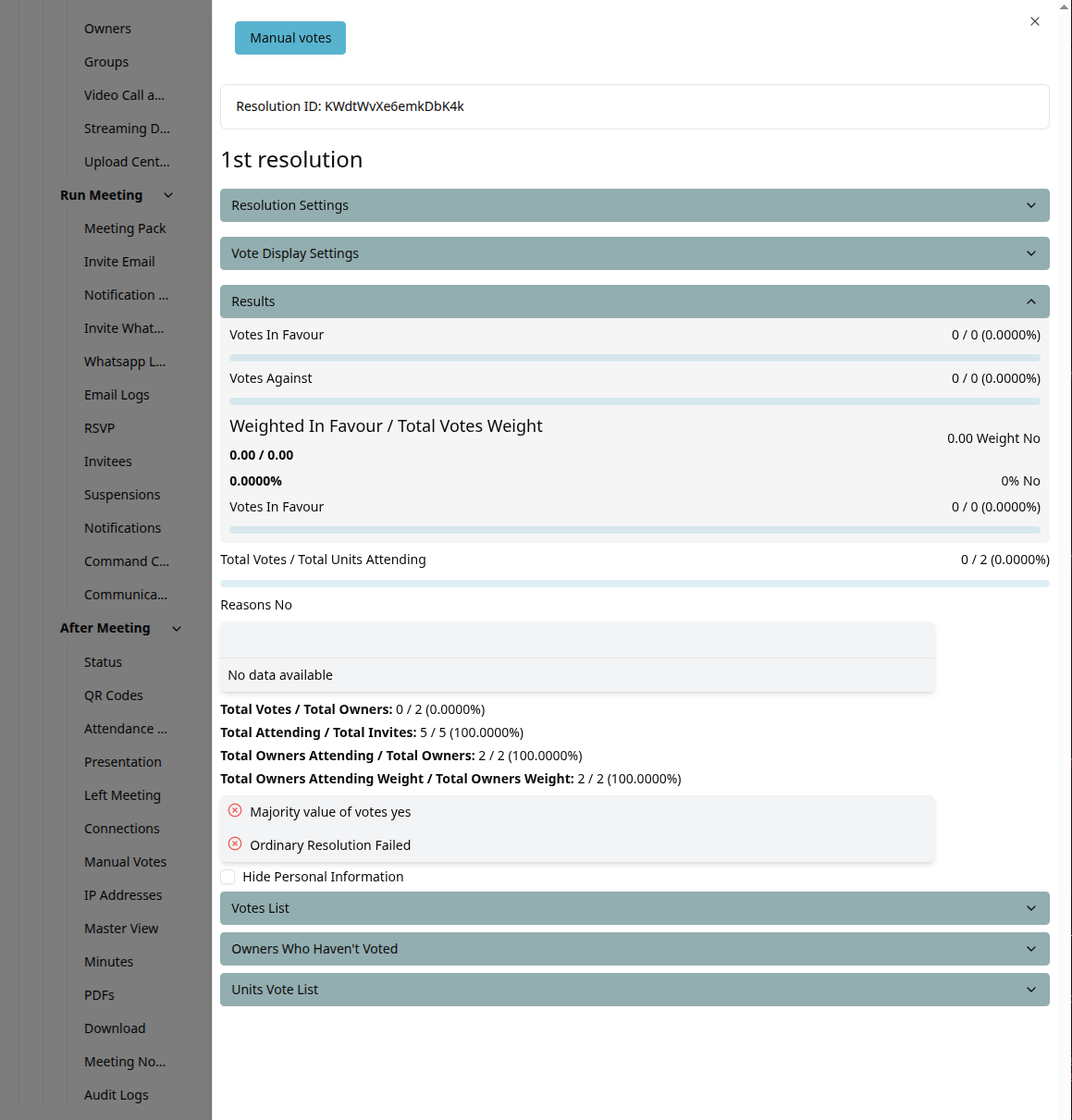
This enables attendees to view results in real time.
Best Practices
Review all agenda items and resolutions before the meeting.
Test the presentation in advance.
Monitor live voting results as resolutions are considered.
Important Notes
The Presentation tab reflects the latest agenda, resolutions, and supporting documents.
Changes made before or during the meeting may appear automatically after refreshing.
Presentation controls may vary depending on your permissions.
Live voting results are only shown when voting is enabled.