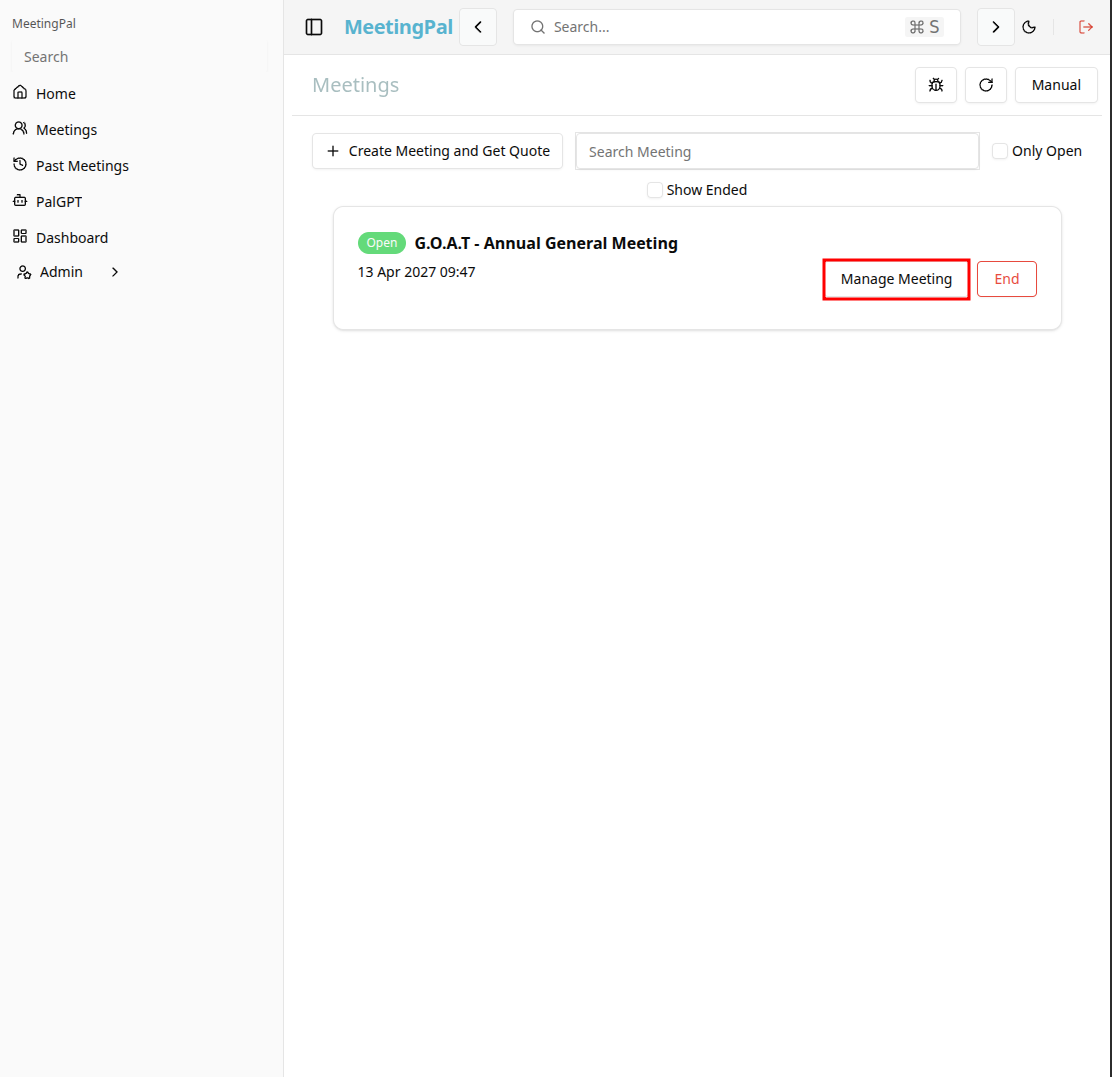
Using the Status Tab in a Scheduled Meeting in MeetingPal
Access the Scheduled Meeting
On the MeetingPal Home Page, locate the left-hand menu. Select Meetings.
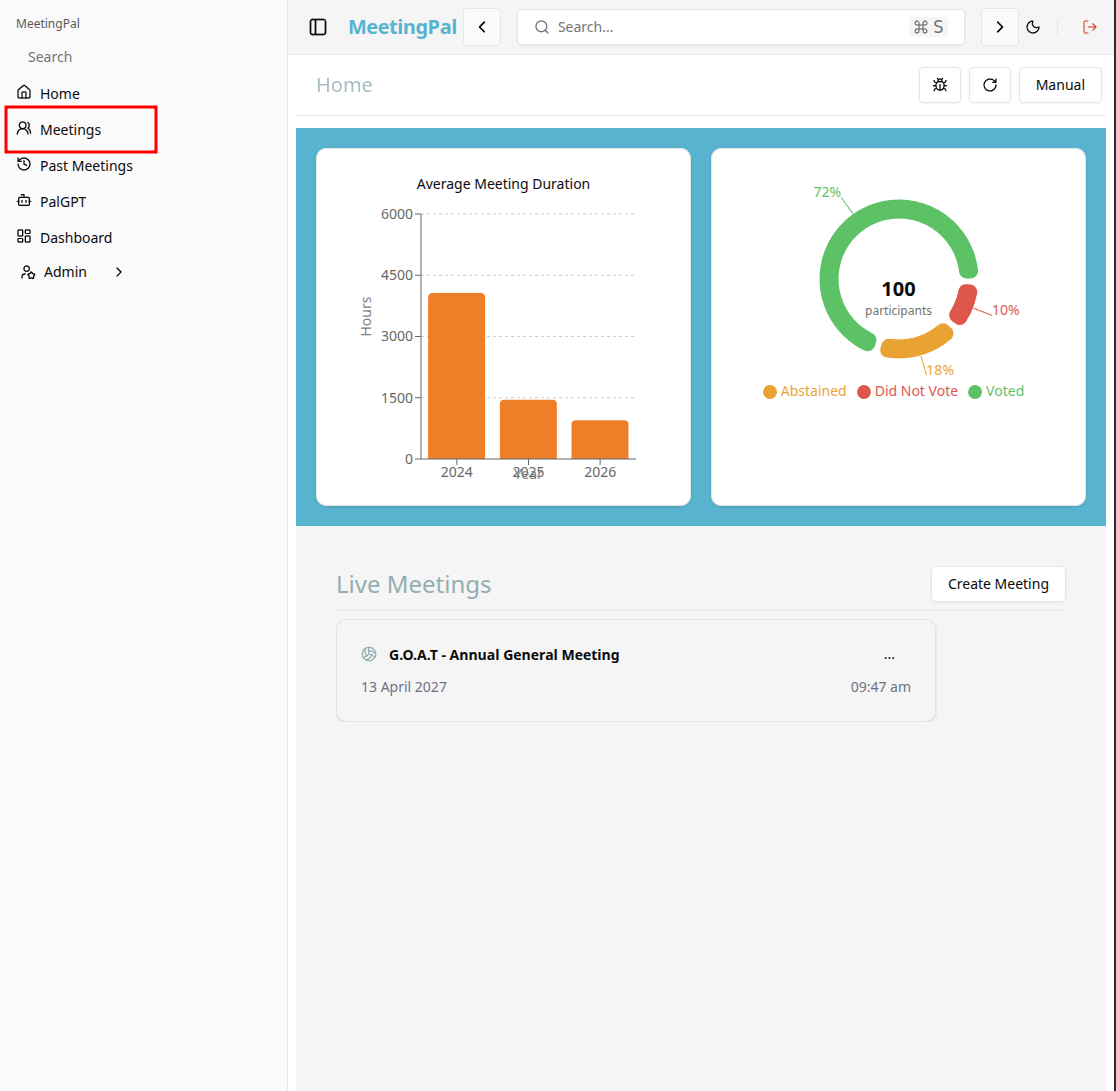
From the dropdown list, locate and select the scheduled meeting you want to review.
Open the Status Tab
In the selected meeting’s dropdown menu, click Status.
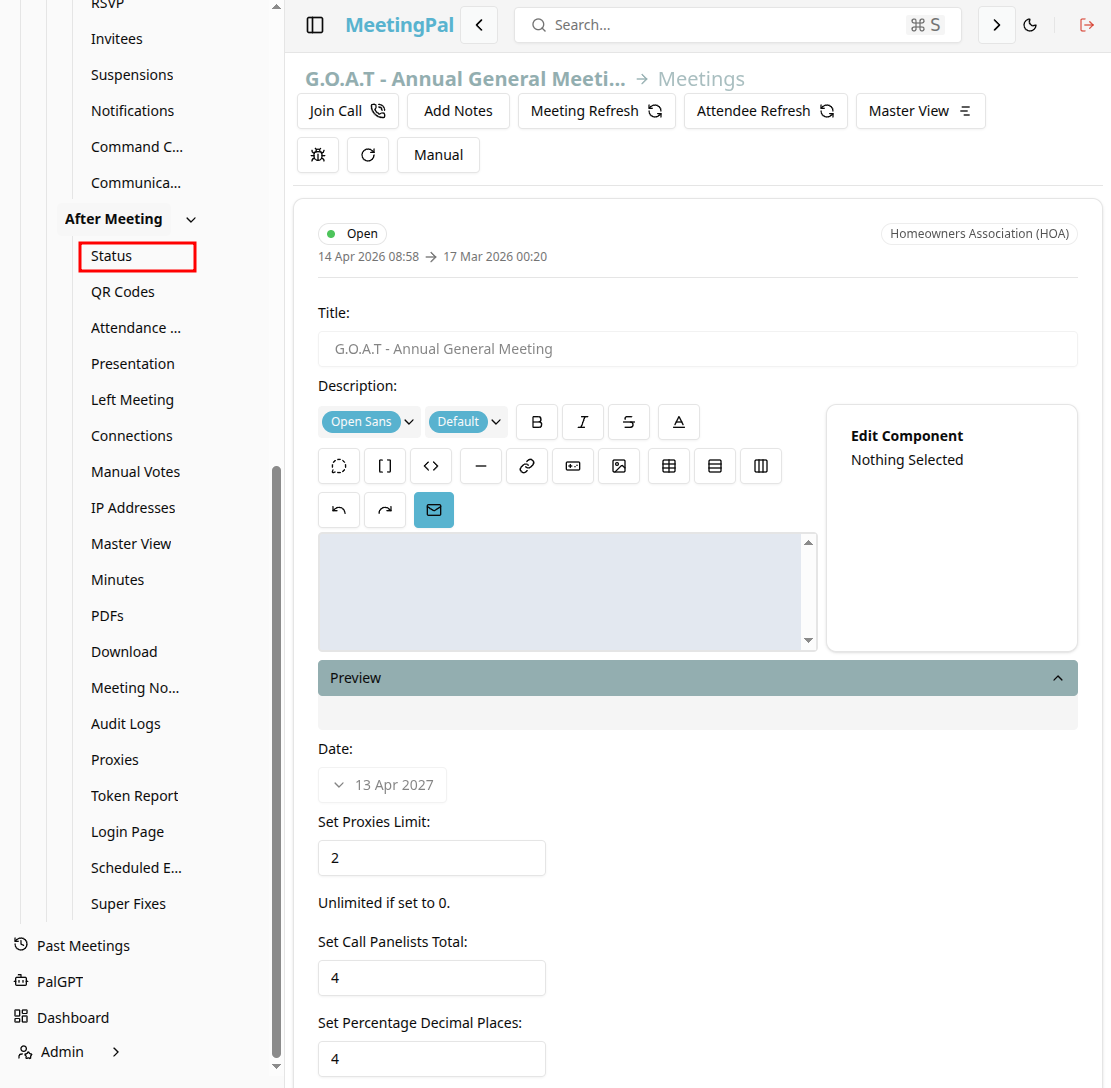
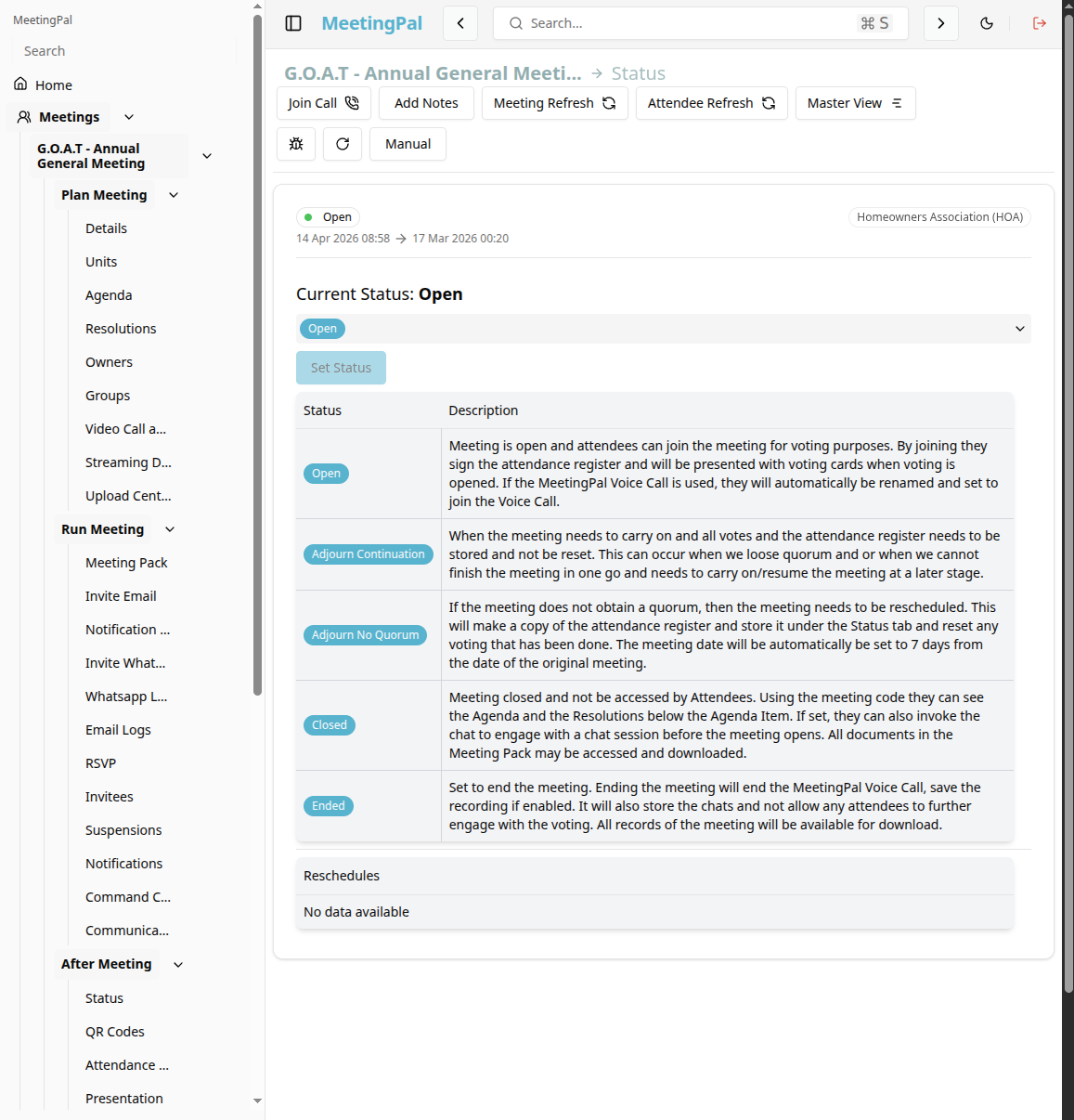
The Status page will open.
Understanding the Status Page
The Status page provides a high-level overview of the meeting’s readiness and current progress.
From this page, you can review information such as:
Meeting date, time, and location. Attendance totals. RSVP response summary. Quorum status. Voting readiness. Notification delivery statistics. Meeting progress indicators.
Review Meeting Preparation Status
Before the meeting begins, the Status page can help you confirm that:
Invitees have been added. Invitations have been sent. RSVP responses are being received. Quorum requirements are likely to be met. Agenda items and resolutions are complete. Meeting documents are uploaded. Meeting packs have been generated.
Monitor Attendance and Quorum
The Status page may display:
Number of invitees. Number of accepted RSVPs. Number currently logged in. Voting units represented. Percentage of quorum achieved.
Use this information to determine whether the meeting can proceed.
Review Communication Metrics
The page may also summarize:
Emails sent. WhatsApp messages sent. Failed deliveries. Unopened invitations.
This helps identify participants who may need follow-up.
Monitor Live Meeting Progress
During an active meeting, the Status page may display:
Current attendance. Voting activity. Open resolutions. Chat activity. Video call participation.
This provides a central dashboard for meeting administrators.
Use Status Information to Resolve Issues
If the Status page highlights incomplete items, you can quickly navigate to related sections such as:
Invitees RSVP Meeting Pack Notifications Agenda Resolutions
This helps you address any outstanding issues before or during the meeting.
Best Practices
Review the Status page before sending final invitations. Check quorum projections in advance. Monitor failed communications. Use the Status page as your primary meeting-readiness dashboard.
Important Notes
The information displayed on the Status page updates as meeting data changes. Available metrics may vary depending on your organization’s MeetingPal configuration. The Status page is particularly useful for meeting administrators and facilitators.