Video Call and Chat Tab
Access the Scheduled Meeting
On the MeetingPal Home Page, locate the left-hand menu. Select Meetings.
Start editing the meeting
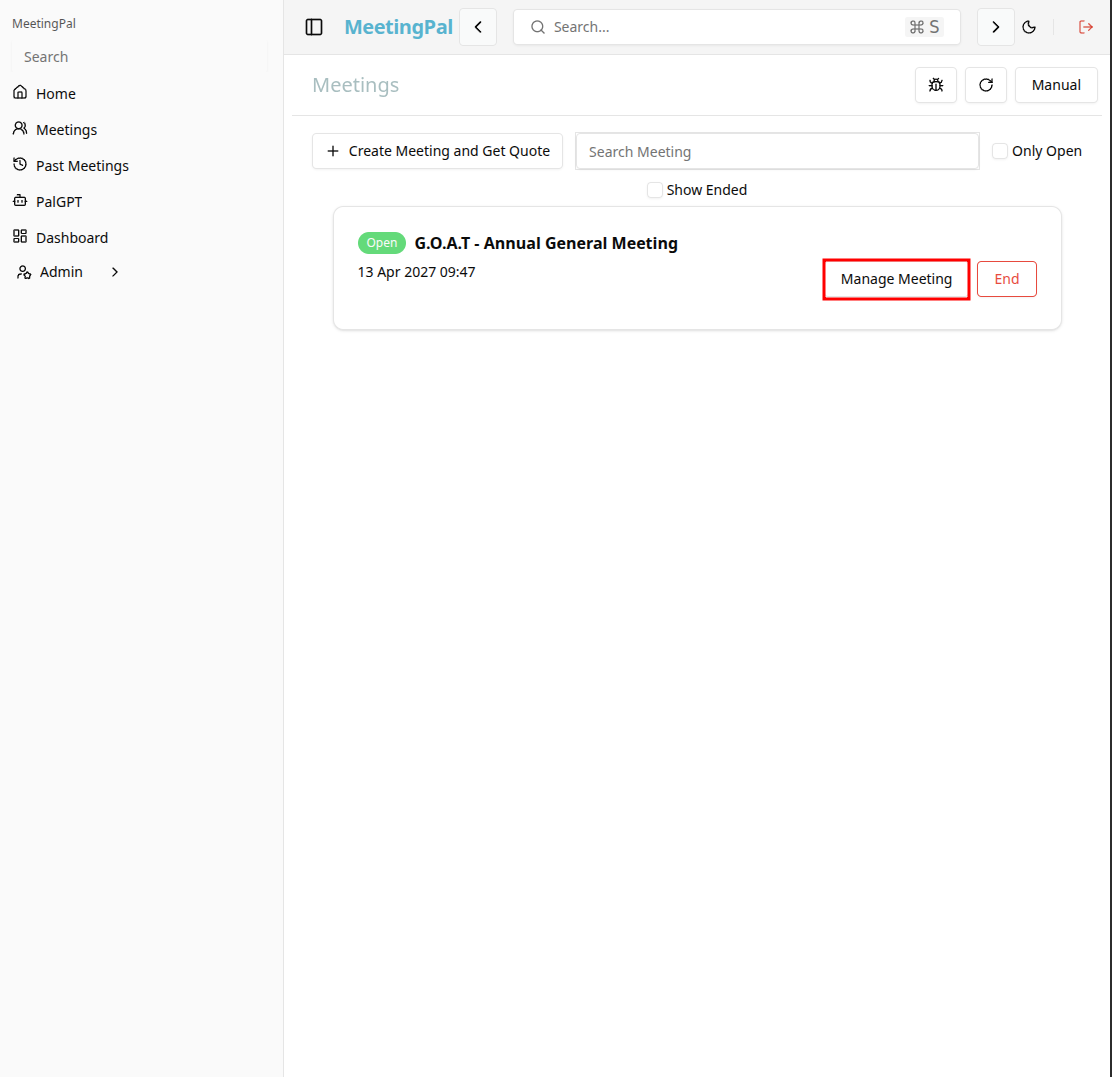
In the meetings page ,you will see all your meetings and the meetings that you are scheduled to attend.
Click on the 'Manage Meeting' button to begin editing the selected meeting.
Open the Video Call and Chat Tab
In the selected meeting’s dropdown menu, click Video Call and Chat.
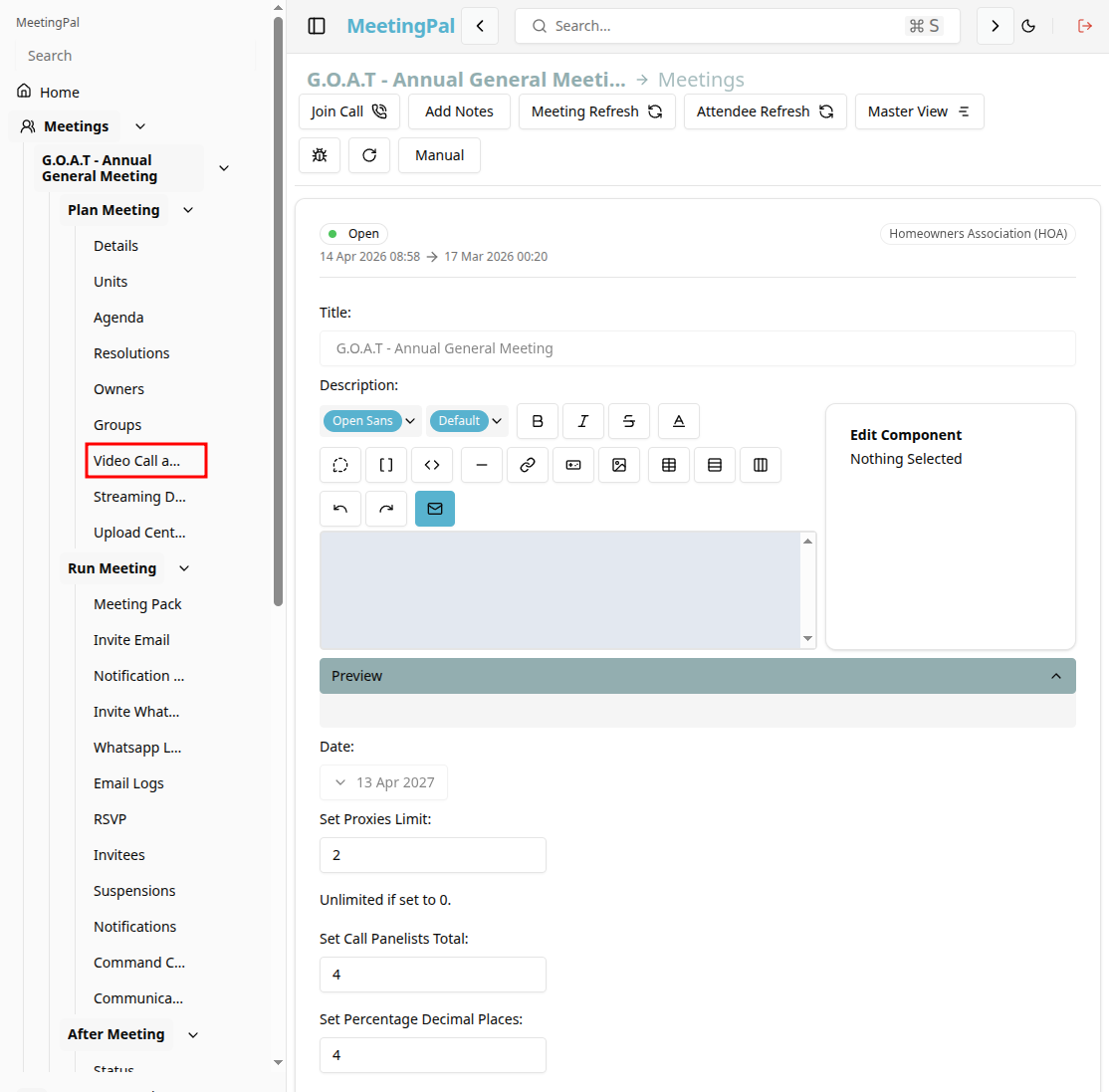
The Video Call and Chat page will open.
Using the Video Call and Chat Tab
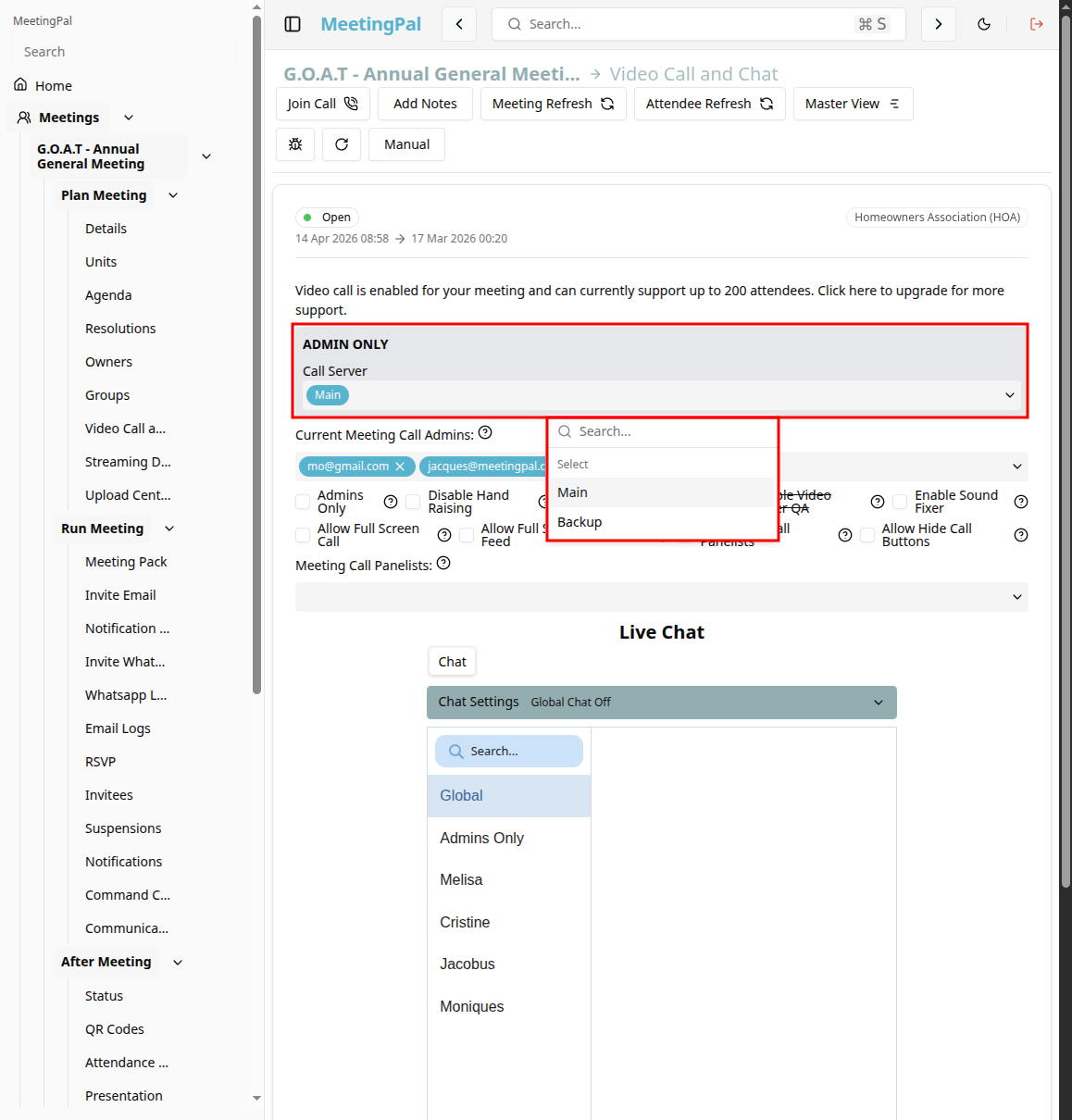
You can switch between using the Main or Backup server for the video Call.
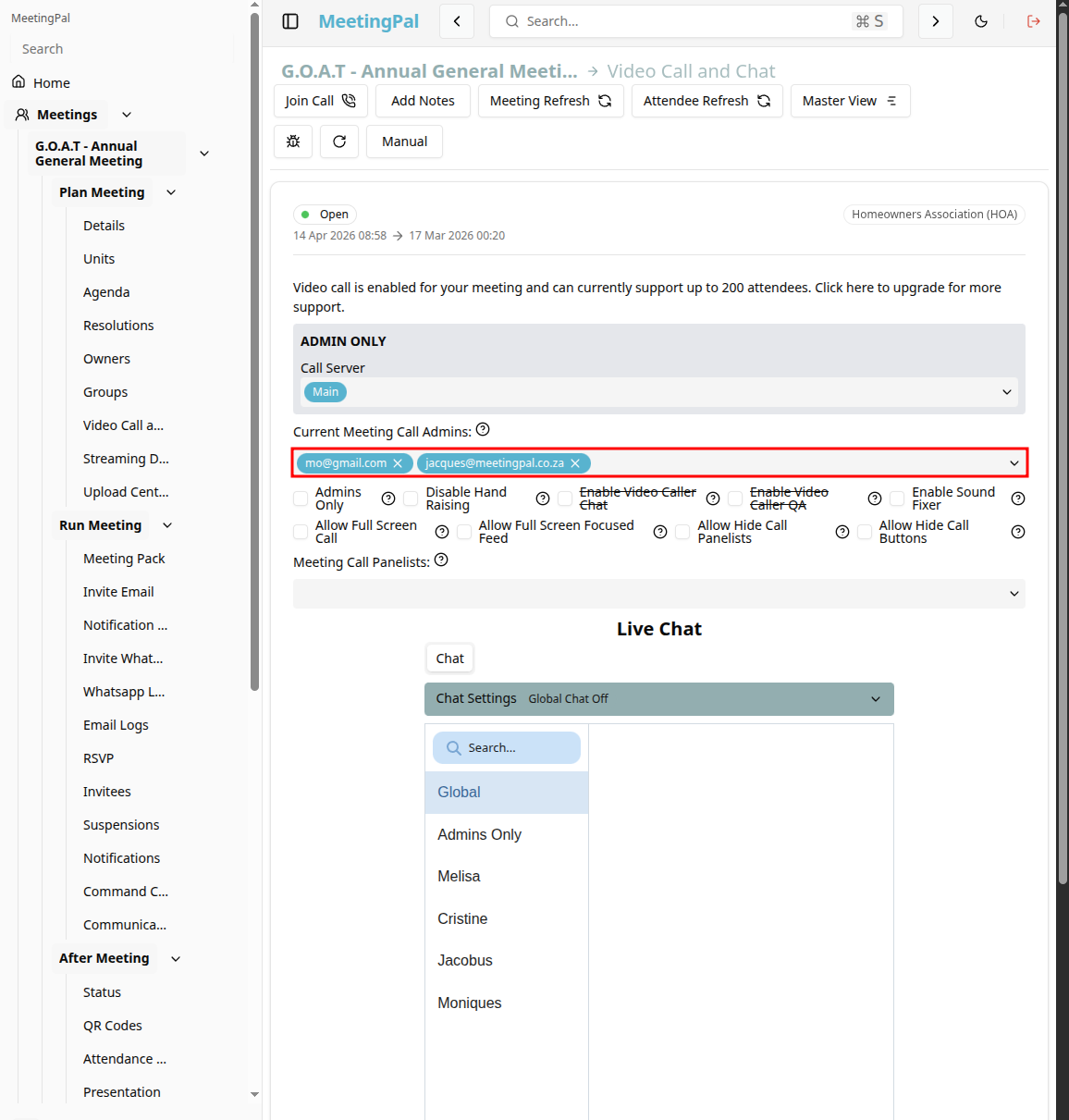
You can set/change the meeting call admins.
You can set/change the meeting call Panelists.
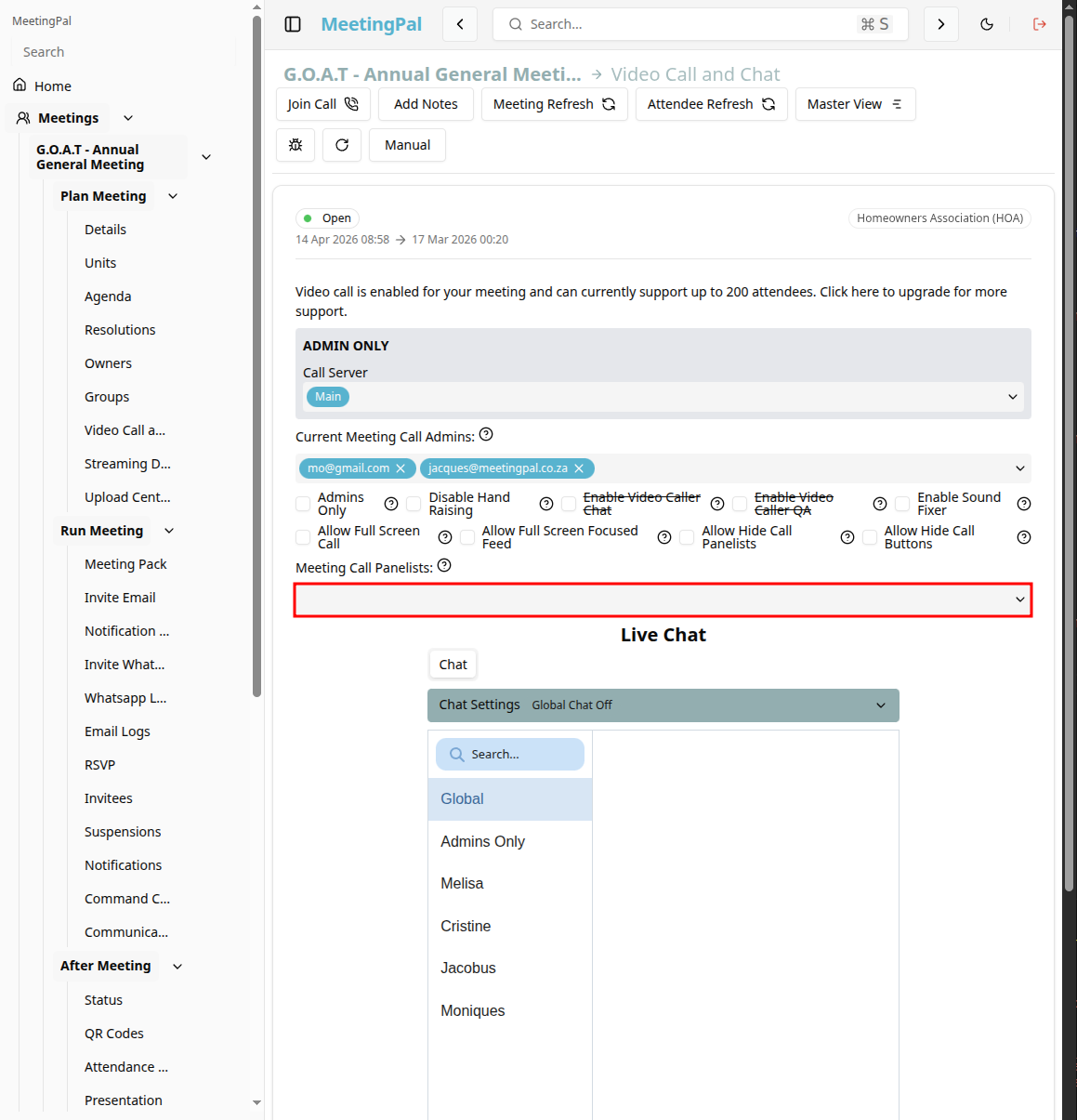
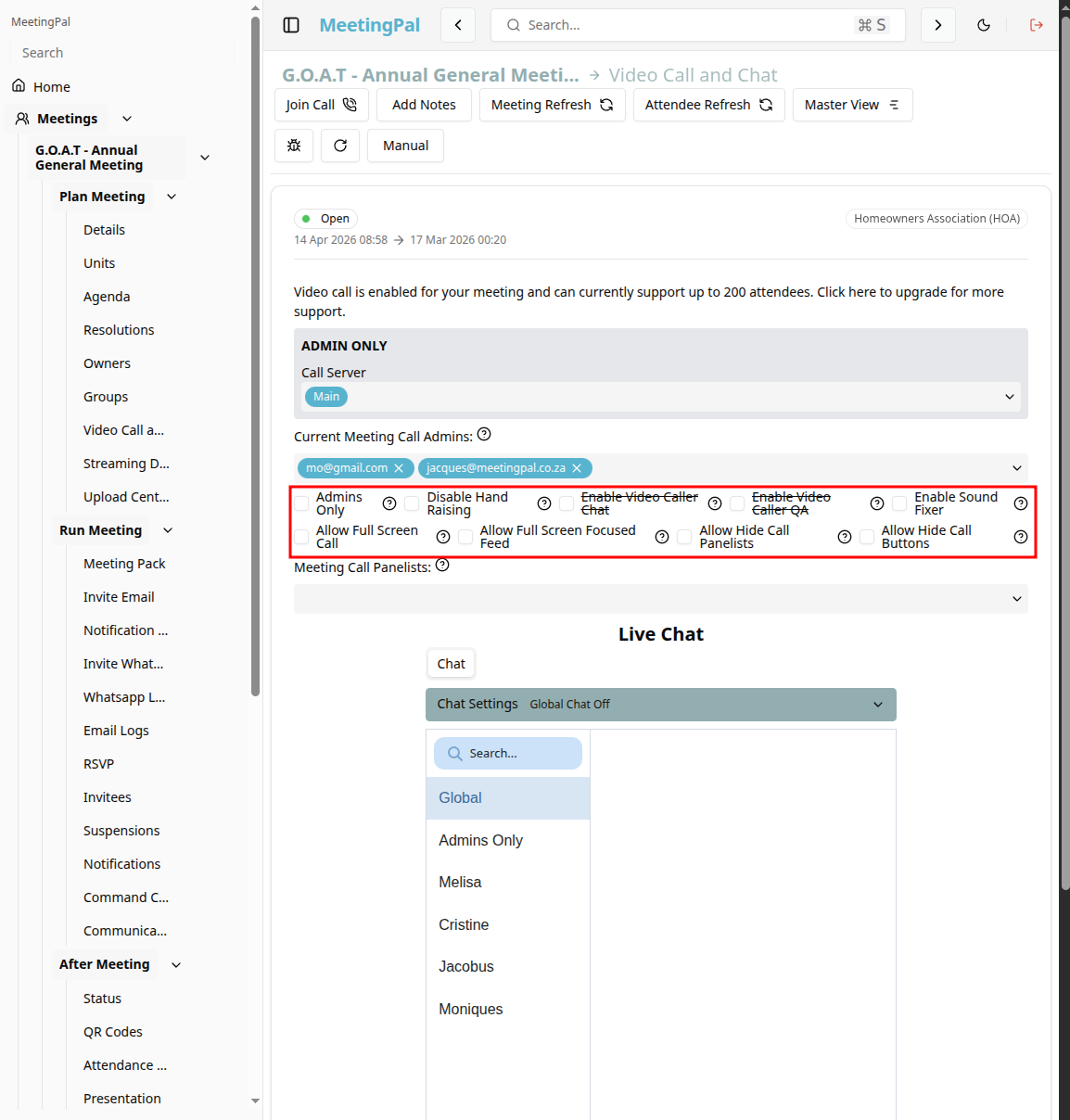
You can enable a few settings to customize the video call and chat components of the meeting.
You can enable and disable these settings:
- Admins Only
- Disable Hand Raising
- Enable Video Caller Chat
- Enable Video Caller QA
- Enable Sound Fixer
- Allow Full Screen Call
- Allow Full Screen Focused Feed
- Allow Hide Call Panelists
- Allow Hide Call Buttons
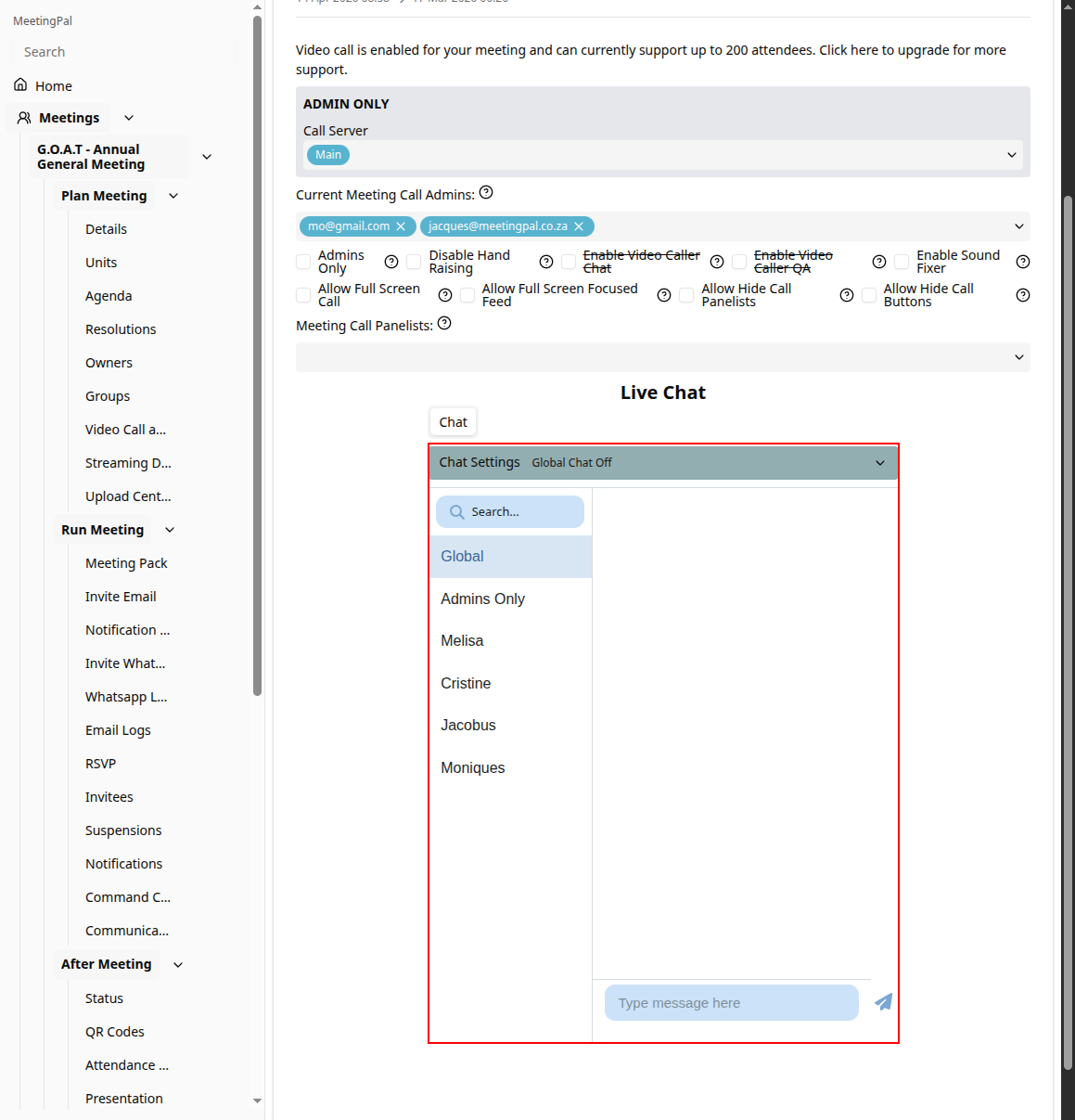
Live Chat
There is also an live chat preview:
Video Call Controls
Common controls available during the meeting include:
Microphone – Mute or unmute yourself.
Camera – Turn your camera on or off.
Screen Share – Share your desktop or a specific application.
Participants – View who is currently connected.
Chat – Open the chat panel.
Leave Meeting – Exit the video call.