Preloading Votes
How to load pre-votes
Pre‑Votes allow proxy givers (members who cannot attend the meeting) to specify how they want to vote on resolutions. This ensures their votes are recorded even if they differ from the proxy holder’s selections.
Follow these steps to load a pre‑vote:
Access the Scheduled Meeting
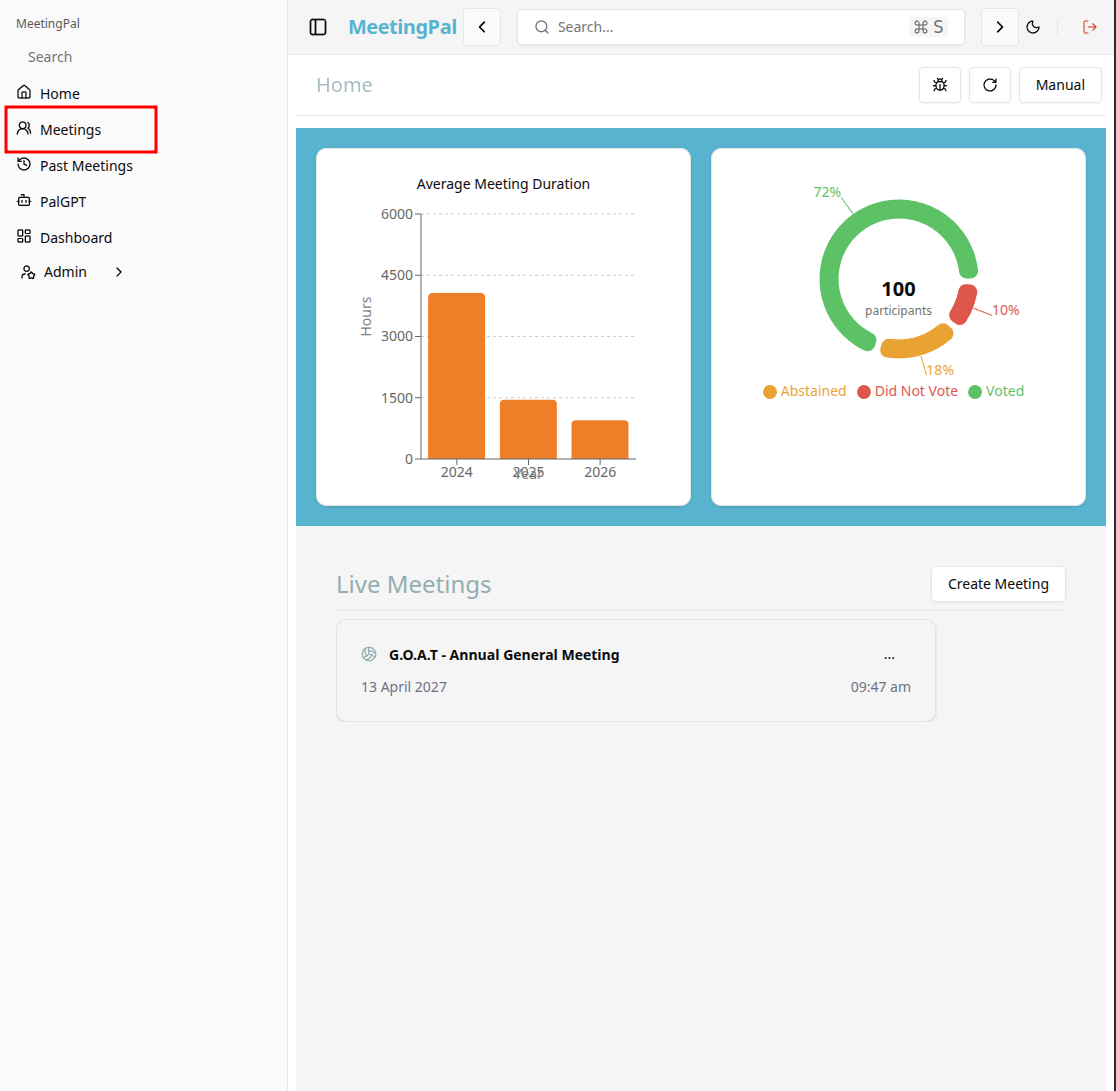
On the MeetingPal Home Page, locate the left-hand menu. Select Meetings.
Start editing the meeting
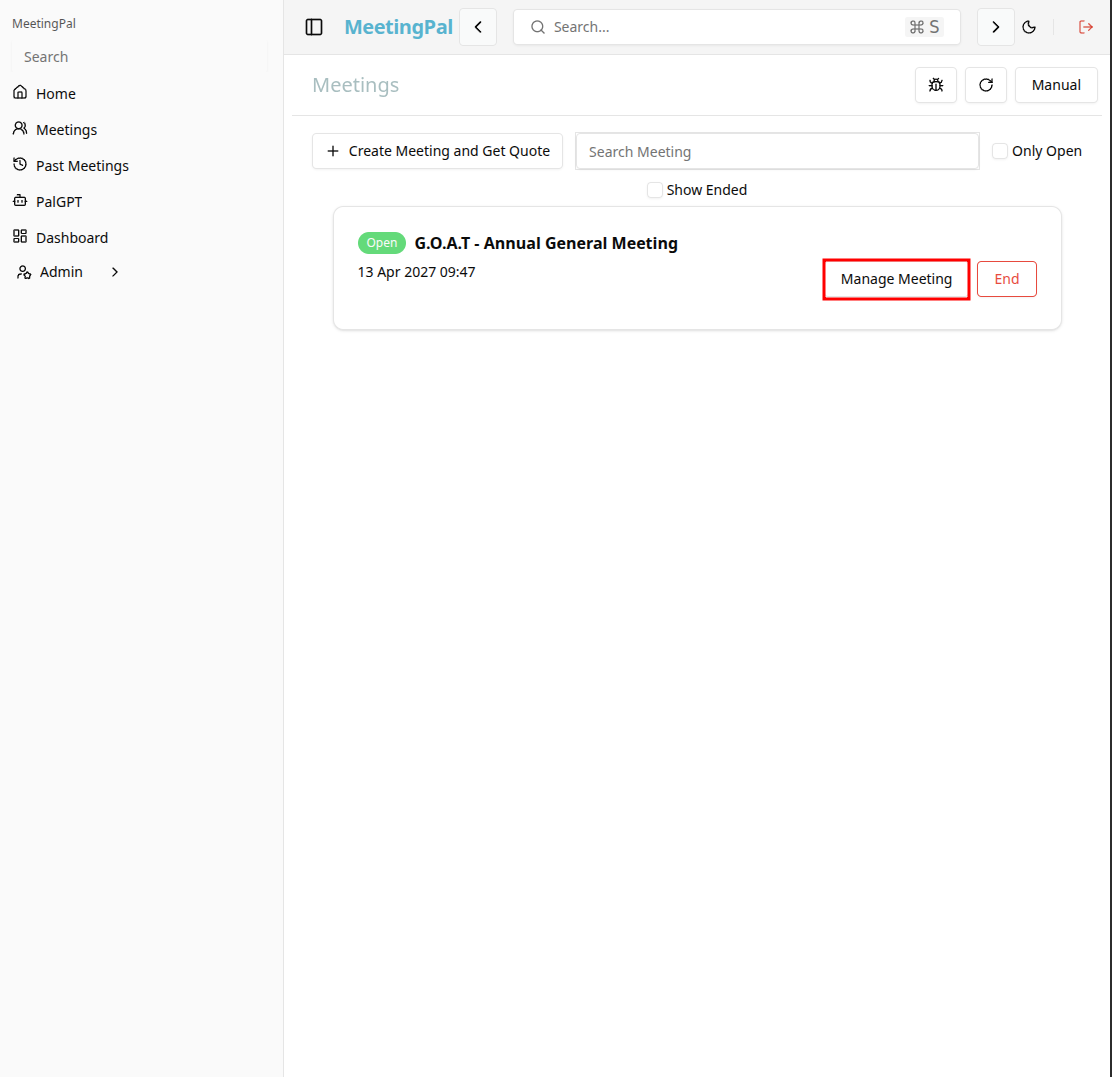
In the meetings page ,you will see all your meetings and the meetings that you are scheduled to attend.
Click on the 'Manage Meeting' button to begin editing the selected meeting.
Open the Proxies Tab
In the selected meeting’s dropdown menu, click Master View.
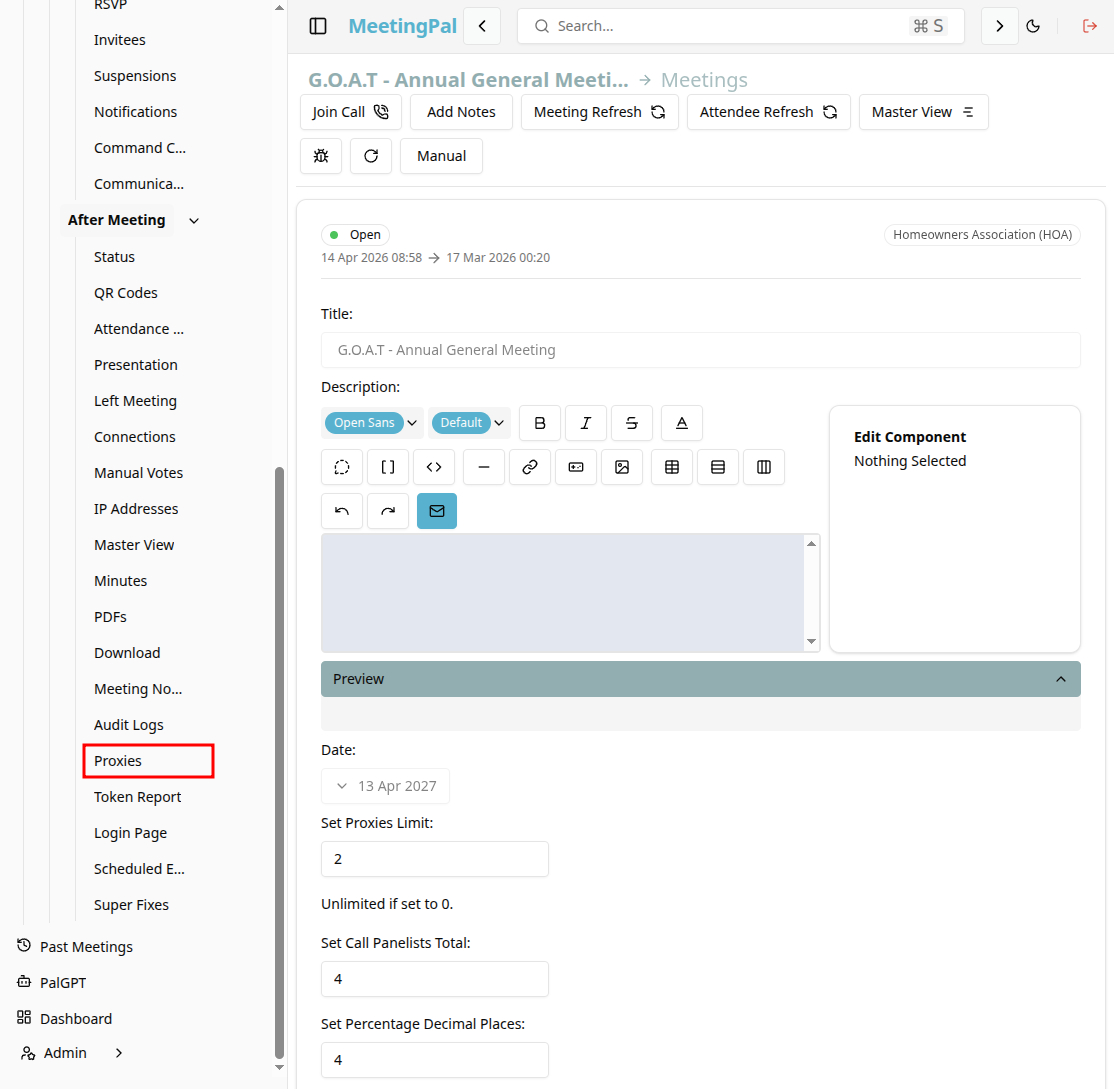
The Master View page will open.
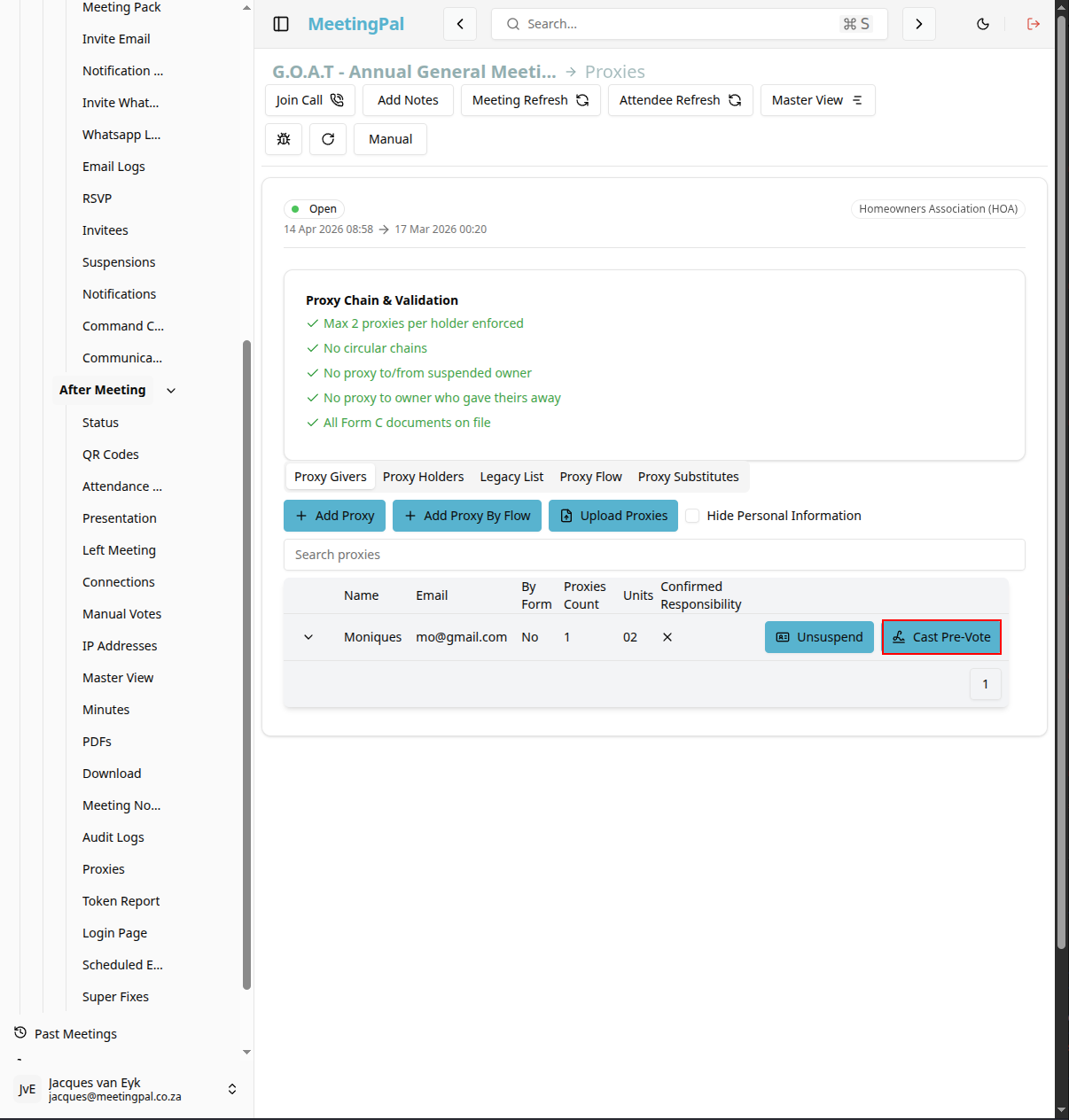
Locate the Member who wants to Cast a Pre‑Vote.
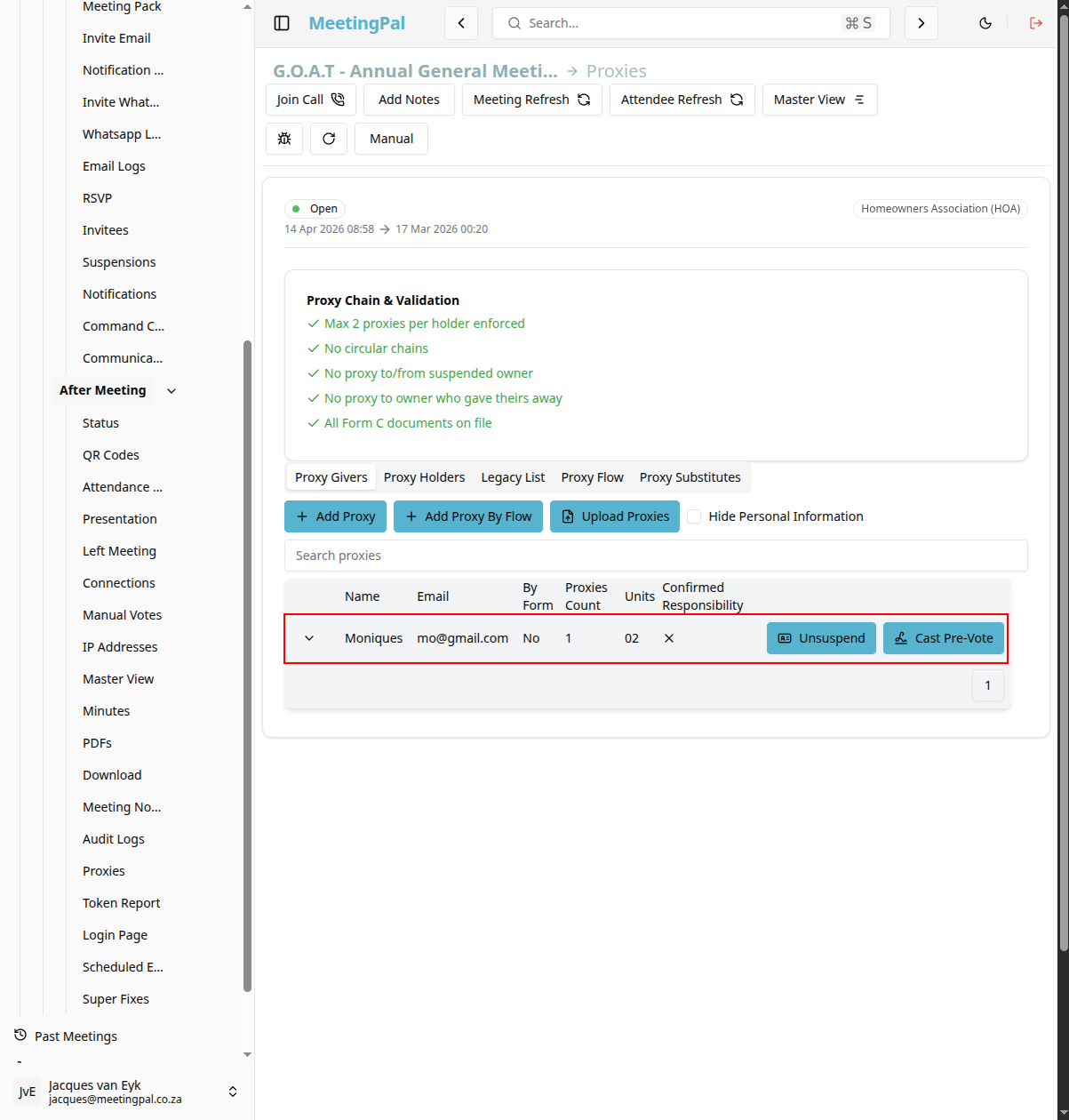
In the Proxies section, look for the specific member(s) who want to submit a pre‑vote.
Click on the Cast Pre‑Vote Screen.
On the far right of the member’s name, click the button labeled “Cast Pre‑Vote.”
A list of resolutions will appear that the proxy giver can vote on:
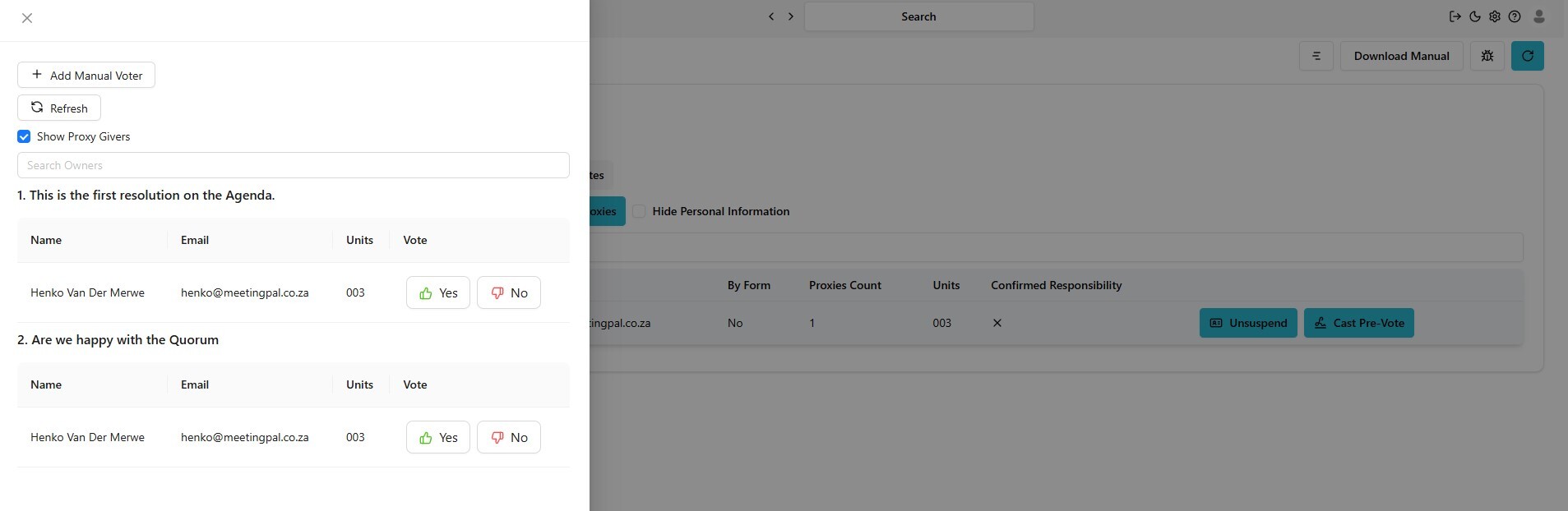
- Review the Pre‑Voting card
- Click on the desired voting option
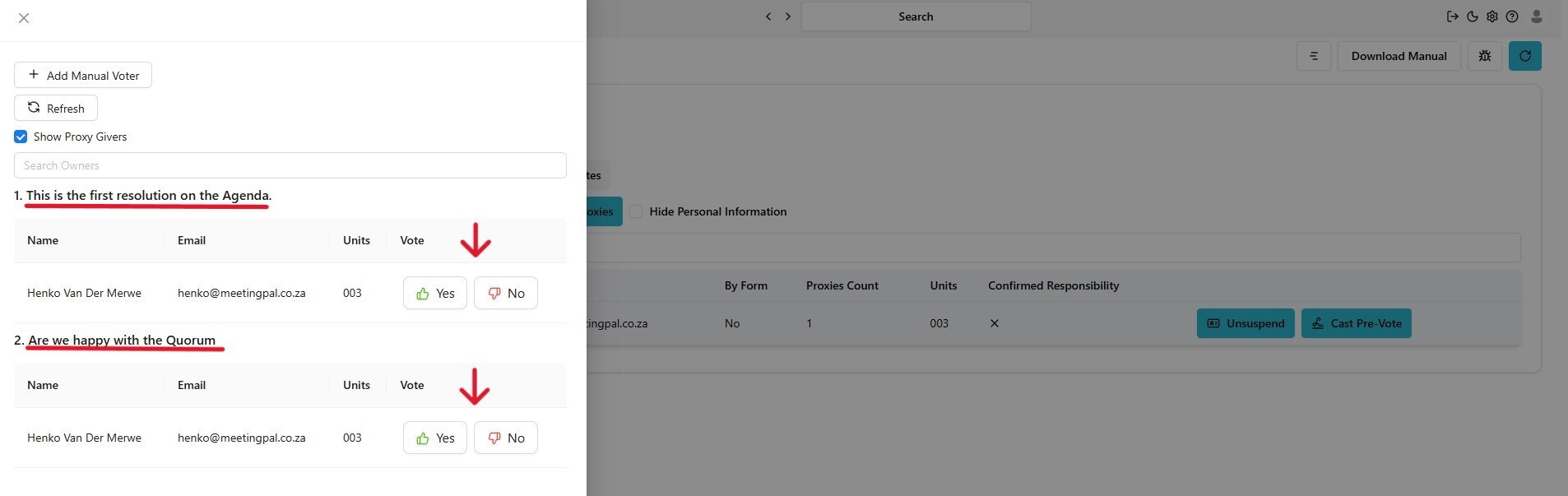
(These choices should match what the proxy giver has written on their proxy form, usually Form C for Body Corporates).
Save the Pre‑Vote
Your selections are automatically saved as soon as they’re clicked. The pre‑vote is now recorded according to the proxy giver’s instructions.
Exit the Pre‑Vote Menu
Click the Cancel or X button in the top-left corner to close the pre‑vote screen.