Manual Votes Tab
Access the Scheduled Meeting
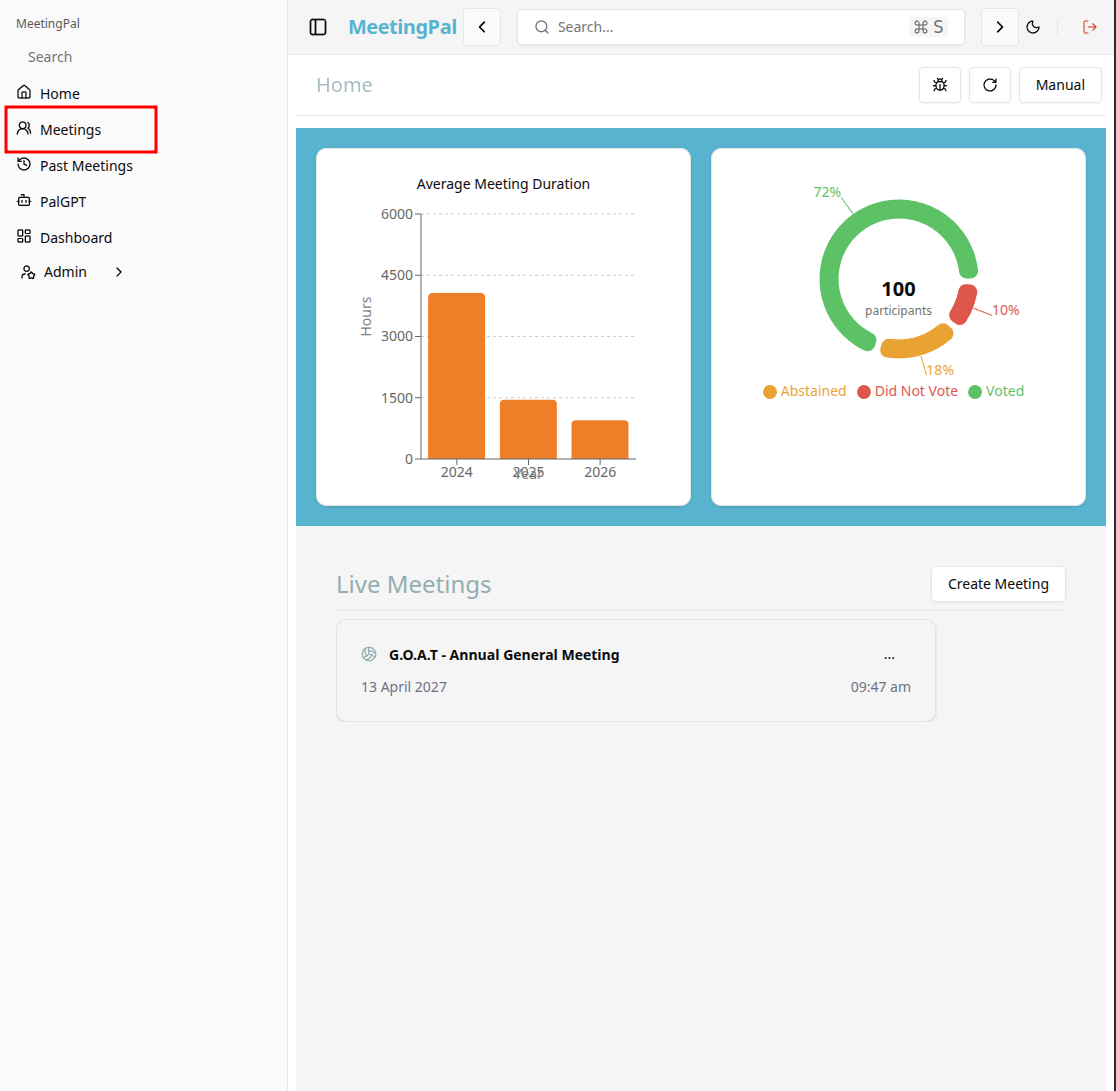
On the MeetingPal Home Page, locate the left-hand menu. Select Meetings.
Start editing the meeting
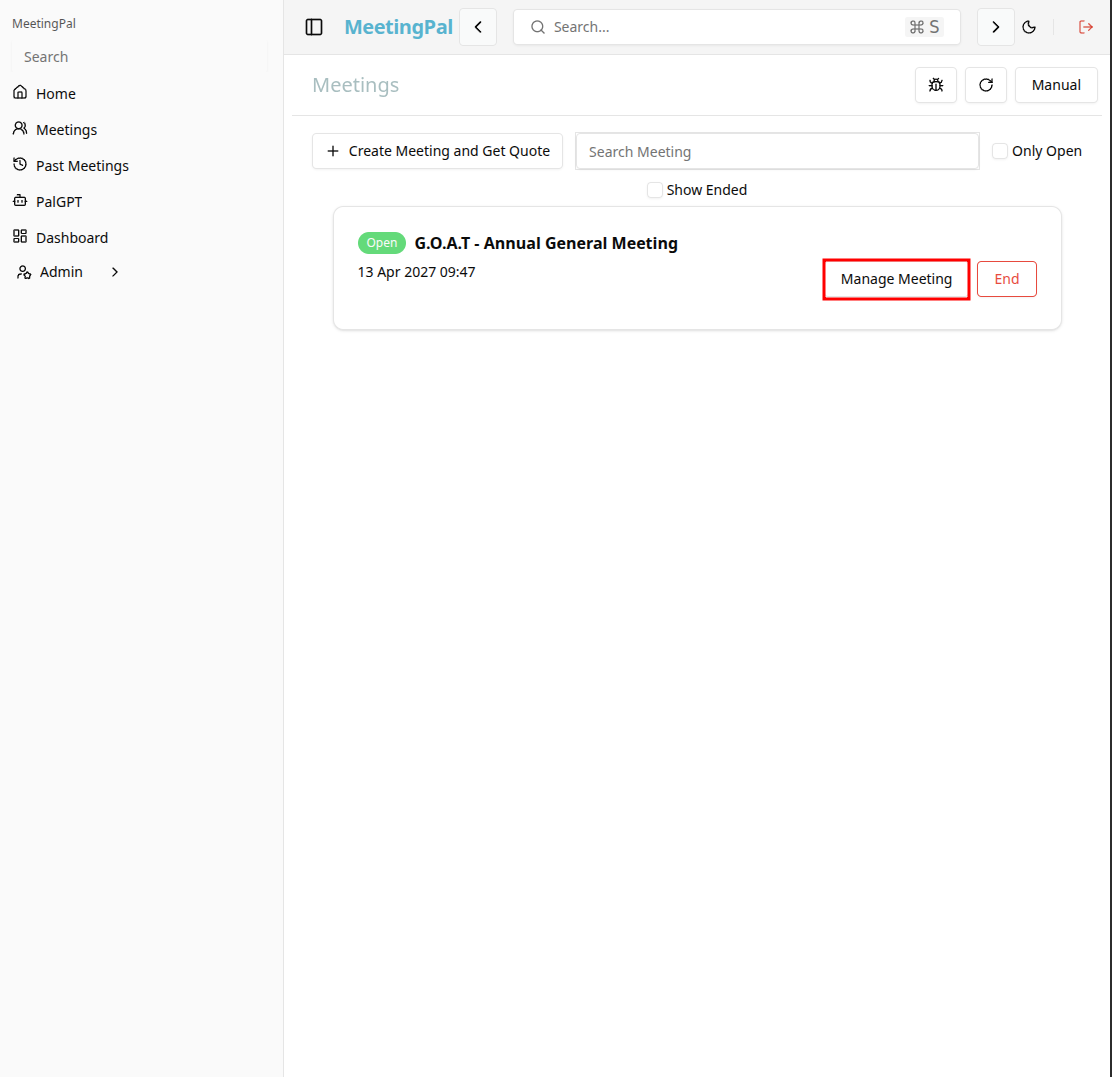
In the meetings page ,you will see all your meetings and the meetings that you are scheduled to attend.
Click on the 'Manage Meeting' button to begin editing the selected meeting.
Open the Manual Votes Tab
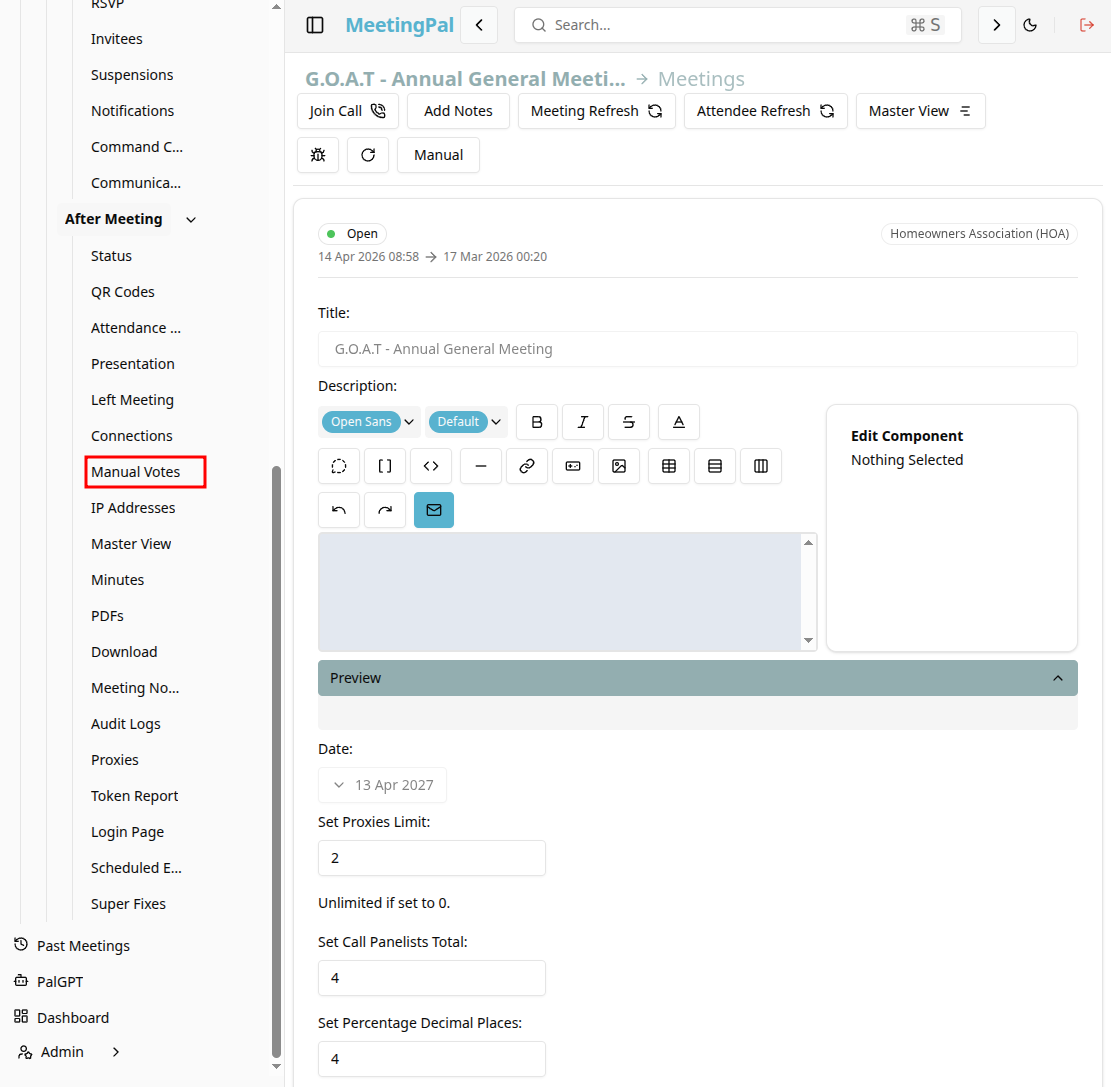
In the selected meeting’s dropdown menu, click Manual Votes.
The Manual Votes page will open.
Understanding the Manual Votes Page
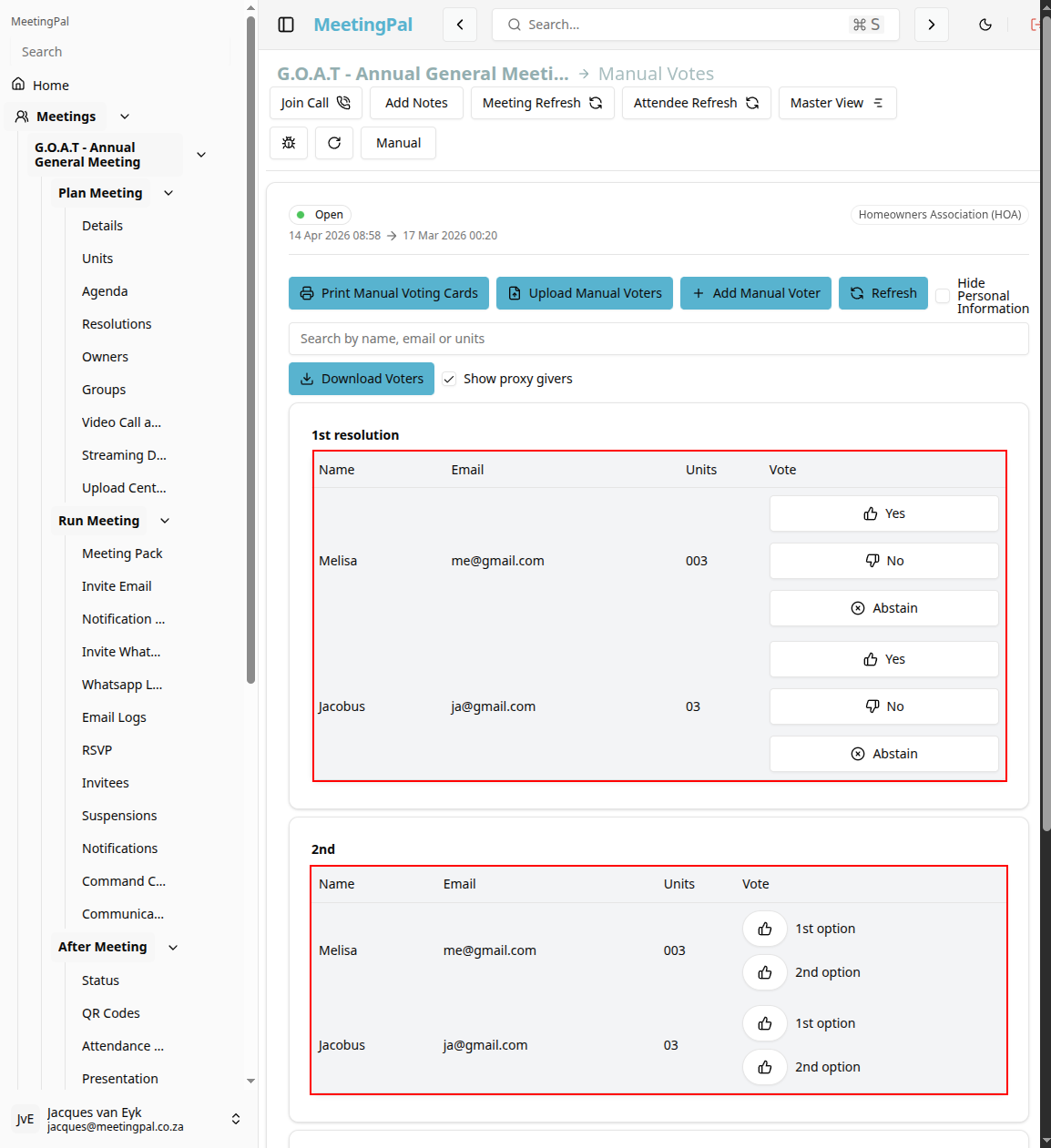
The Manual Votes page allows meeting administrators to record votes on behalf of attendees when votes are cast outside the MeetingPal attendee portal.
This is useful for:
- In-person attendees voting by show of hands.
- Proxy votes submitted on paper.
- Votes received by email or telephone.
- Correcting missed electronic votes.
Record Votes
For each attendee or owner:
Locate the participant in the list.
Select the appropriate vote option:
- For
- Against
- Abstain
- Withhold (if applicable)
Repeat for all required participants.
Save Manual Votes
After entering the votes, click Save Votes, if there is no save/submit button then the votes will be saved automatically upon clicking the vote.
The votes will be included in the final resolution results.
Edit or Remove Manual Votes
If a correction is required:
- Return to the relevant resolution in the Manual Votes tab.
- Update the recorded vote.
- Save the changes.
You may also be able to clear a manual vote if it was entered in error.
Review Combined Voting Results
Manual votes are added to votes cast electronically through the attendee portal.
Use the Presentation or Resolution pages to review the updated totals and final outcome.
Common Uses for Manual Votes
The Manual Votes tab is useful for:
- Capturing in-person votes.
- Recording proxy instructions.
- Entering paper ballot results.
- Correcting technical issues during voting.
Best Practices
Confirm the correct resolution is selected before entering votes.
Double-check all entries before saving.
Keep supporting records for audit purposes.
Record manual votes as soon as they are received.
Important Notes
Manual votes affect the official voting totals for the selected resolution.
Only authorized users should enter or edit manual votes.
Changes may be tracked in the meeting audit history.
Always verify that the final results reflect all intended votes.