Groups
Access the Scheduled Meeting
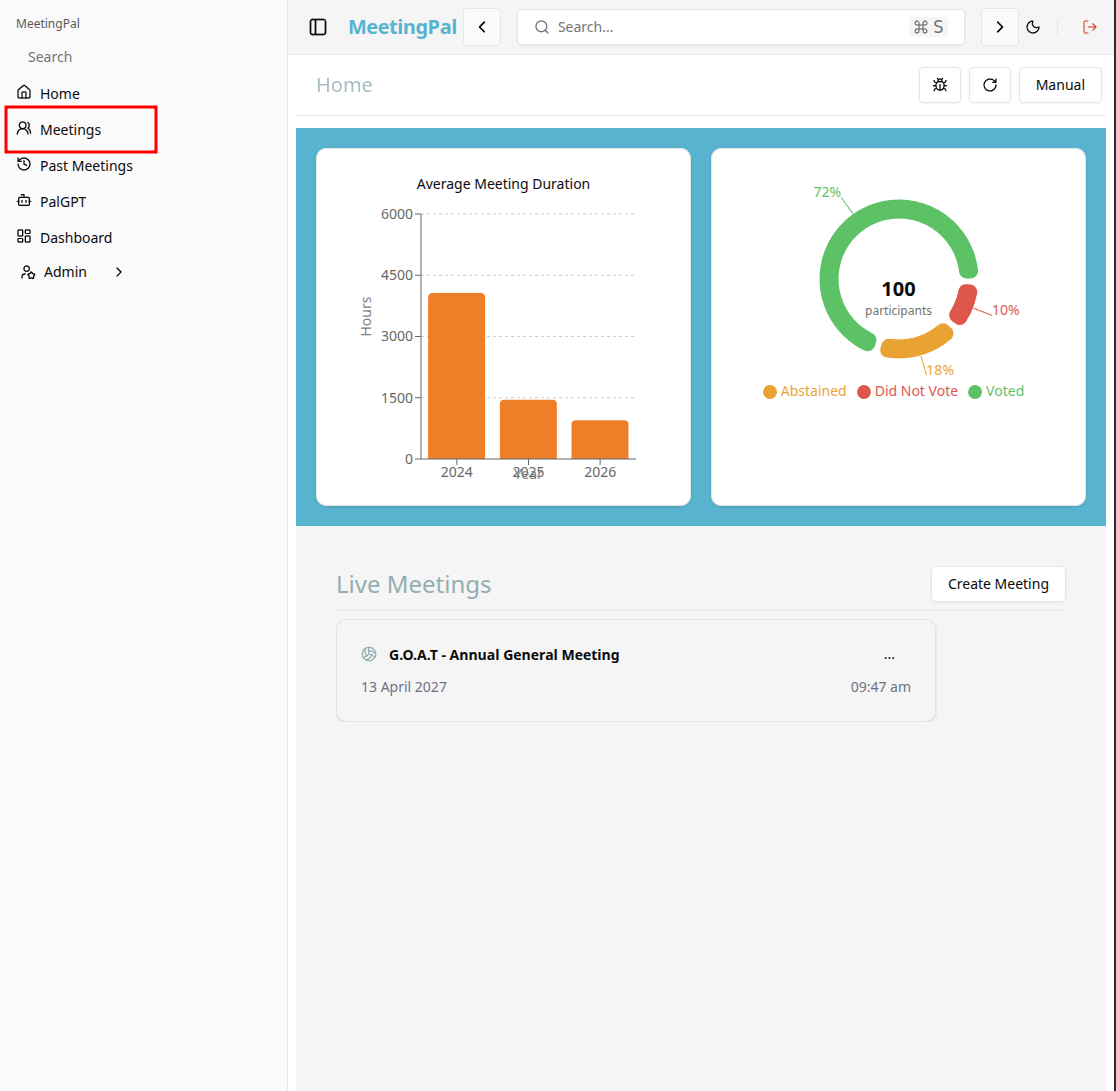
On the MeetingPal Home Page, locate the left-hand menu. Select Meetings.
Start editing the meeting
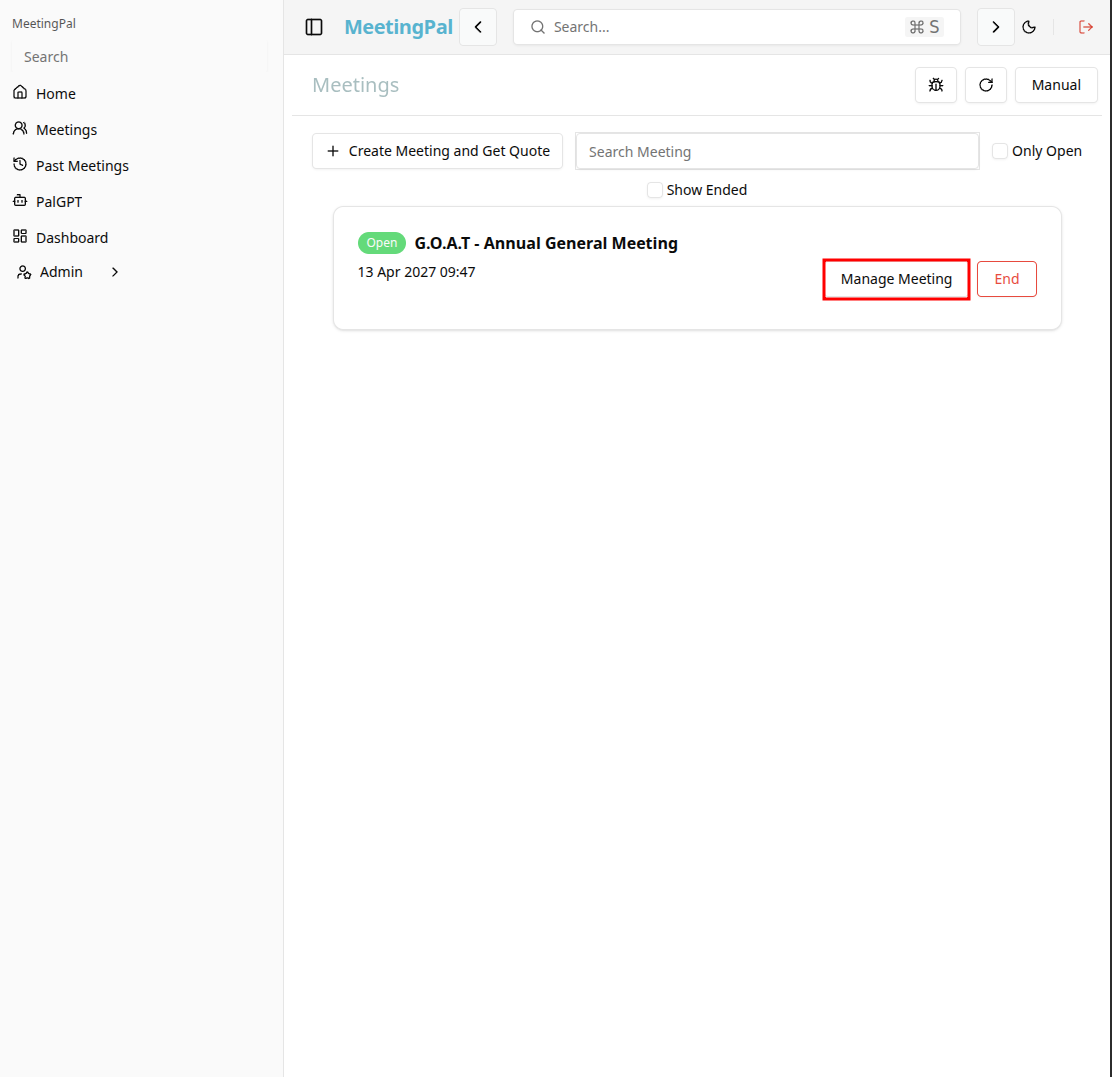
In the meetings page ,you will see all your meetings and the meetings that you are scheduled to attend.
Click on the 'Manage Meeting' button to begin editing the selected meeting.
Open the Groups Section
In the selected meeting’s dropdown menu, click Groups.
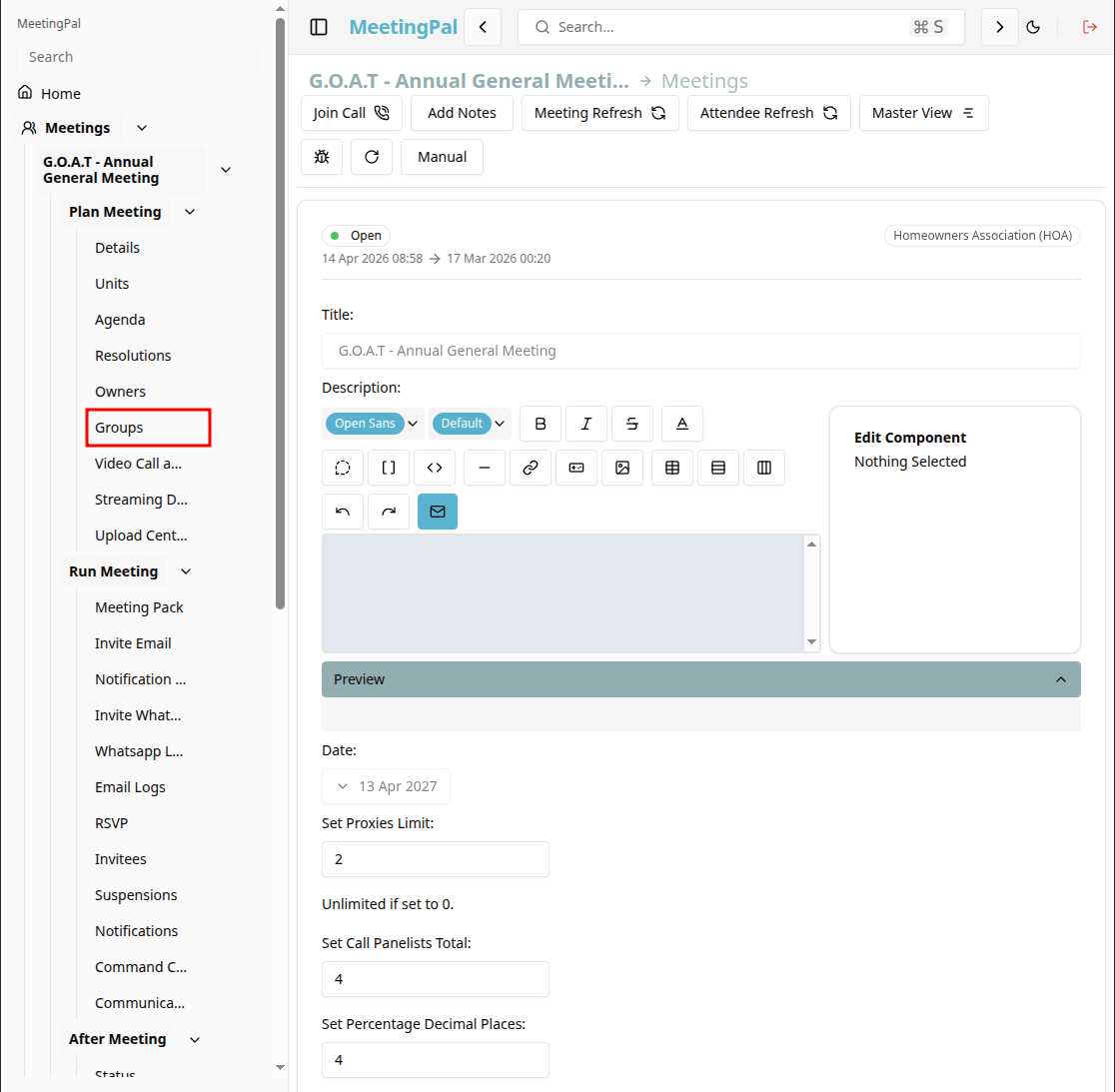
The Groups Page will open, displaying all existing meeting groups.
Create a New Group
On the Groups Page, click the Add Group or New Group button.
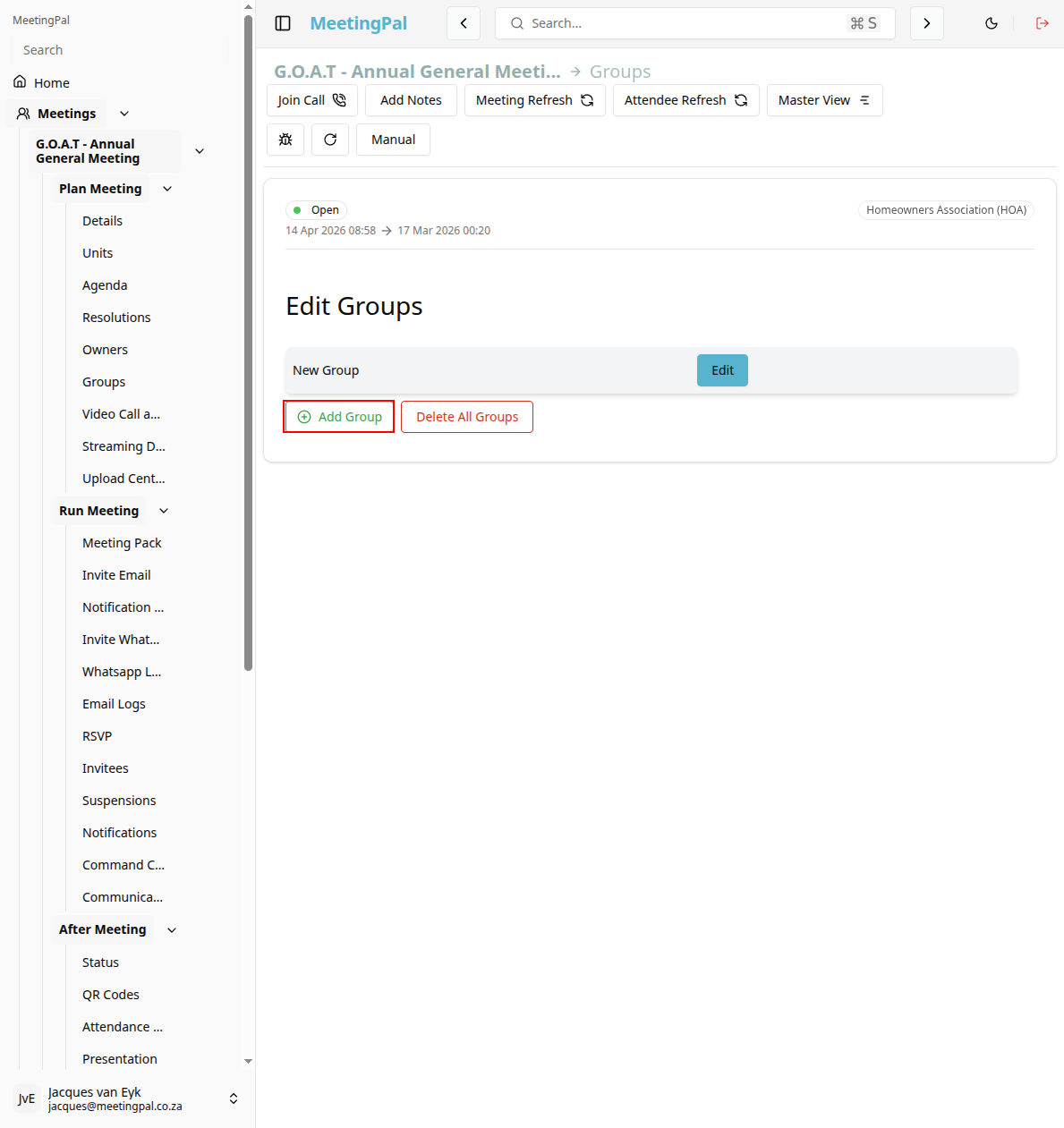
A group creation form or pop-up window will appear.
Open the Group to Add Members
Locate the newly created group in the Groups list.
Click the edit button next to the group name.
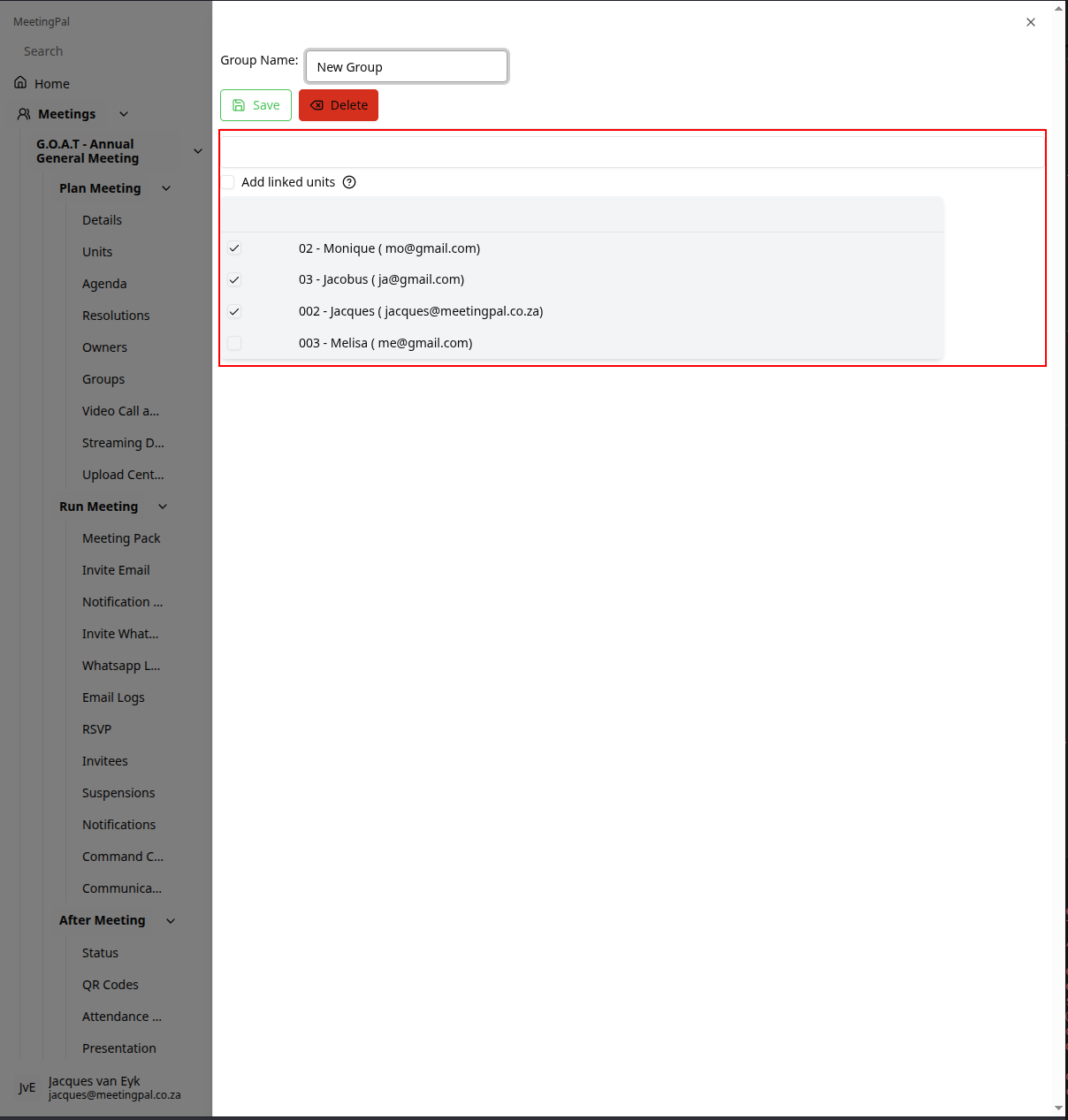
The Group management window will open.
Then you can tick the checkbox next to the invitee's name that you want to add to the group.
Important Notes
Groups can be used to organize attendees, manage permissions, or configure voting structures.
Group permissions and features may vary depending on your organization’s MeetingPal configuration.
Members can usually be added or removed before the meeting starts.
Ensure all required attendees are assigned to the correct groups before sending meeting invites or starting voting sessions.