Invite WhatsApp Tab
Access the Scheduled Meeting
On the MeetingPal Home Page, locate the left-hand menu.
Select Meetings.
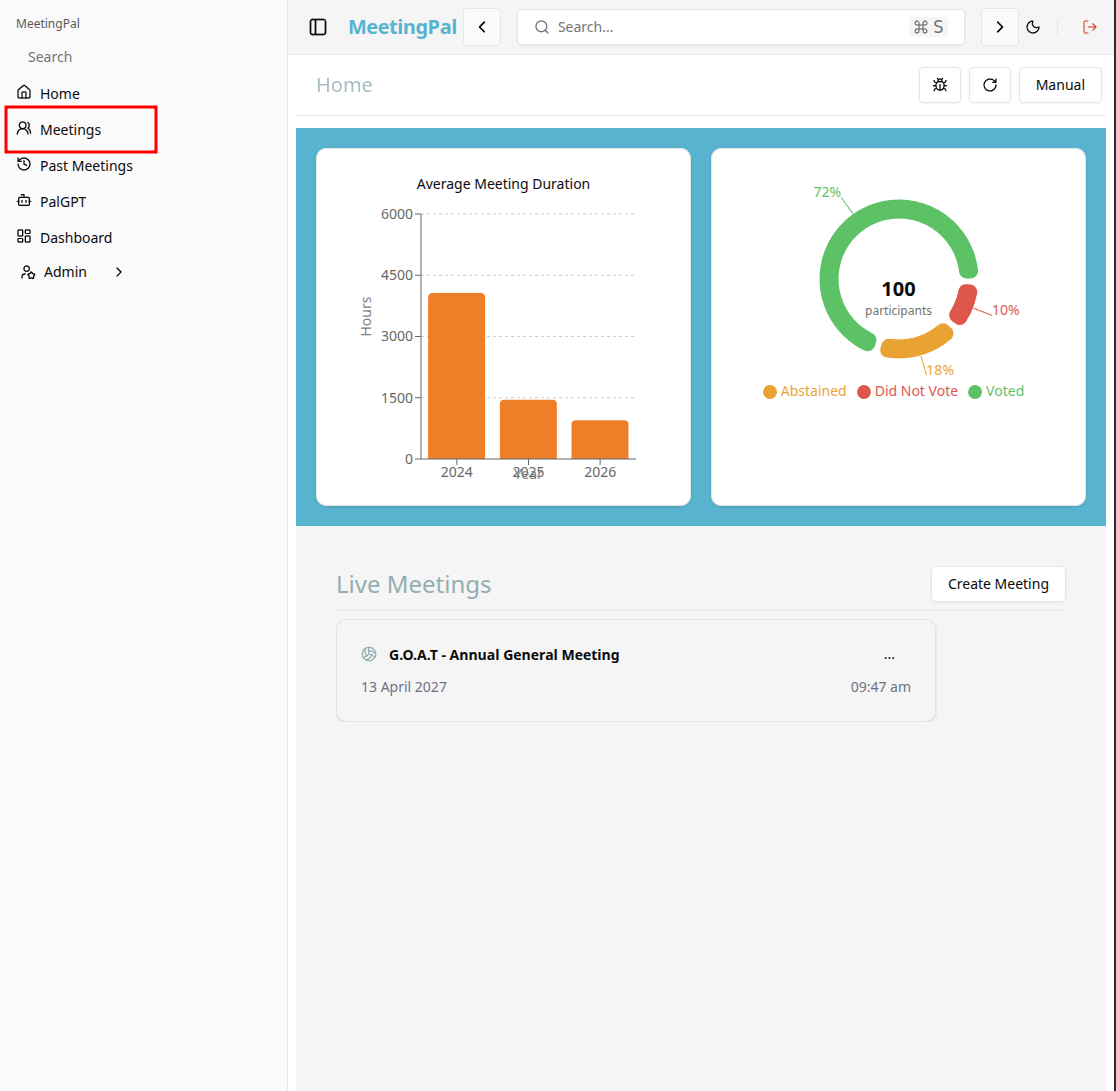
Start editing the meeting
In the meetings page ,you will see all your meetings and the meetings that you are scheduled to attend.
Click on the 'Manage Meeting' button to begin editing the selected meeting.
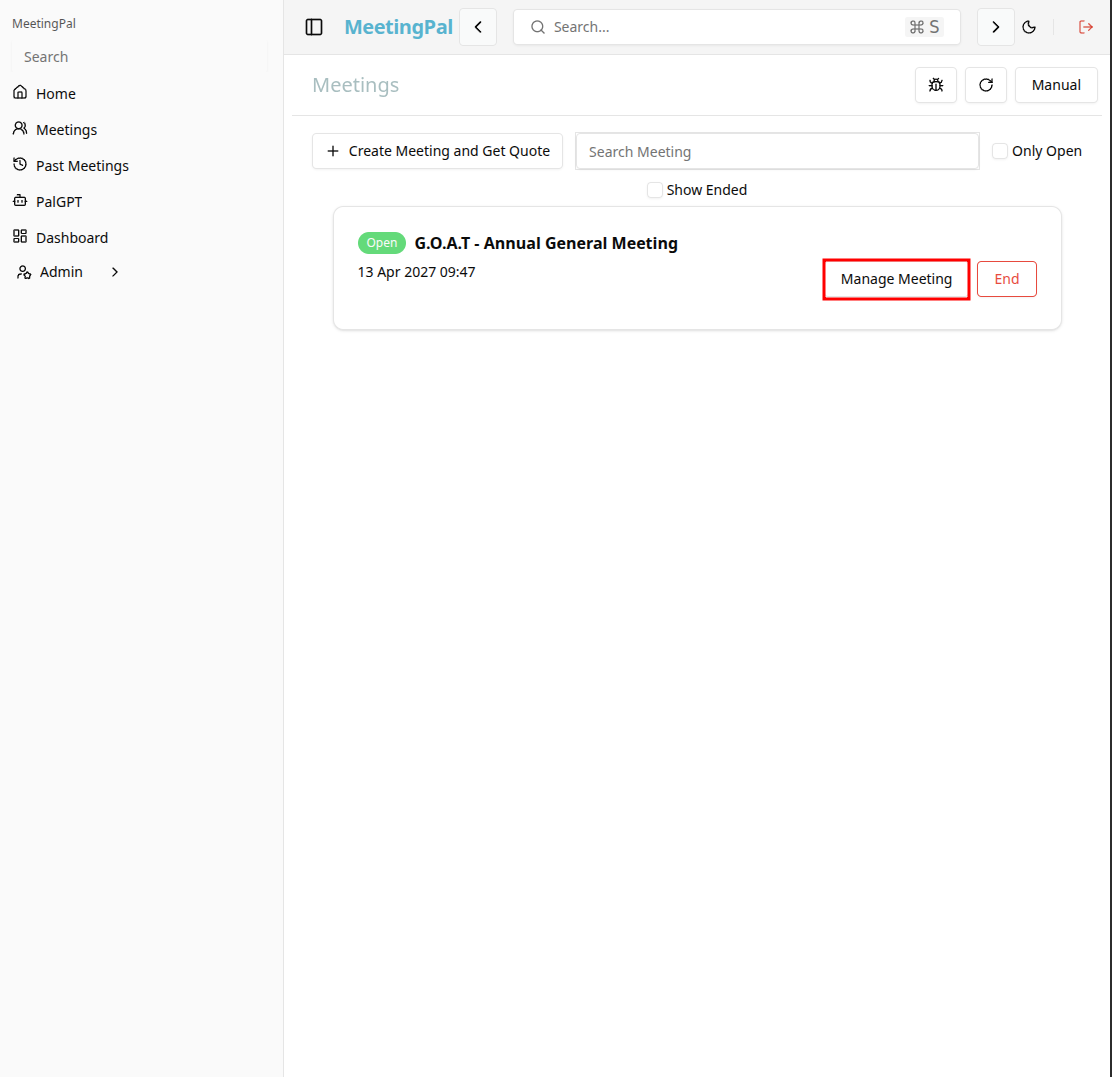
Open the Invite WhatsApp Tab
In the selected meeting’s dropdown menu, click Invite WhatsApp.
The Invite WhatsApp page will open.
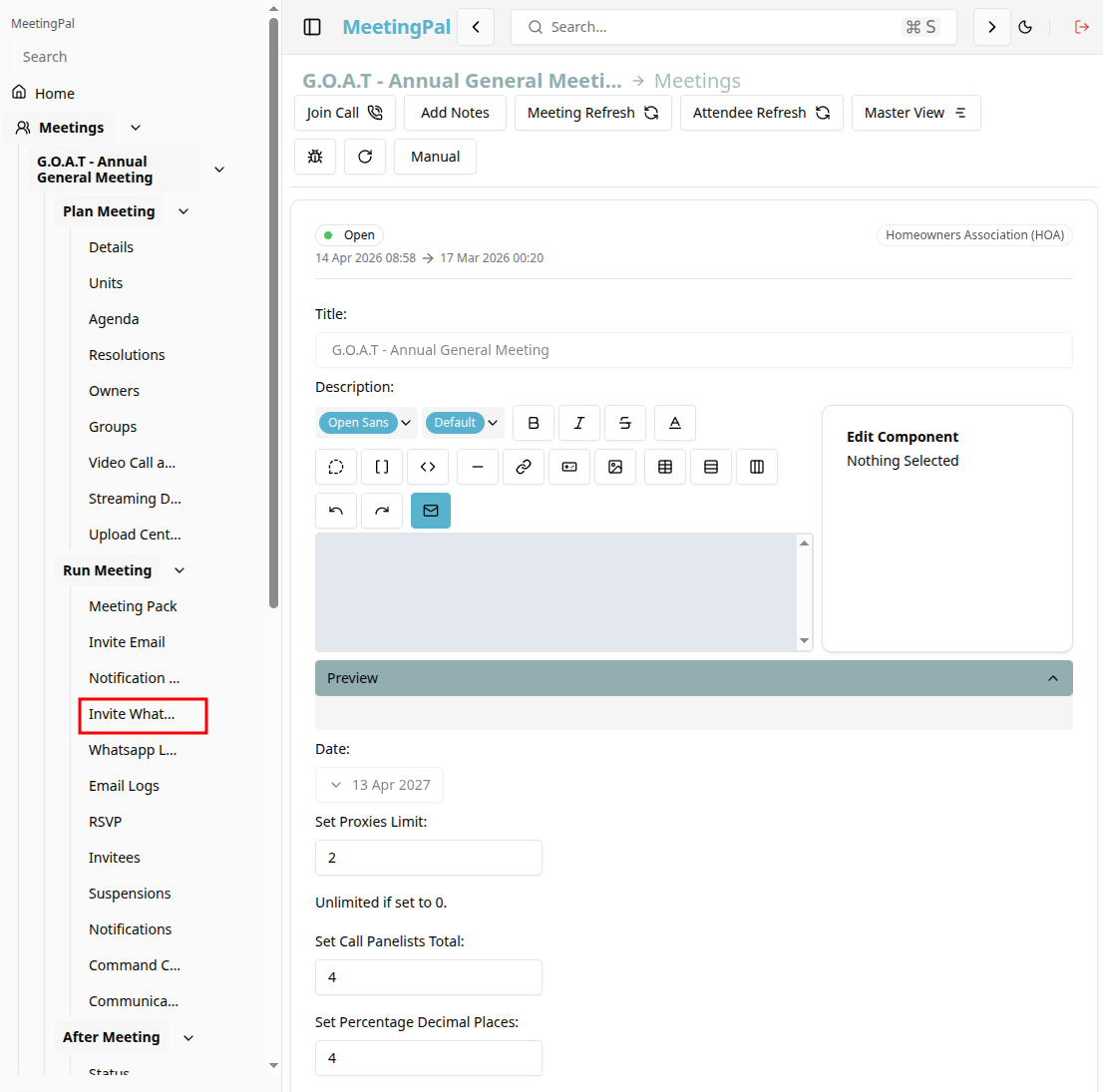
Understanding the Invite WhatsApp Page
The Invite WhatsApp page allows you to:
- Create and edit the WhatsApp message sent to attendees.
- Insert each attendee’s unique meeting link.
- Include meeting details and joining instructions.
- Save and preview the message before sending.
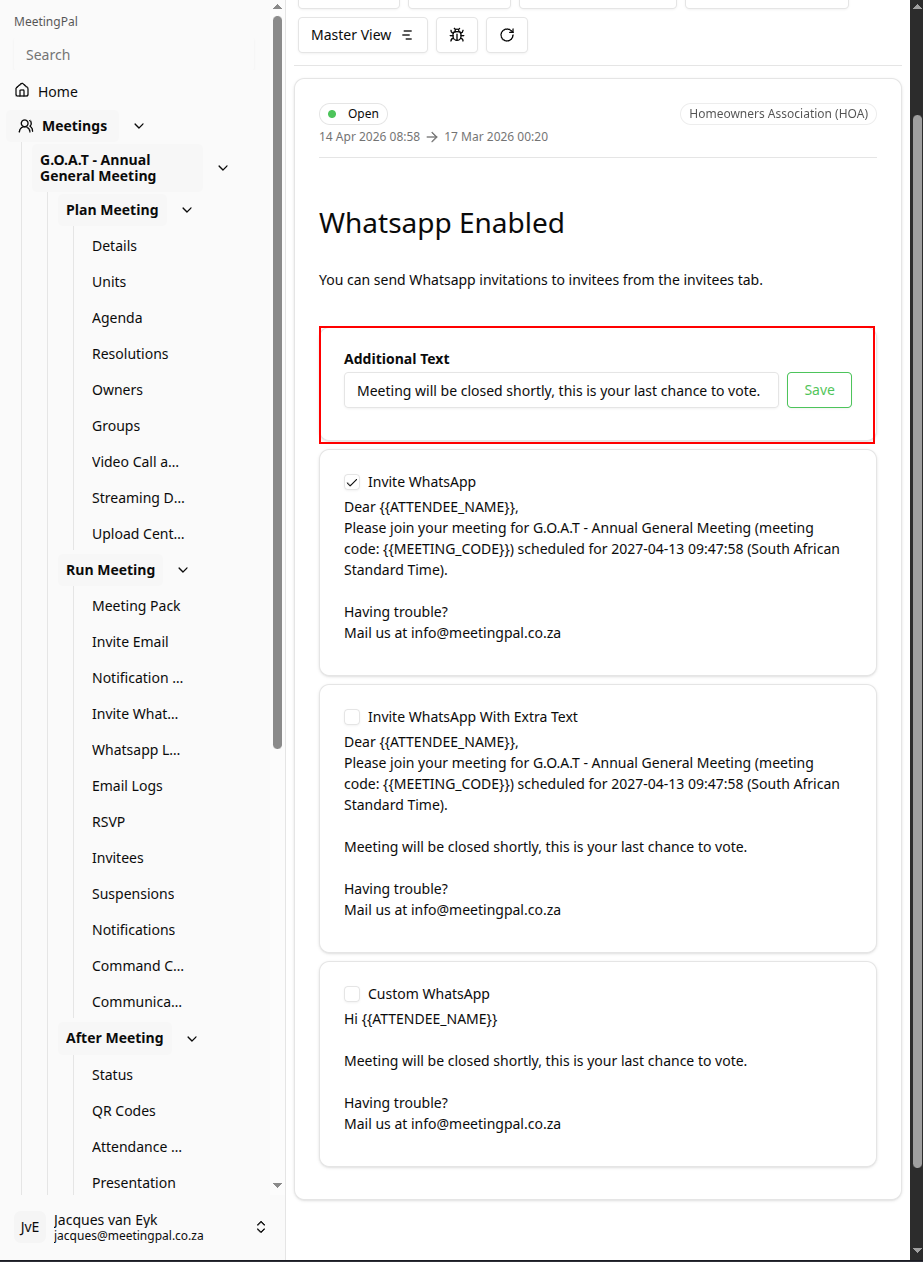
Select Whatsapp format
You can select what format the whatsapp message should use
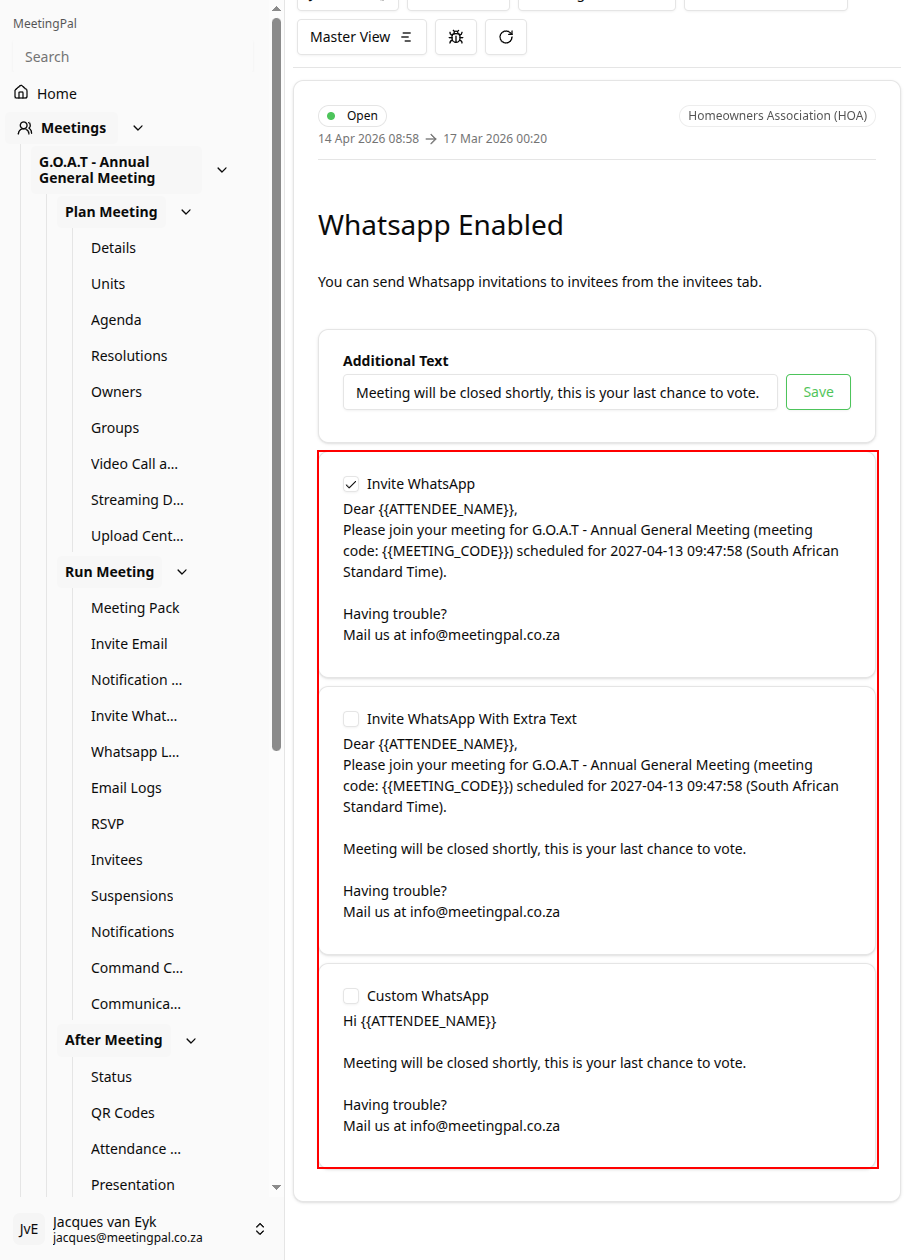
You can also add additional text to the whatsapp.
Send WhatsApp Invitations
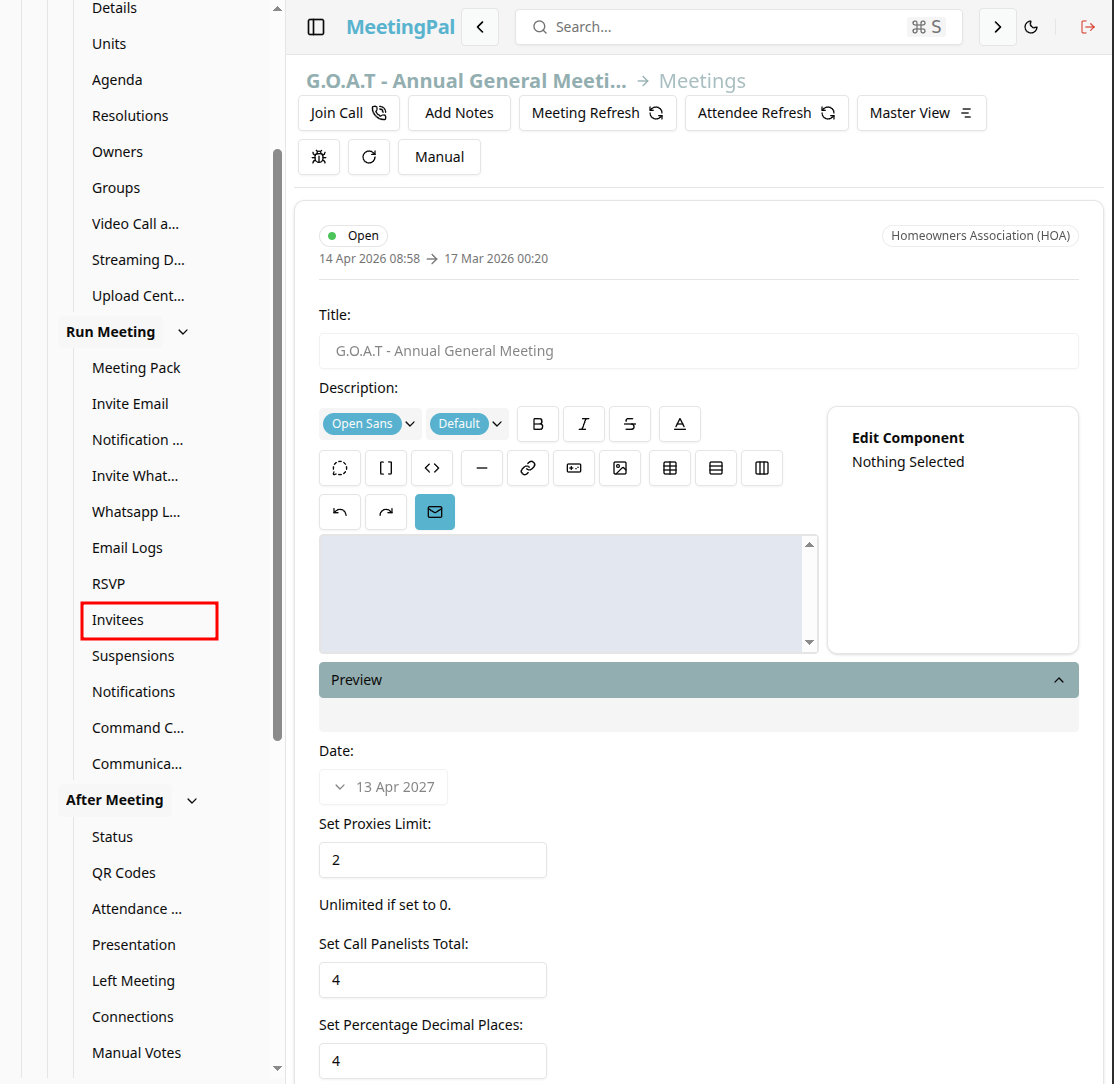
Navigate to the Invitees page.
Click Notify Users.
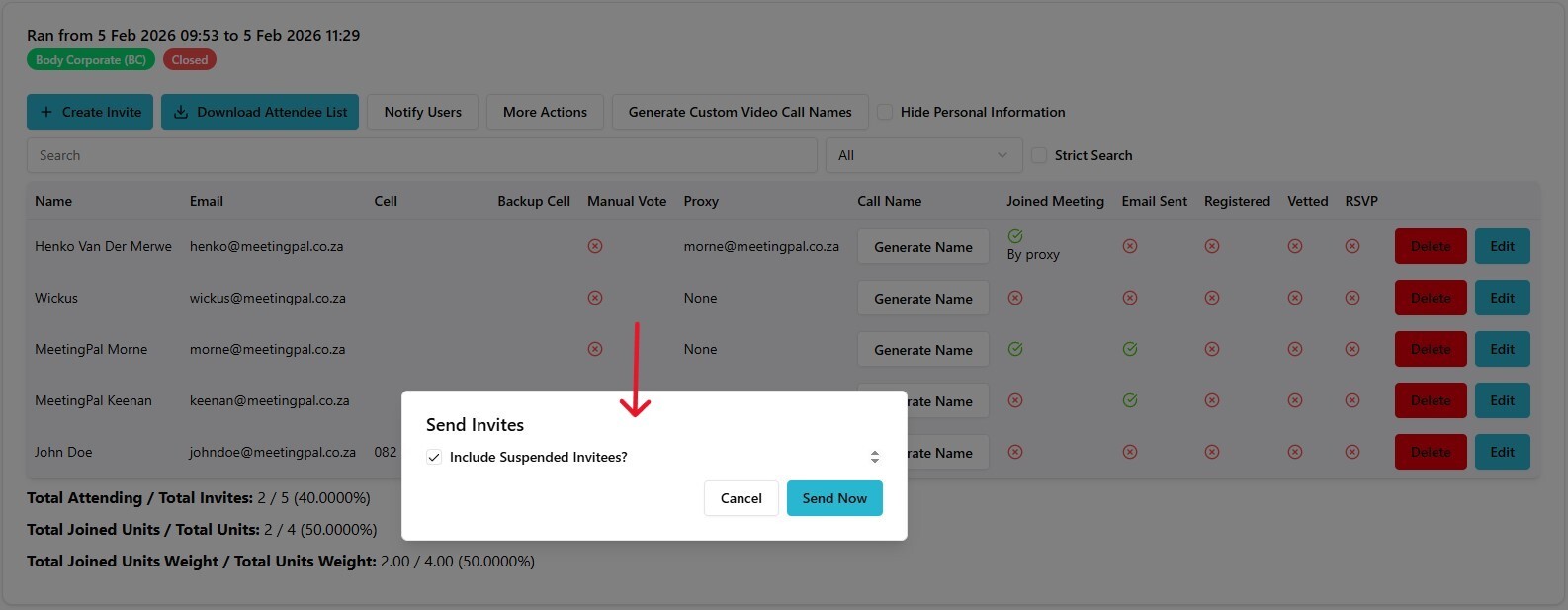
Select the appropriate WhatsApp sending option, if available.
Confirm recipient selection.
Click Send Now.
Alternatively, some configurations may allow you to send directly from the Invite WhatsApp page.
Best Practices
Ensure attendee mobile numbers are stored in the correct international format.
Send a test message before notifying all attendees.
Keep messages concise and easy to read.
Include clear instructions and the personalised meeting link.
Important Notes
WhatsApp messaging must be enabled for your organization.
Delivery depends on valid mobile numbers and attendee access to WhatsApp.
Messaging charges may apply depending on your account configuration.
Saved templates are specific to the selected meeting.