Invitees Tab
Access the Scheduled Meeting
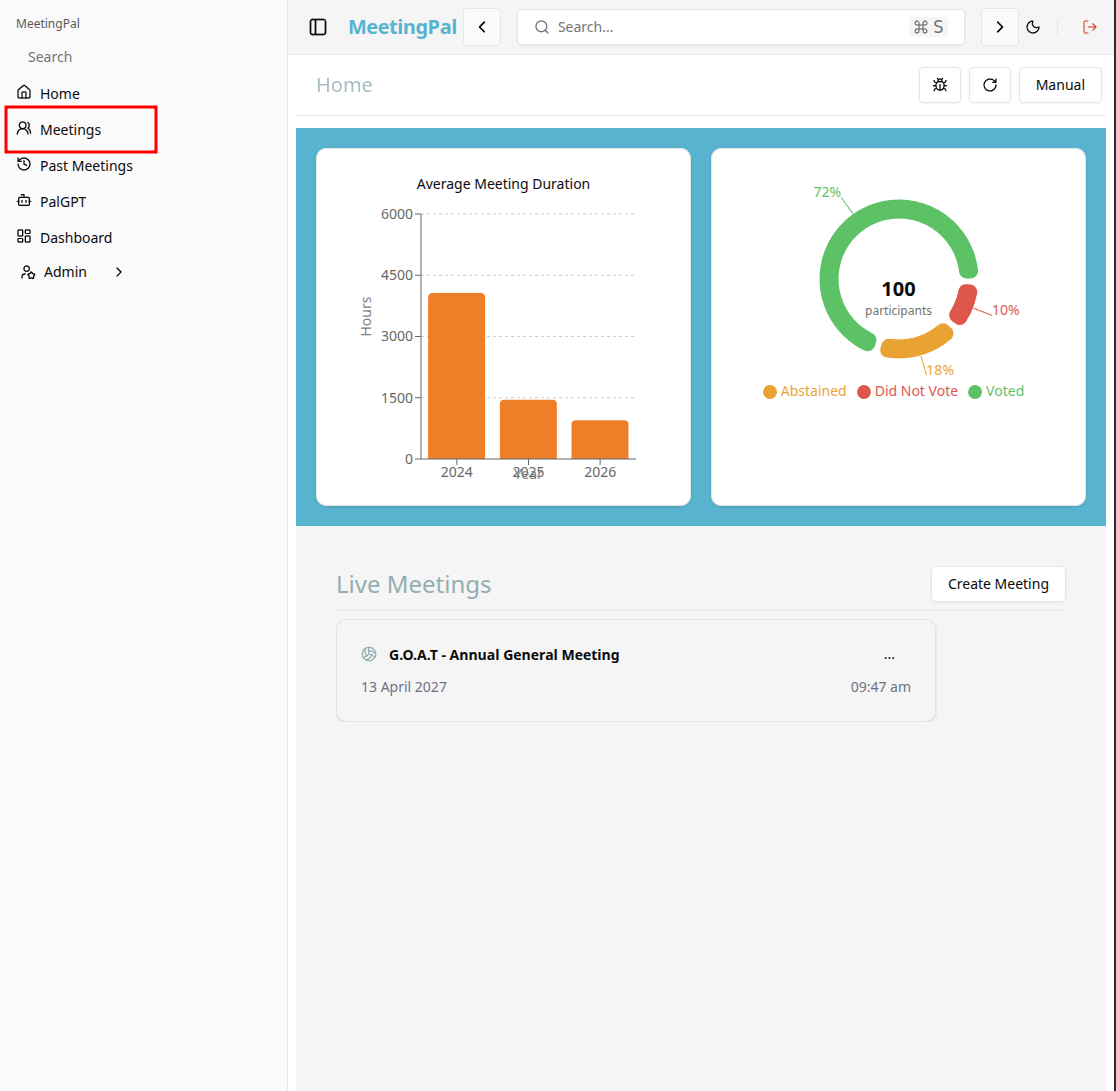
On the MeetingPal Home Page, locate the left-hand menu. Select Meetings.
Start editing the meeting
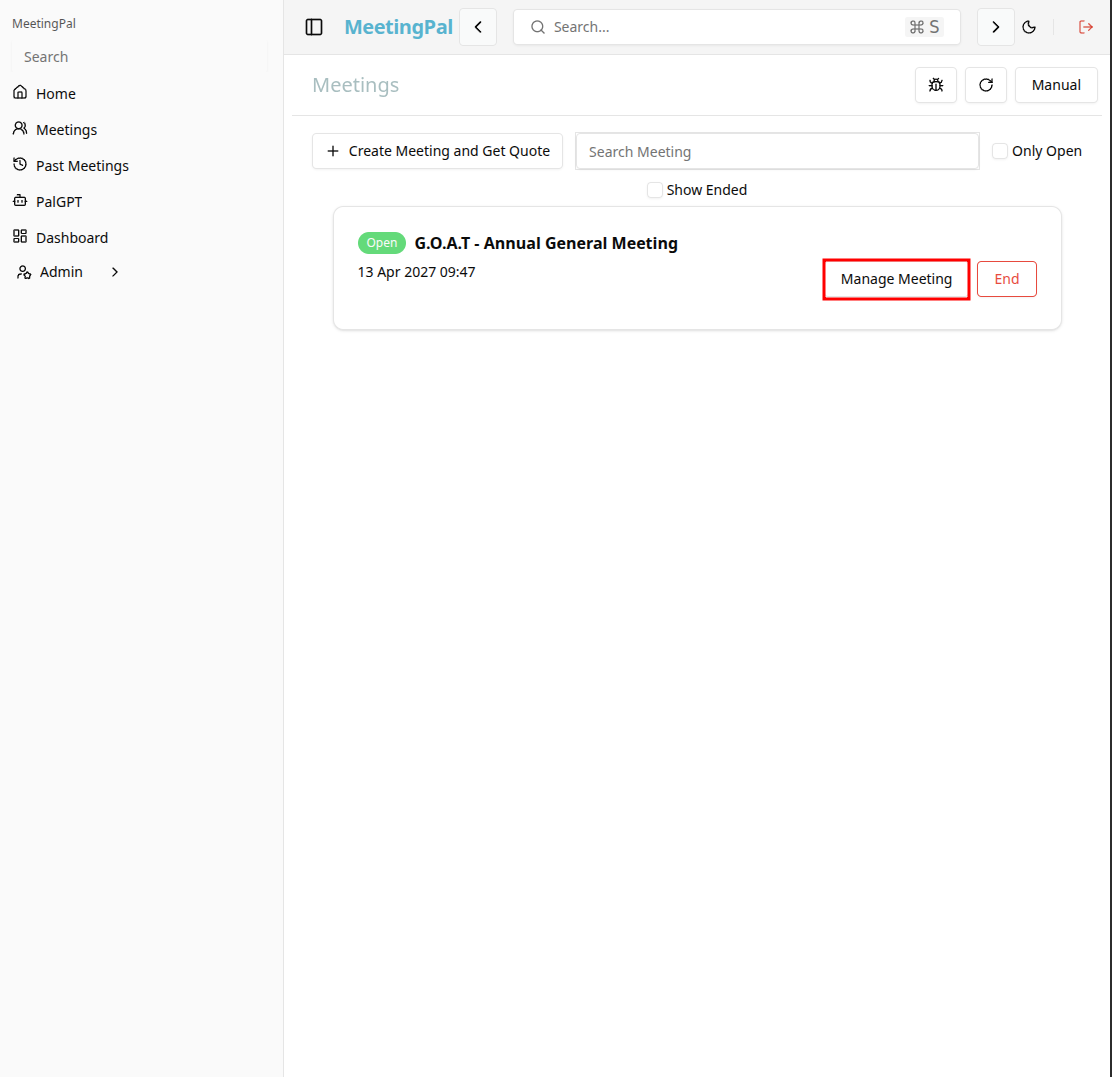
In the meetings page ,you will see all your meetings and the meetings that you are scheduled to attend.
Click on the 'Manage Meeting' button to begin editing the selected meeting.
Open the Invitees Tab
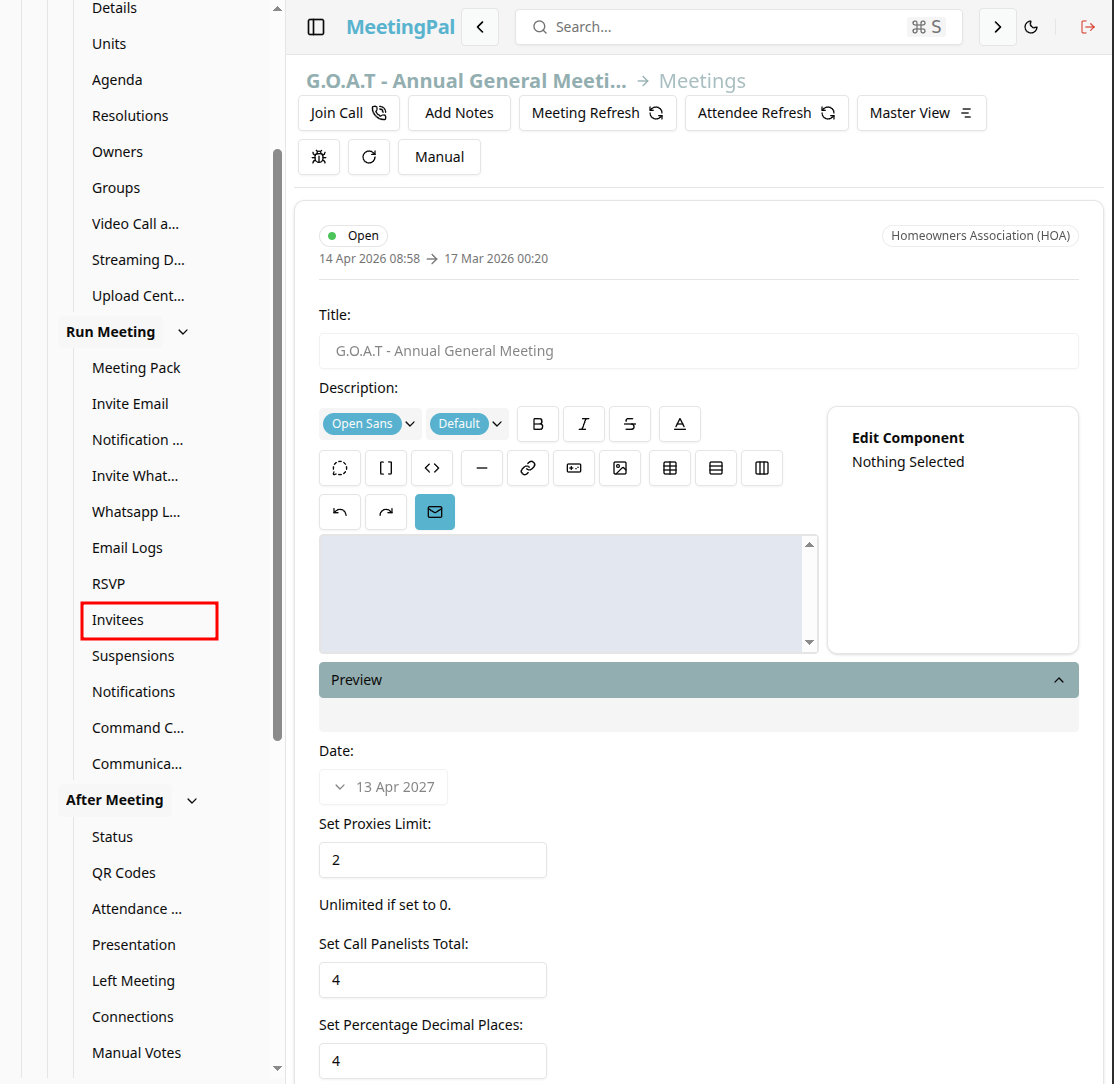
In the selected meeting’s dropdown menu, click Invitees.
The Invitees page will open.
Understanding the Invitees Page
The Invitees page is used to manage all attendees associated with the meeting.
From this page, you can:
- View all invitees and their contact information.
- Add new invitees manually.
- Edit existing invitee details.
- Remove invitees from the meeting.
- Assign units and ownership.
- Track RSVP responses.
- Send meeting invitations and reminders.
- Assign proxies.
- Manage attendance and voting eligibility.
Add a New Invitee
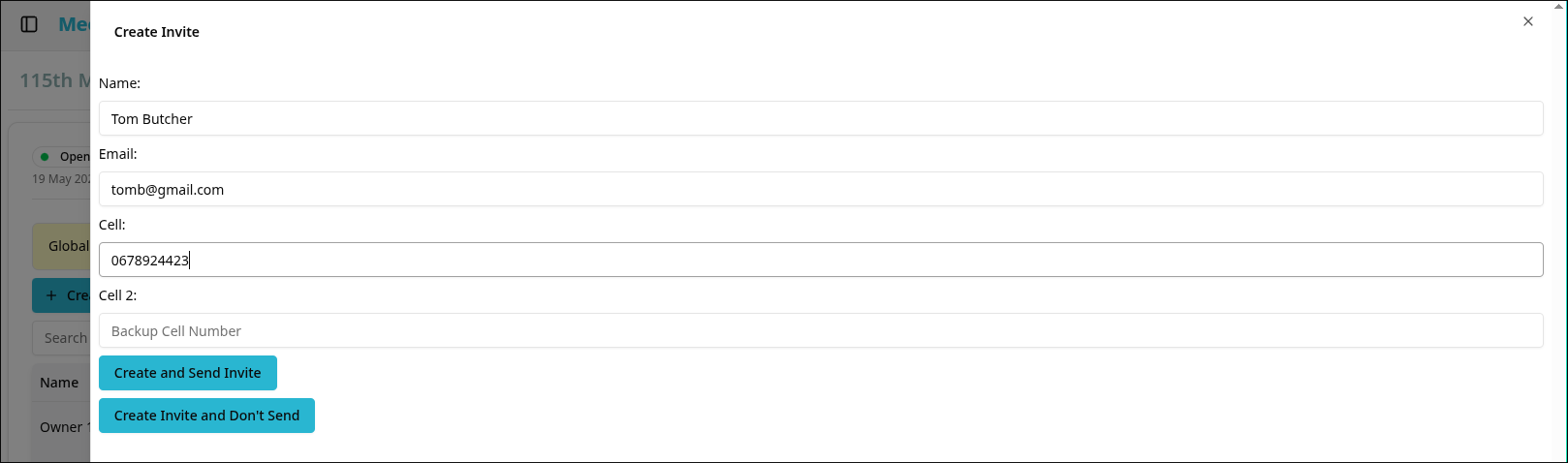
Click the Add Invitee button.
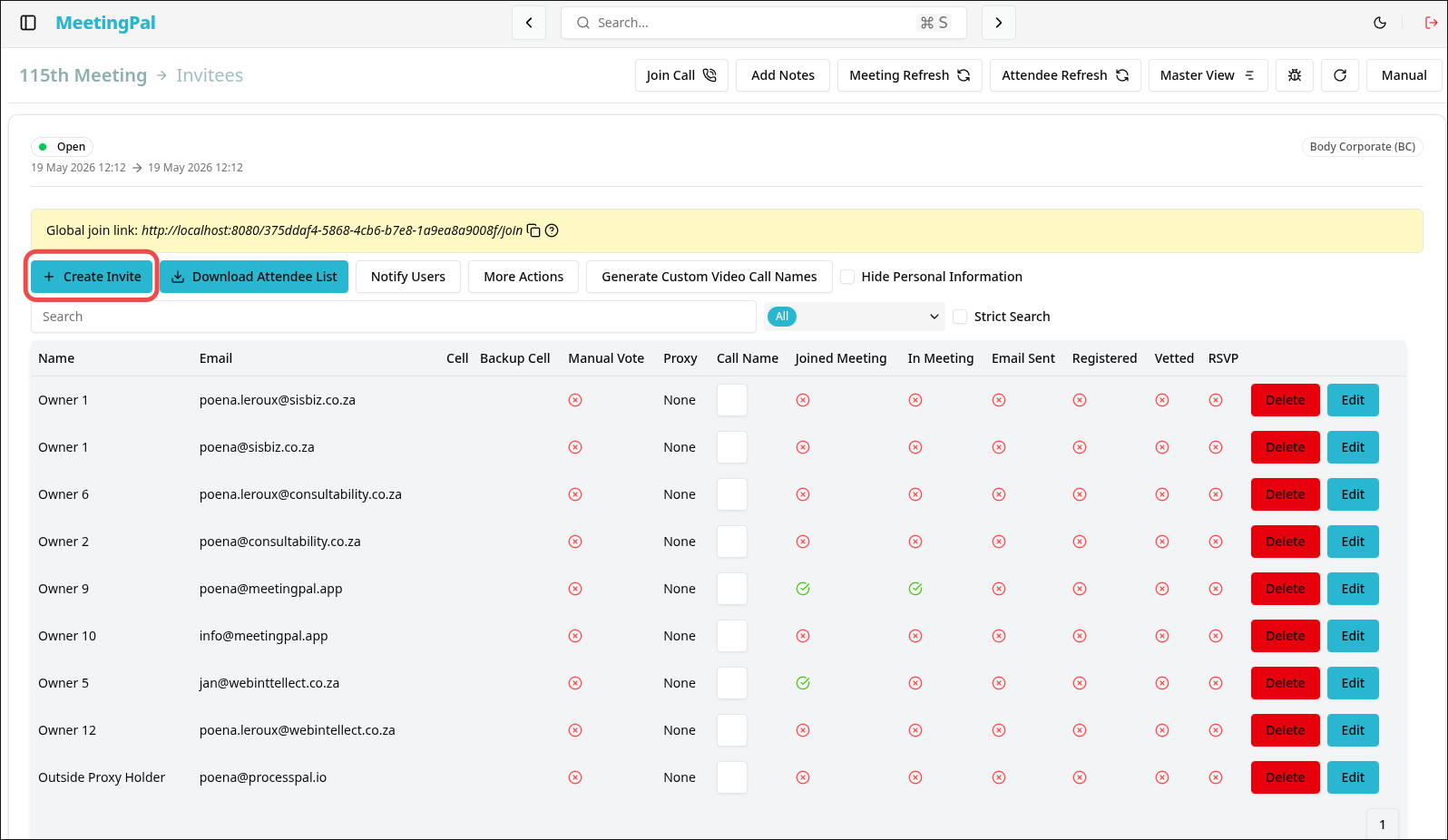
Complete the invitee details form and create the new invite.
Edit an Existing Invitee
Locate the invitee in the list.
Click the Edit icon or select the invitee’s name.
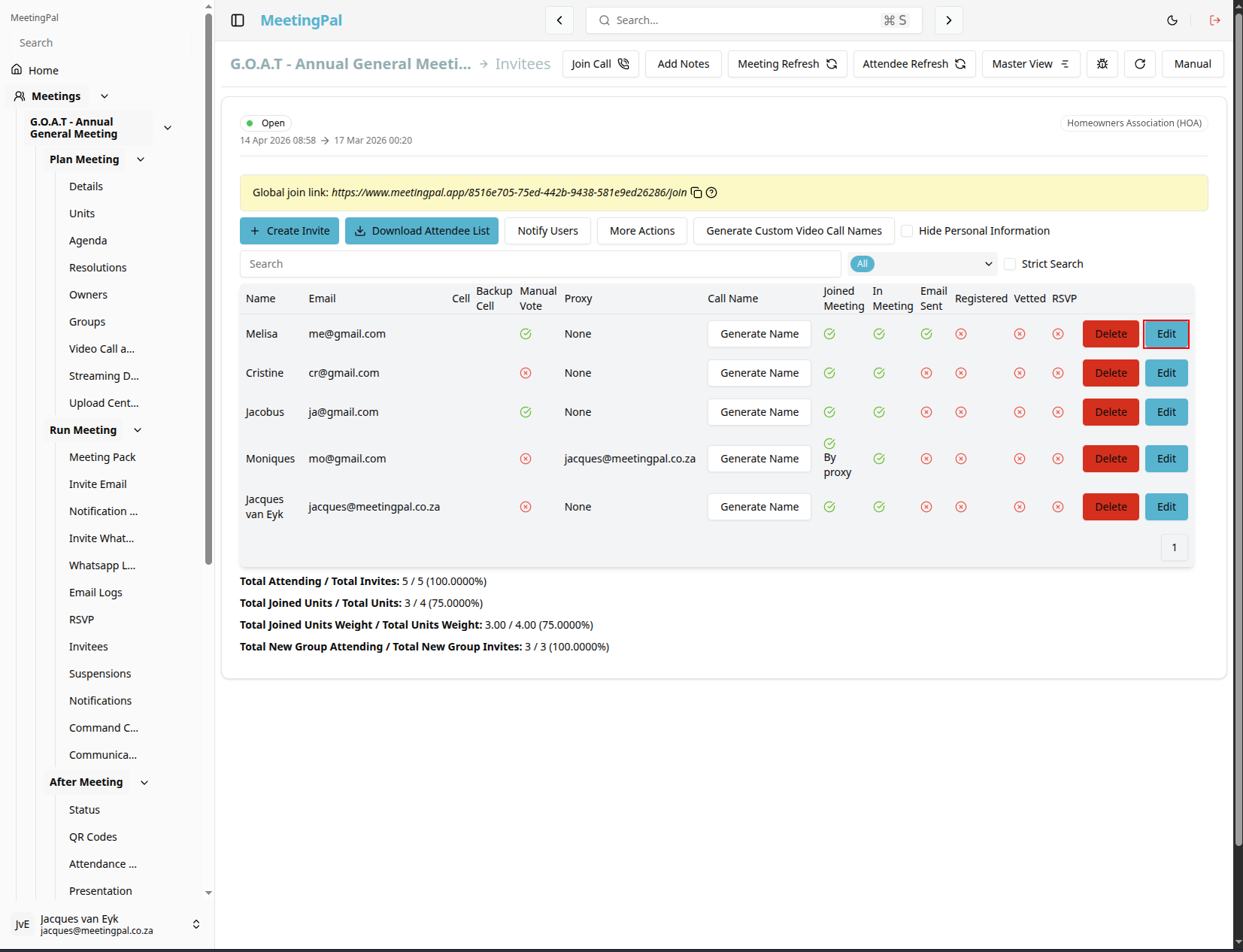
Update the required information.

Click Save Changes.
Remove an Invitee
Locate the invitee.
Click the Delete or Remove option.
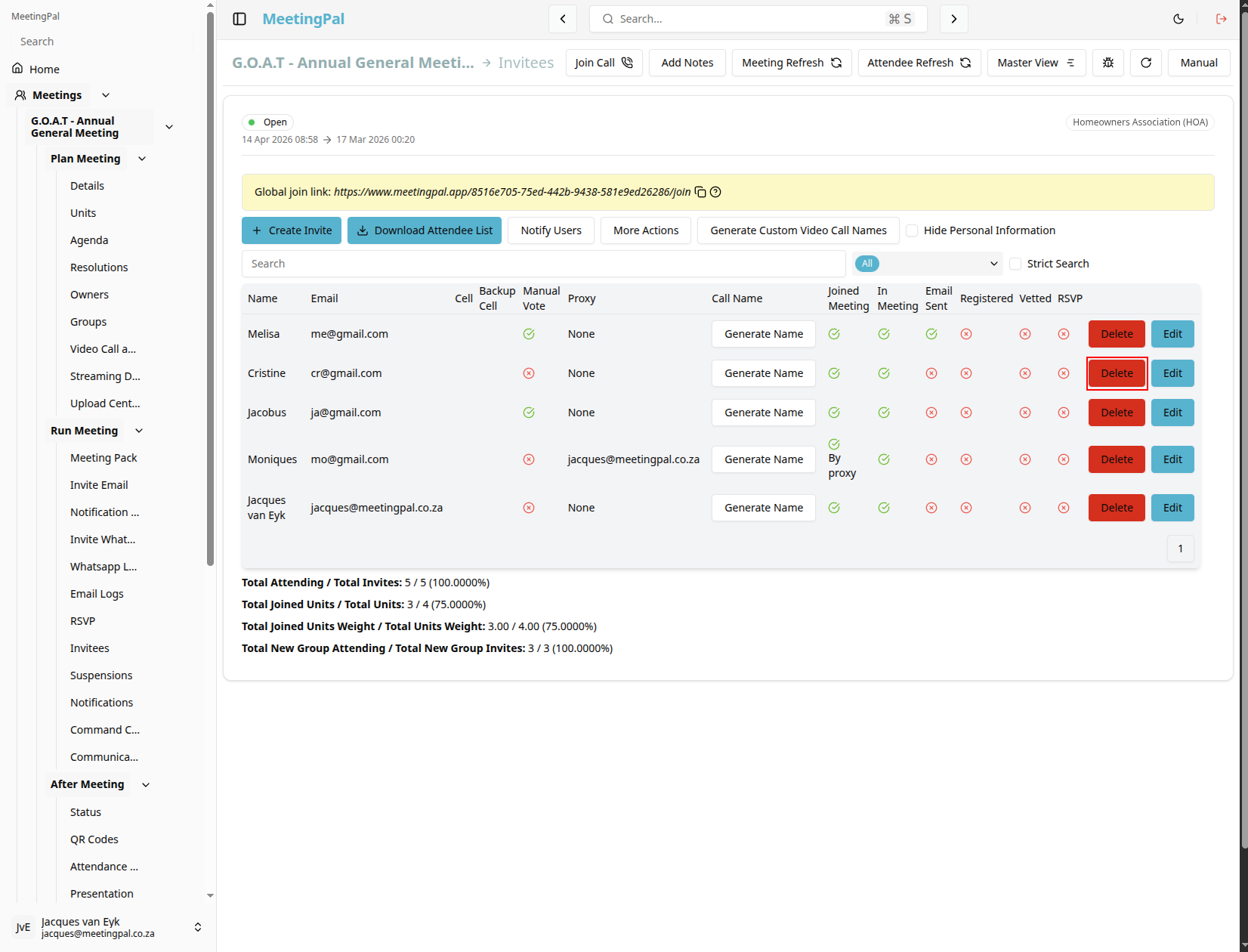
Confirm the removal.
Use this option carefully, as removing an invitee may affect attendance and voting calculations.
Search and Filter Invitees
Use the search bar and available filters to locate invitees quickly.
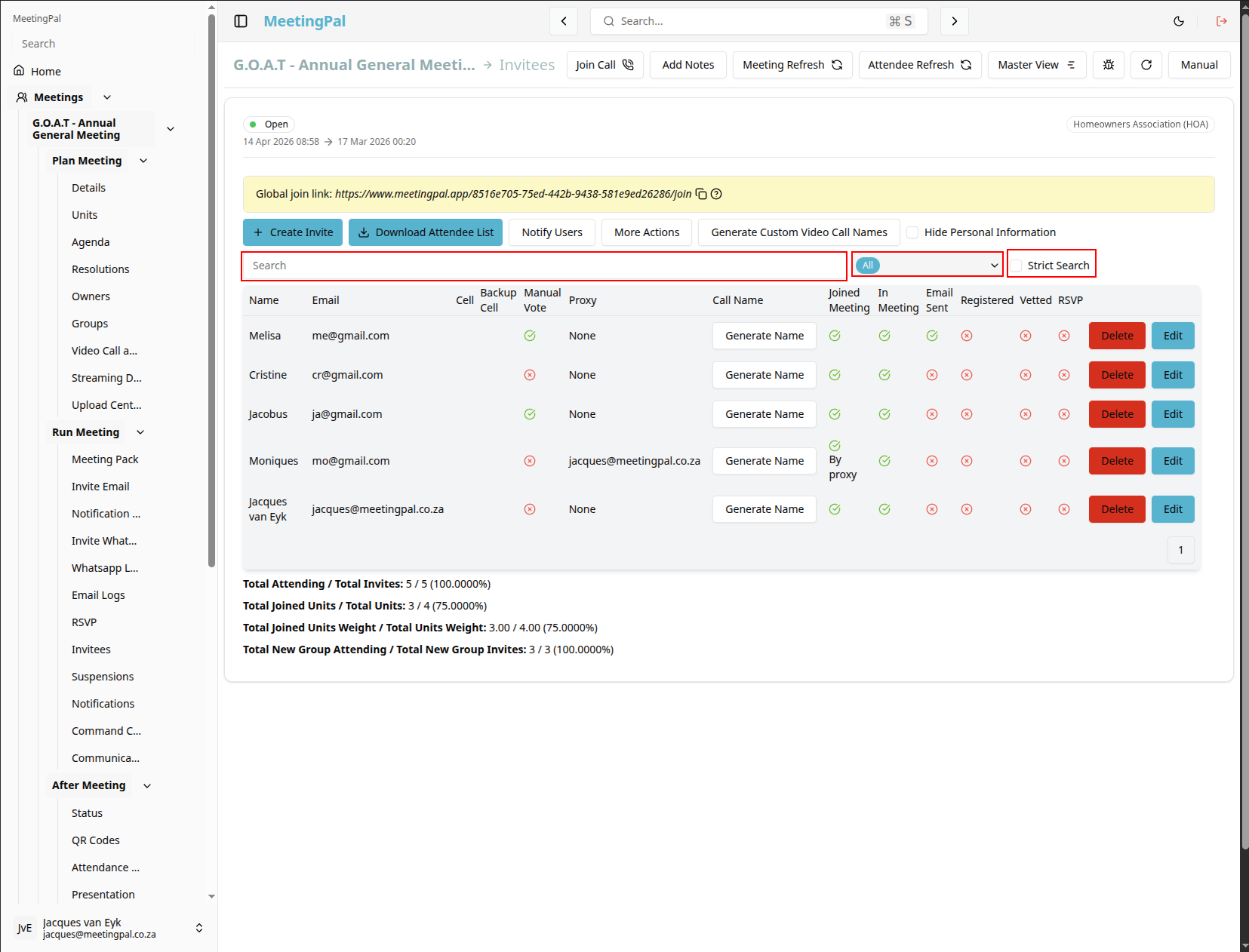
You may be able to filter by:
- RSVP status.
- Attendance type.
- Group.
- Owner.
- Voting eligibility.
Send Invitations and Notifications
At the top of the Invitees page, click Notify Users.
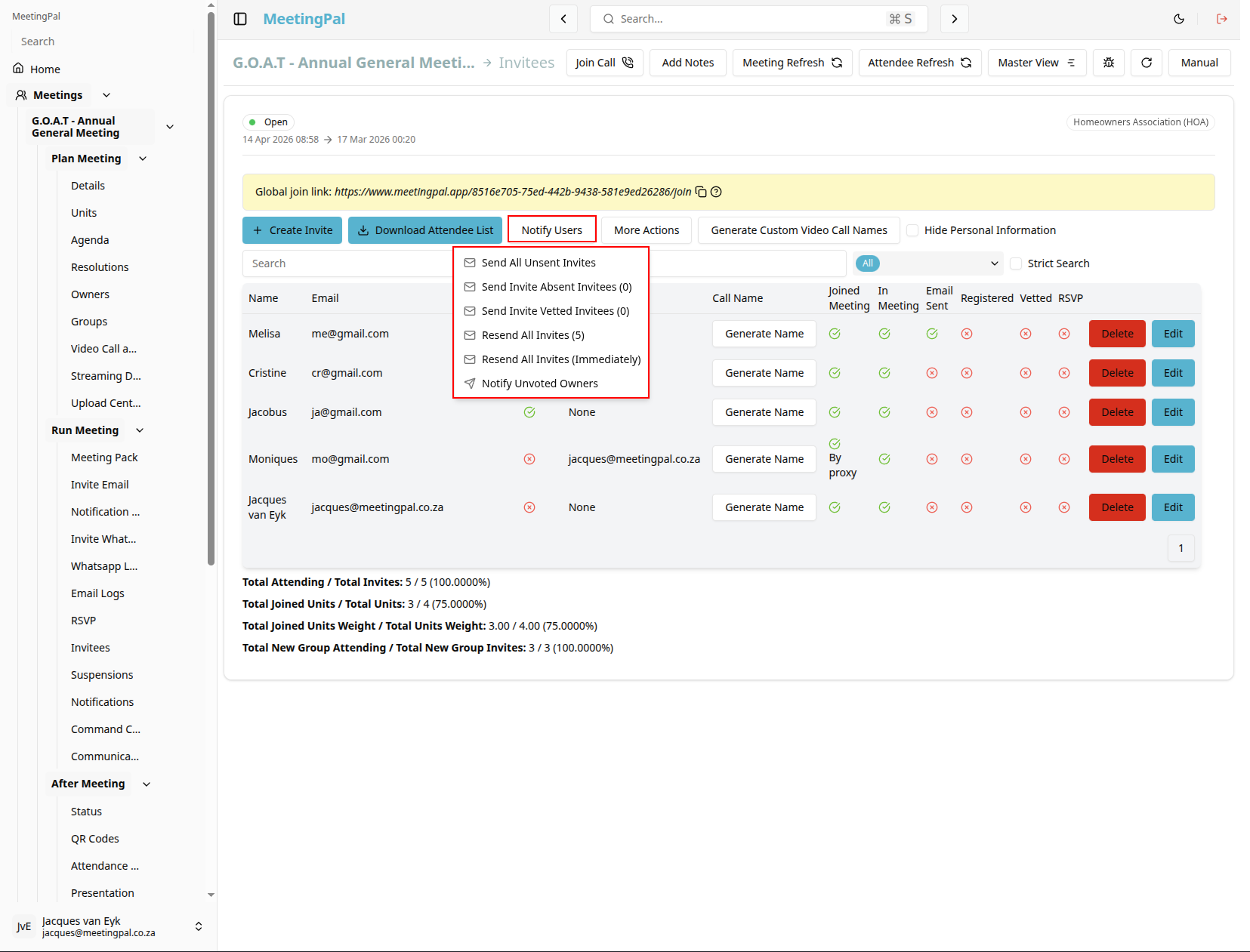
Available options may include:
- Send All Unsent Invites
- Resend All Invites
- Send Invite Absent Invitees
- Send Invite Vetted Invitees
- Notify Unvoted Owners
Use these options to send email or WhatsApp invitations and reminders.
Review Invitee Status Information
The Invitees page may display information such as:
- Invitation sent status.
- RSVP response.
- Attendance status.
- Voting eligibility.
- Proxy assignments.
- Unit and ownership details.
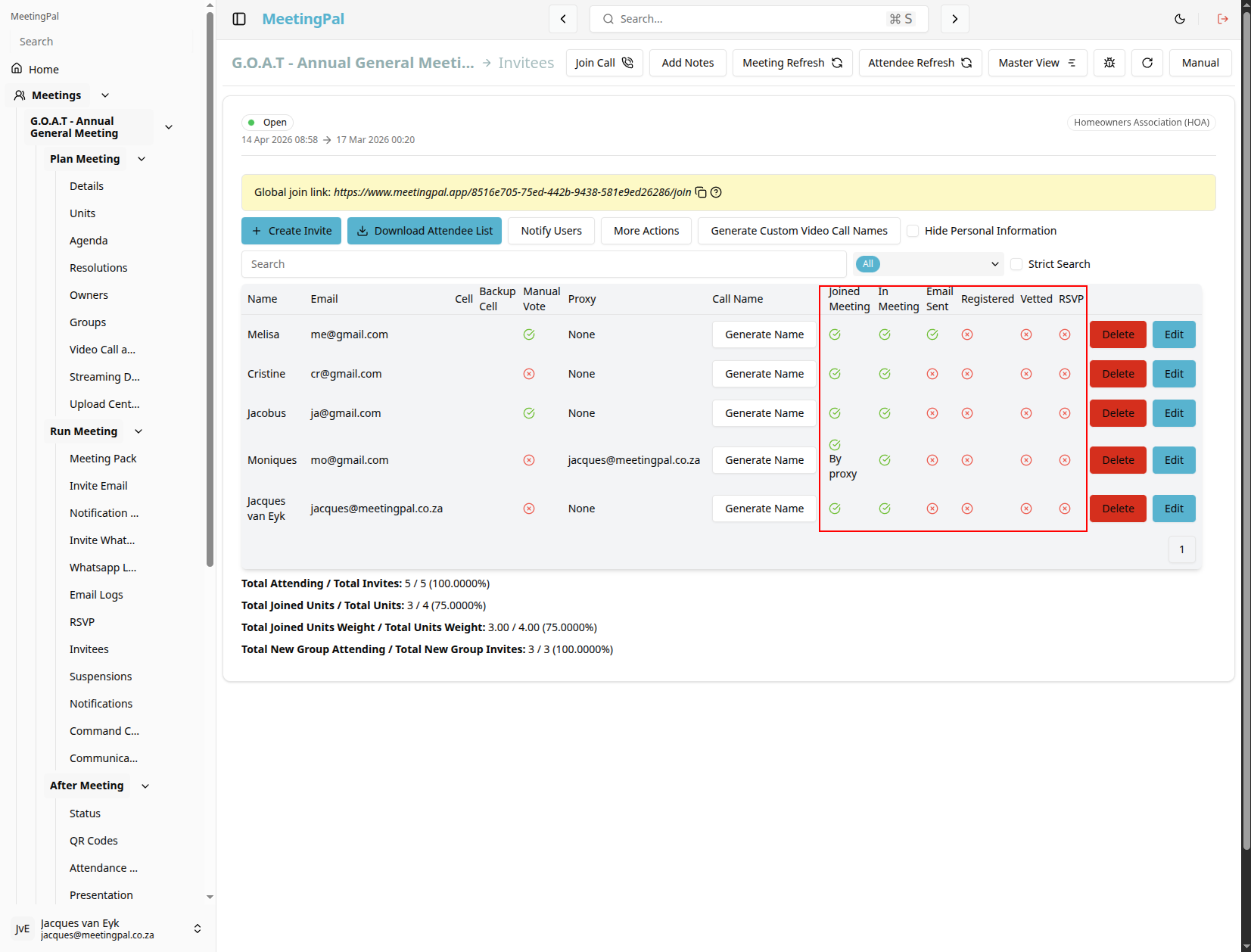
Use this information to monitor meeting readiness.
Best Practices
Verify contact details before sending invitations.
Ensure units and ownership assignments are correct.
Monitor RSVP responses regularly.
Use bulk actions to save time when managing large meetings.
Send test invitations before notifying all attendees.
Important Notes
Invitees are the primary participants who receive meeting links and voting access.
Changes made on the Invitees page may affect quorum calculations and voting results.
Some features depend on your organization’s MeetingPal configuration and user permissions.