Proxies Tab
Access the Scheduled Meeting
On the MeetingPal Home Page, locate the left-hand menu. Select Meetings.
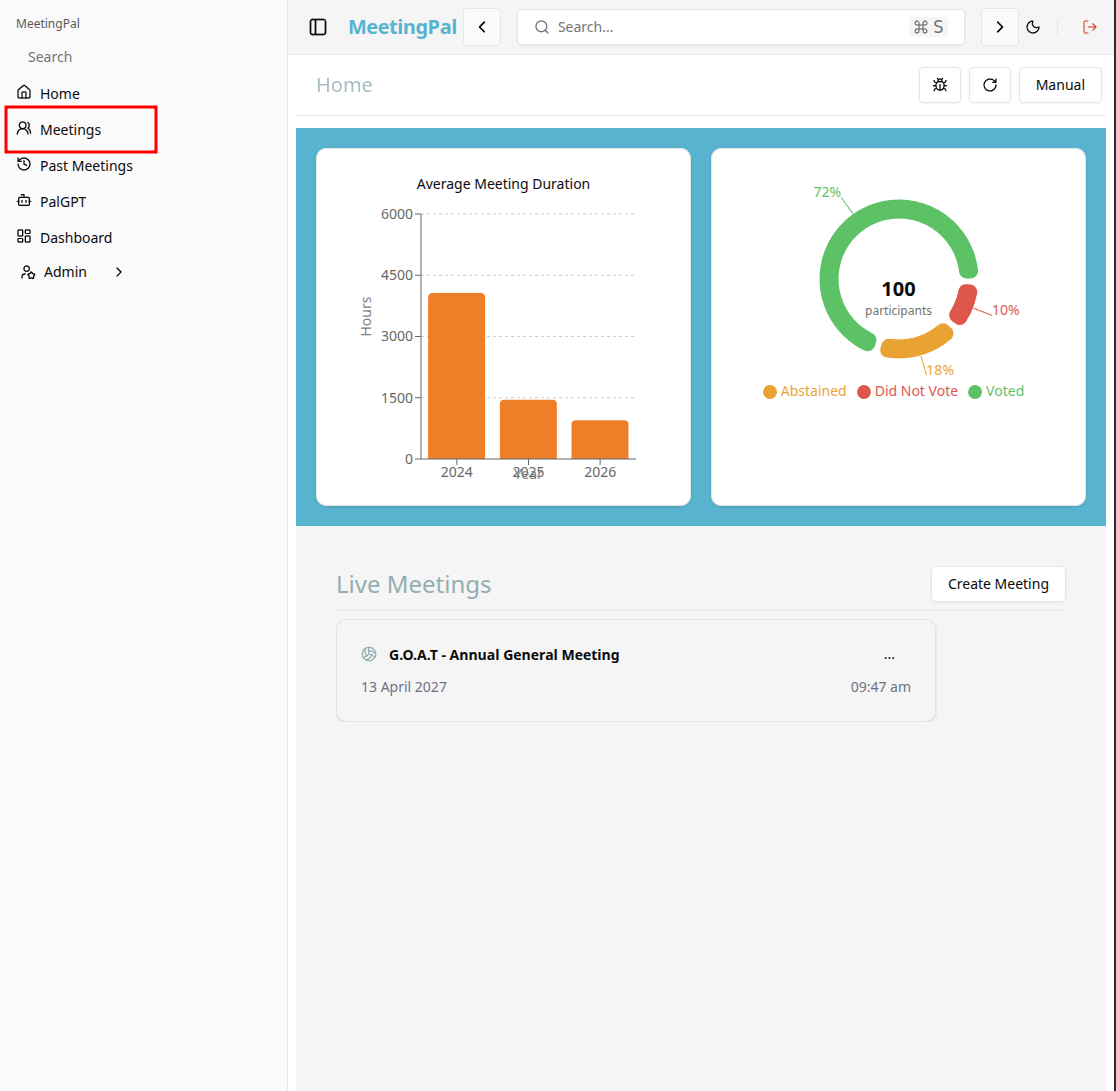
Start editing the meeting
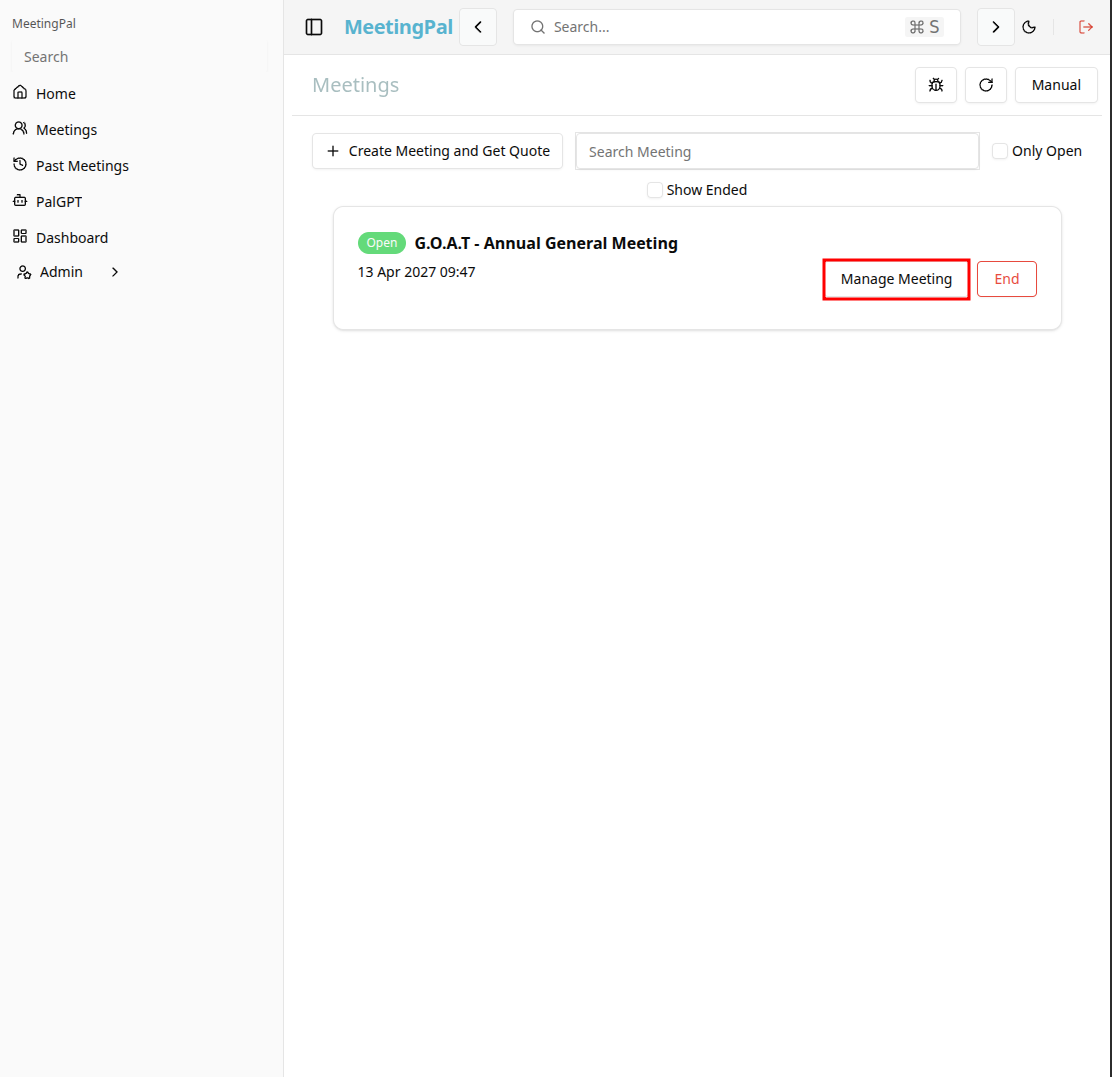
In the meetings page ,you will see all your meetings and the meetings that you are scheduled to attend.
Click on the 'Manage Meeting' button to begin editing the selected meeting.
Open the Proxies Tab
In the selected meeting’s dropdown menu, click Proxies.
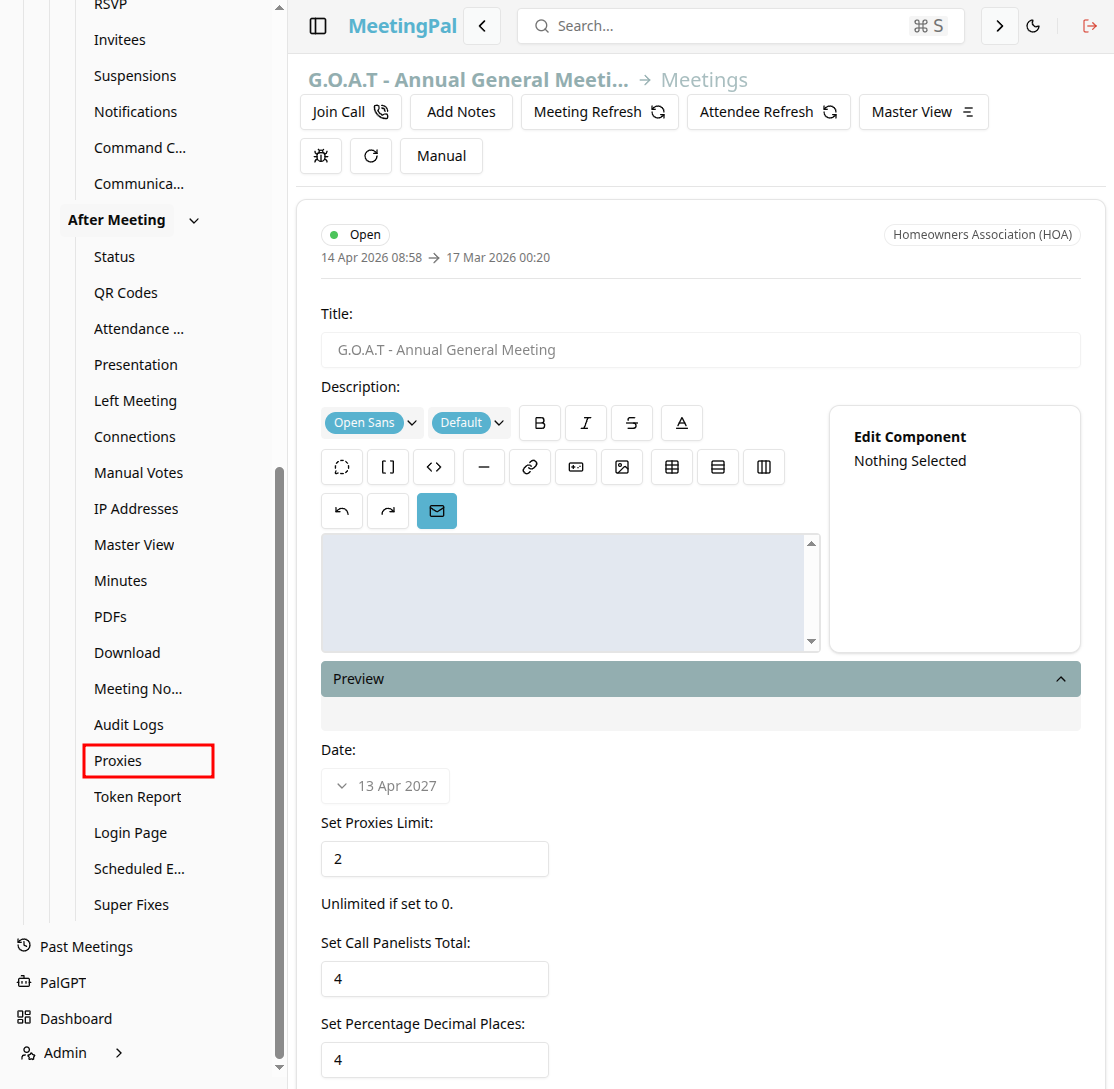
The Proxies page will open.
Understanding the Proxies Page
The Proxies page allows you to view, create, and manage proxy appointments for the meeting.
A proxy appointment authorises one person to attend and vote on behalf of another eligible attendee.
From this page, you can:
- View all proxy appointments.
- Add new proxy assignments.
- Edit existing proxy details.
- Remove proxy appointments.
- Confirm whether proxy forms have been received.
- Review represented voting rights.
Add a New Proxy Appointment
Click the Add Proxy button.
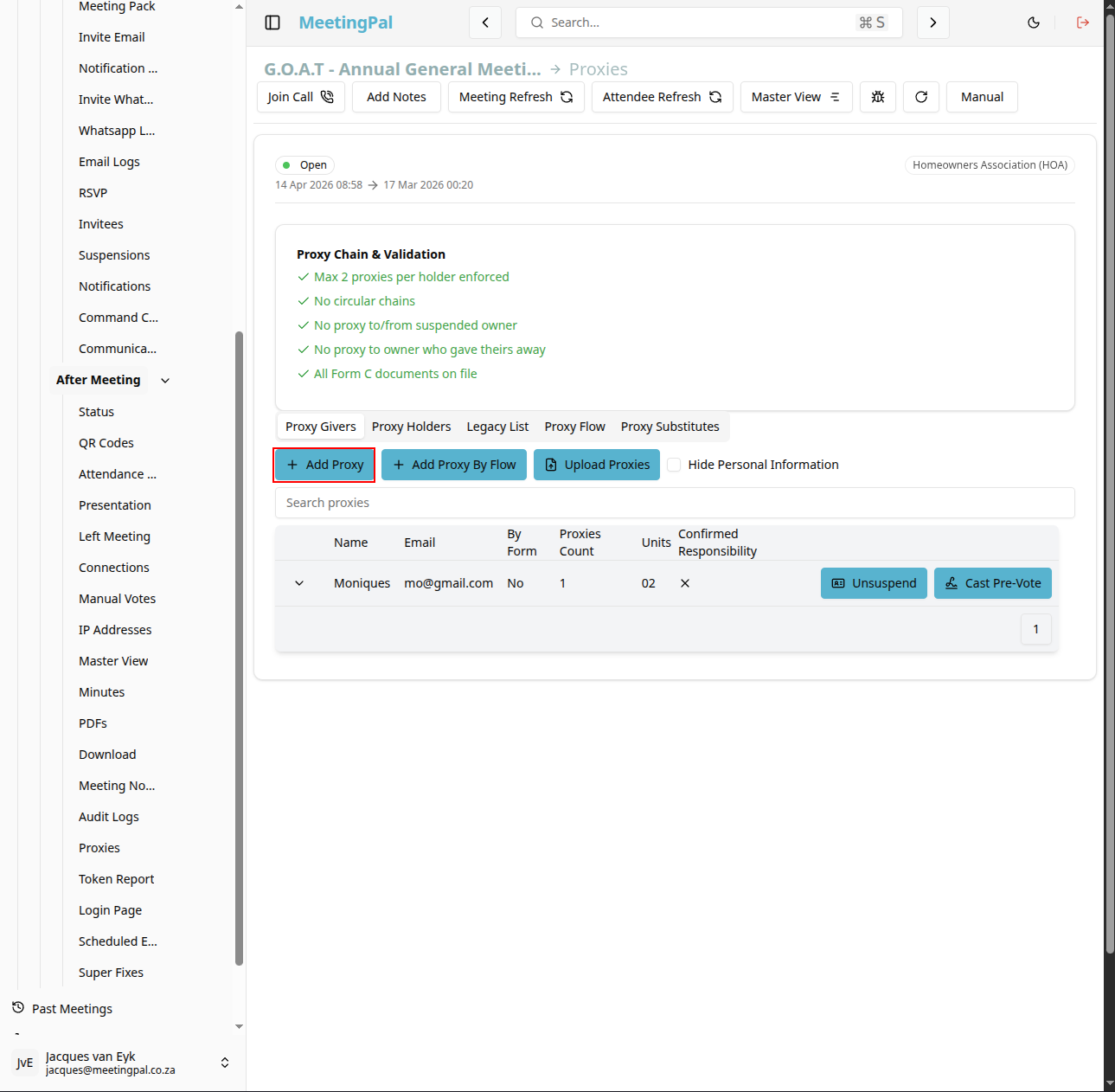
Complete the proxy form.
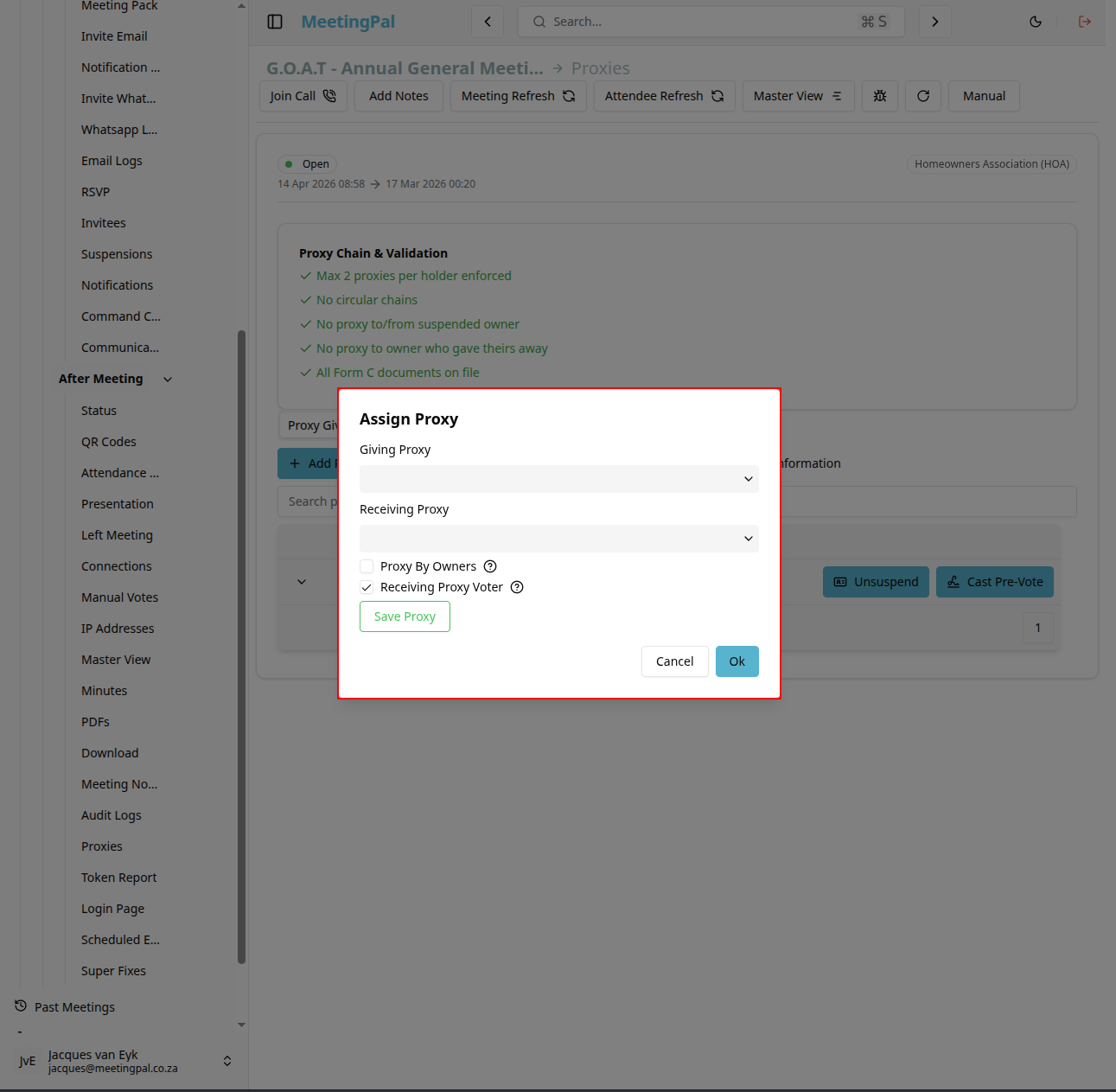
Typical fields may include:
- Appointing Owner or Member.
- Unit Number.
- Proxy Holder Name.
- Proxy Holder Email Address.
- Date Received.
- Notes or Instructions.
- Click Save Proxy.
The proxy holder will now be recorded against the selected owner or member.
Edit an Existing Proxy
Locate the proxy appointment in the list.
Click the Re-asign button.
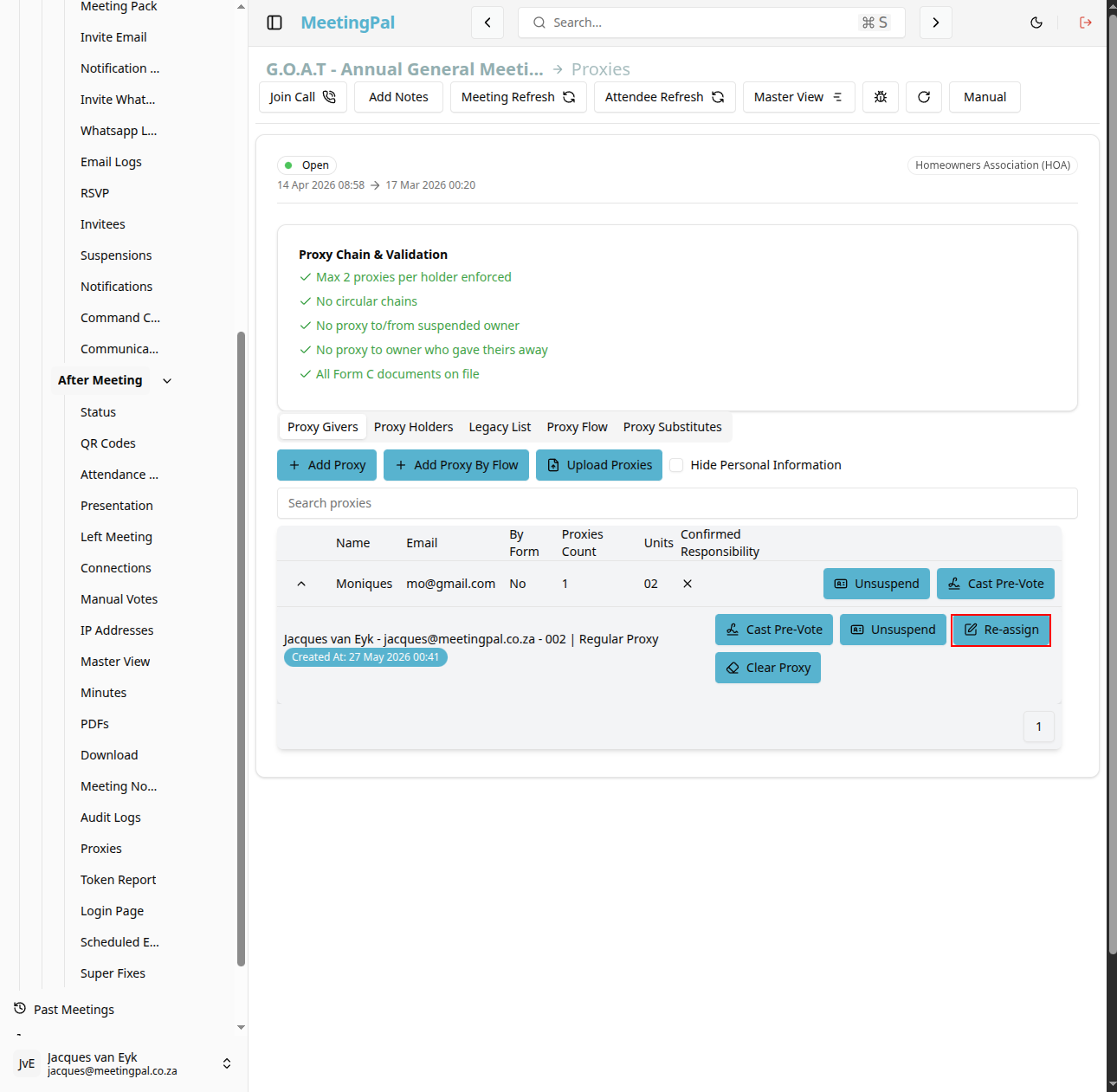
Update the required details.
Click Save Changes.
Remove a Proxy Appointment
- Locate the proxy record.
- Click Delete or Remove.
- Confirm the action.
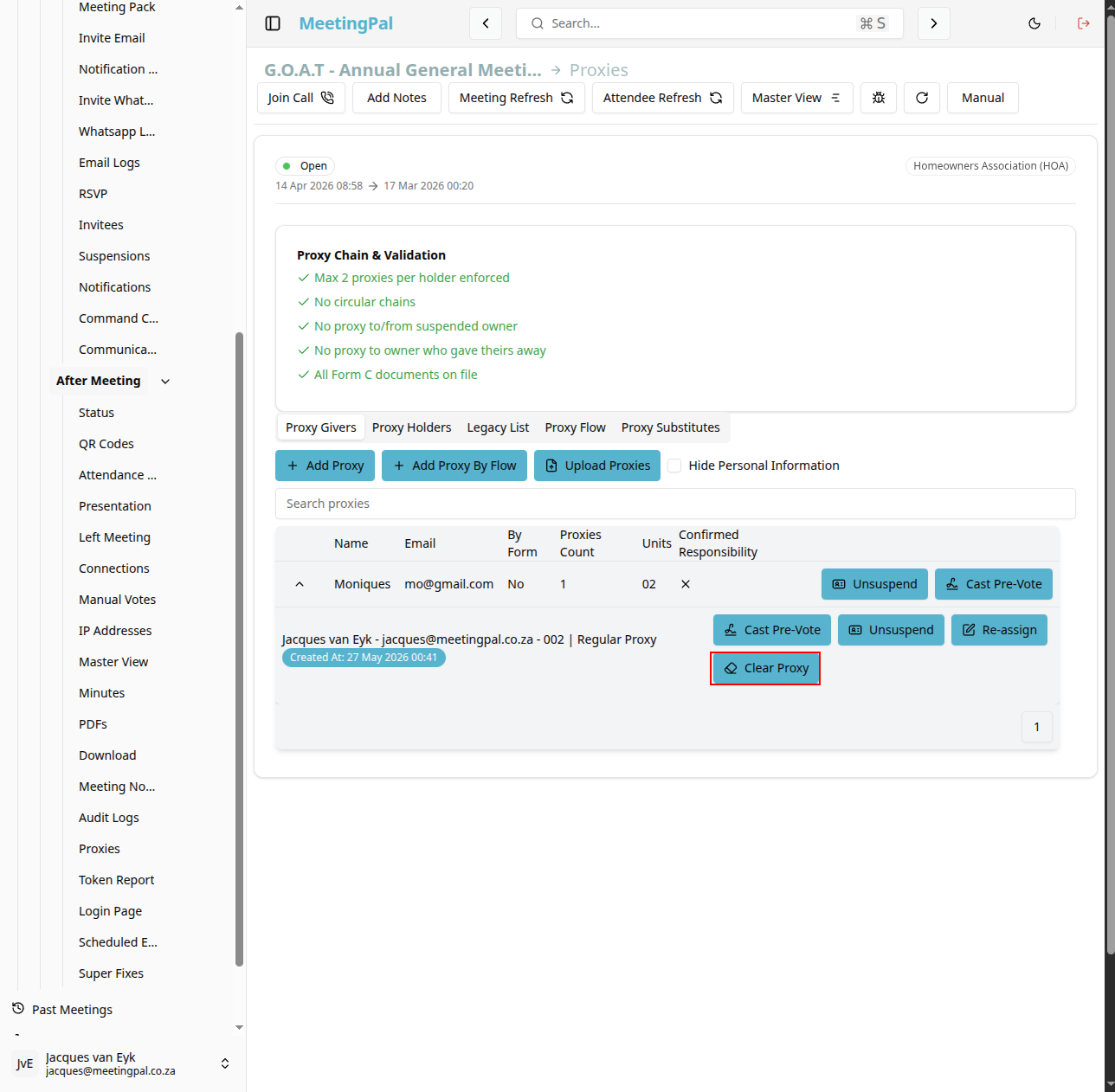
Once removed, the appointing owner or member will no longer be represented by that proxy.
Search and Filter Proxy Records
Use the search bar and filters to quickly locate proxy appointments.
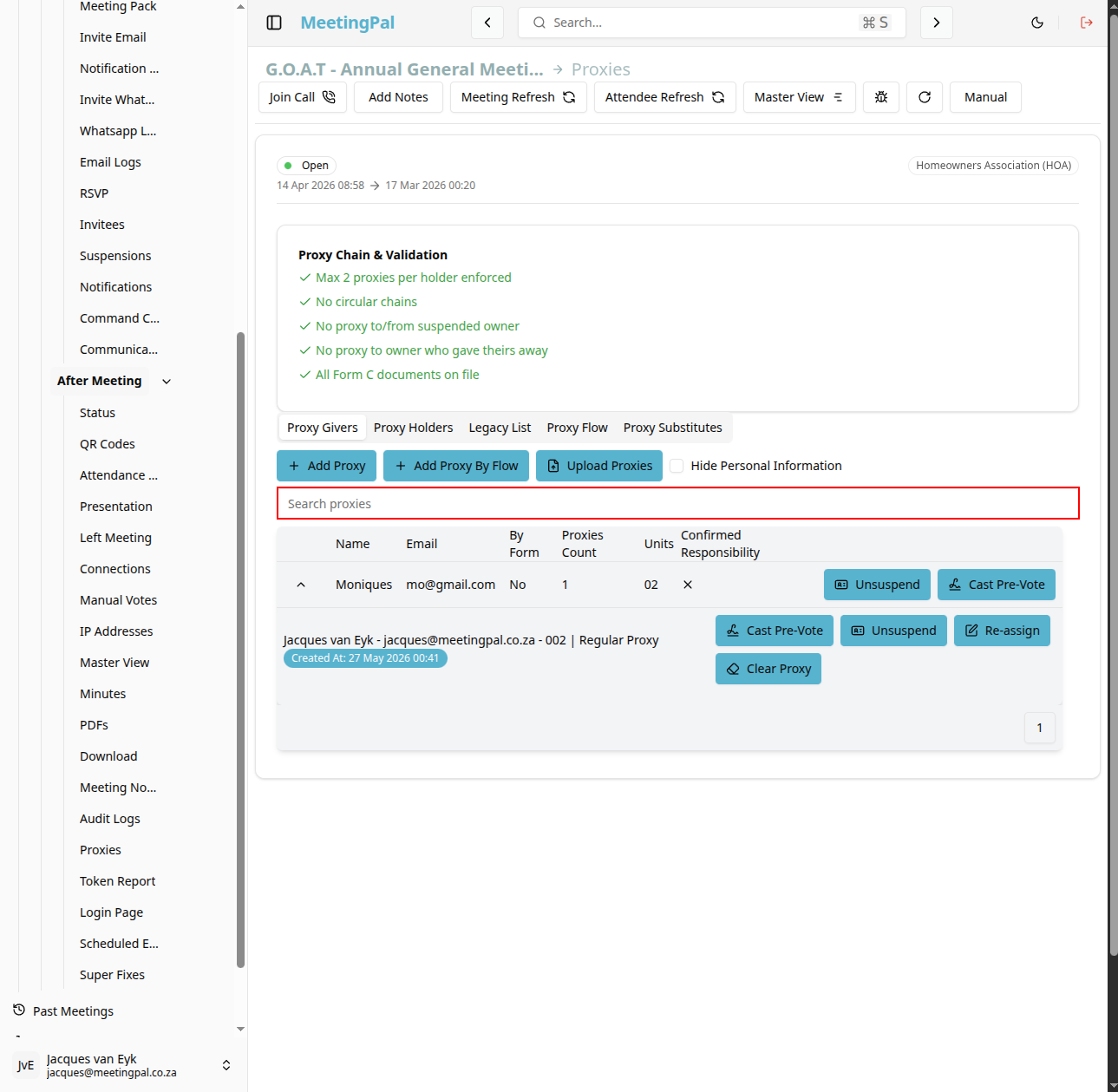
You may be able to filter by:
- Appointing owner or member.
- Proxy holder.
- Unit number.
- Date received.
- Voting eligibility.
Review Proxy Representation
The Proxies tab may display:
- Number of proxy appointments received.
- Units represented by proxies.
- Voting weight represented.
- Percentage of total representation.
Use this information to assess quorum and voting participation.
Common Uses for the Proxies Tab
The Proxies tab is useful for:
- Recording proxy forms submitted before the meeting.
- Assigning proxy holders to represent absent owners.
- Reviewing represented voting rights.
- Supporting quorum calculations.
Best Practices
Verify proxy forms are valid before recording them.
Confirm proxy holder details are accurate.
Record proxies before the meeting begins.
Review proxy assignments before opening votes.
Important Notes
Proxy appointments may affect attendance, quorum, and voting calculations.
Only authorized users should add or modify proxy records.
Proxy rules and limitations depend on your organization’s governance requirements.