Proxies By Flow
Access the Scheduled Meeting
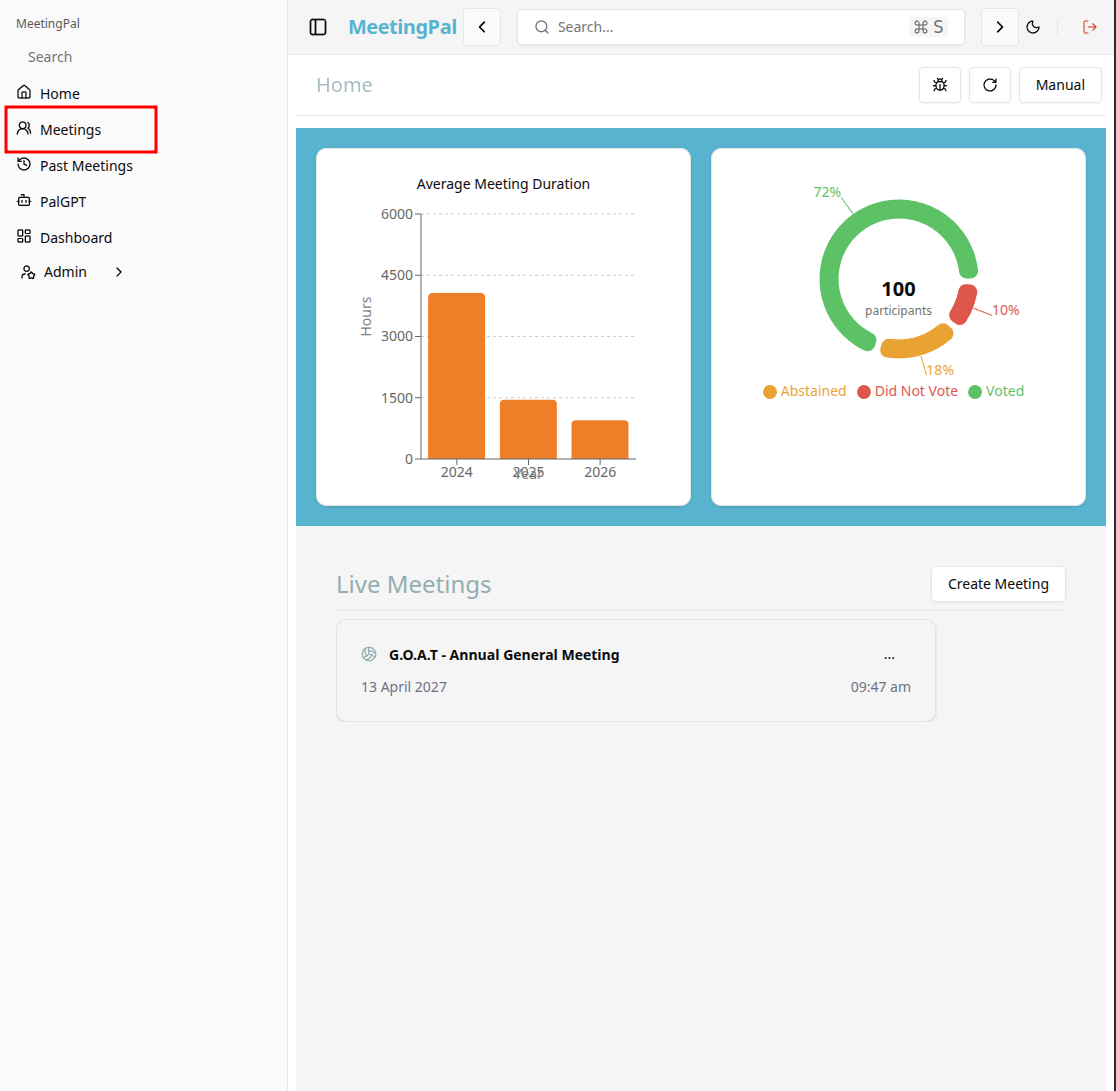
On the MeetingPal Home Page, locate the left-hand menu. Select Meetings.
Start editing the meeting
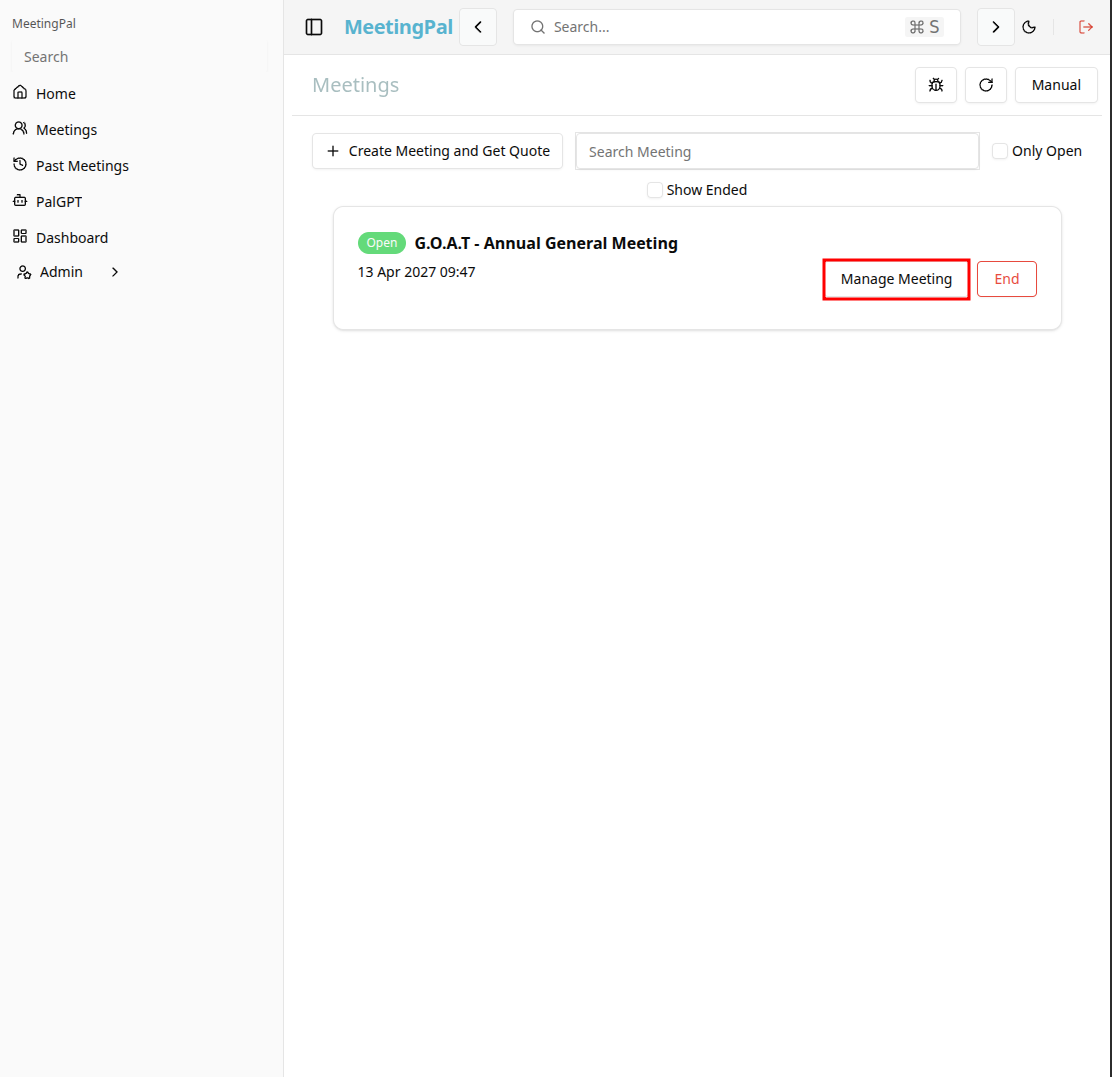
In the meetings page ,you will see all your meetings and the meetings that you are scheduled to attend.
Click on the 'Manage Meeting' button to begin editing the selected meeting.
Open the Proxies Tab
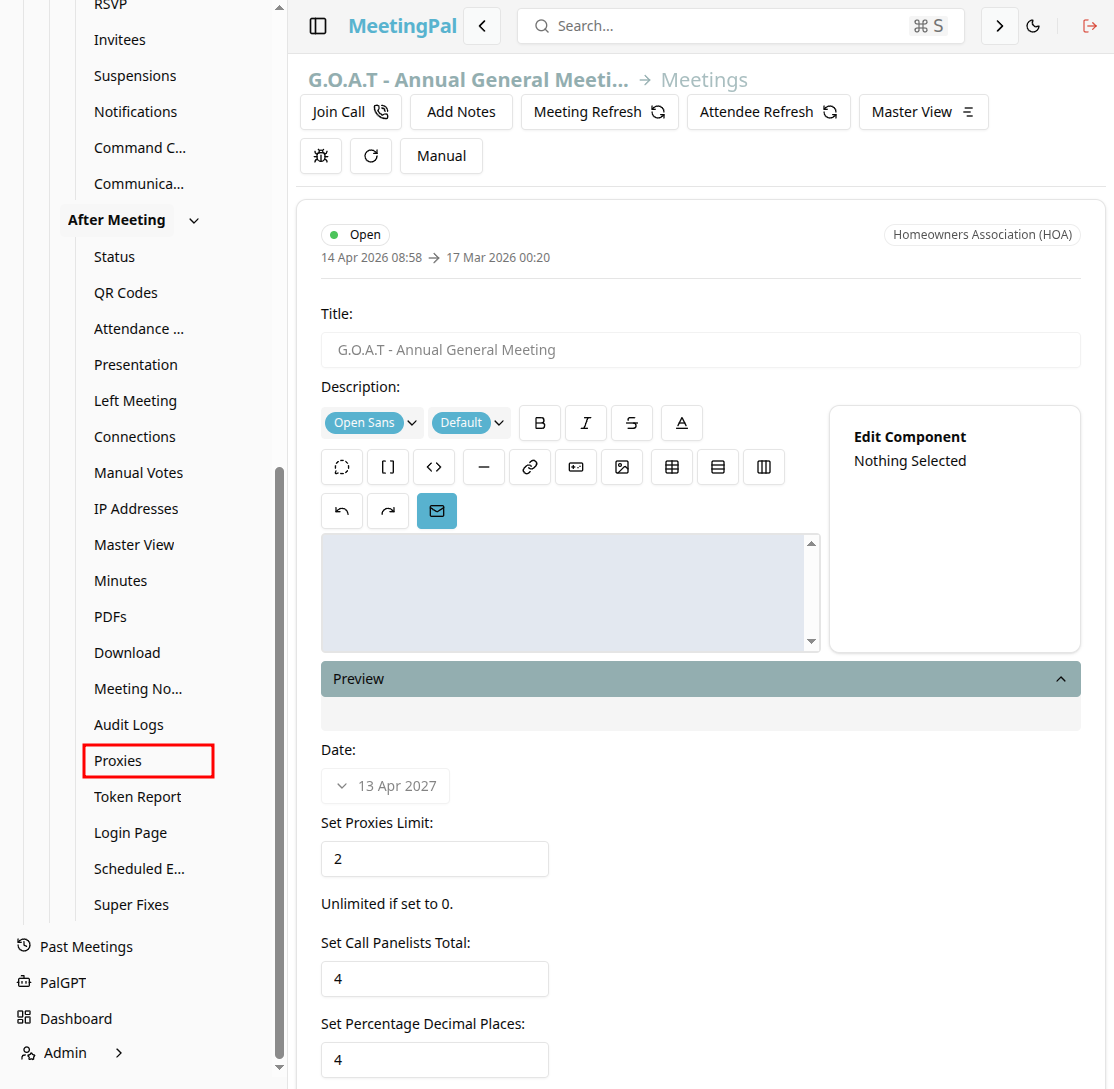
In the selected meeting’s dropdown menu, click Proxies.
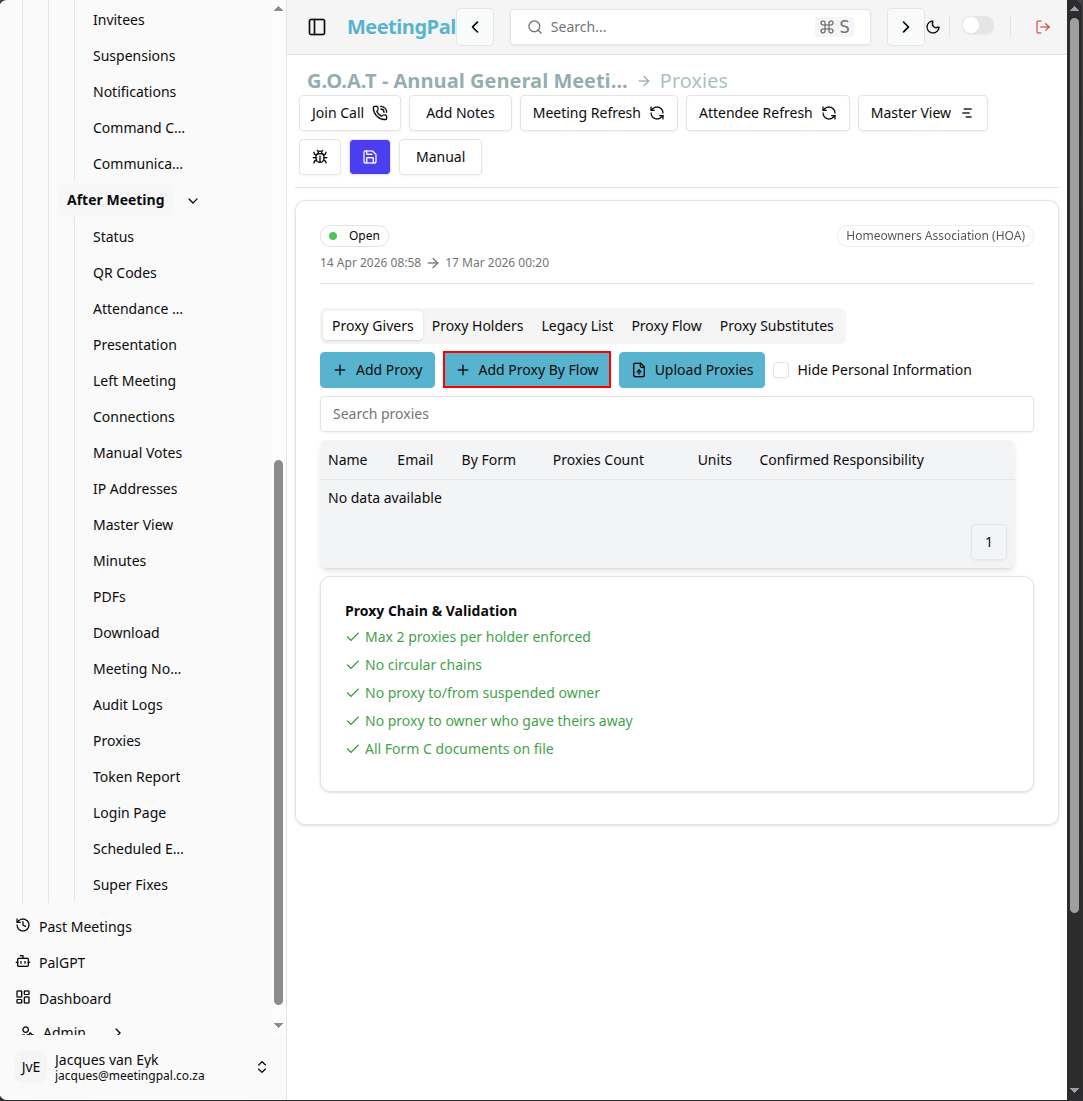
The Proxies page will open.
Adding a proxy by workflow
On the proxies page, click on the 'add proxy by flow' button.
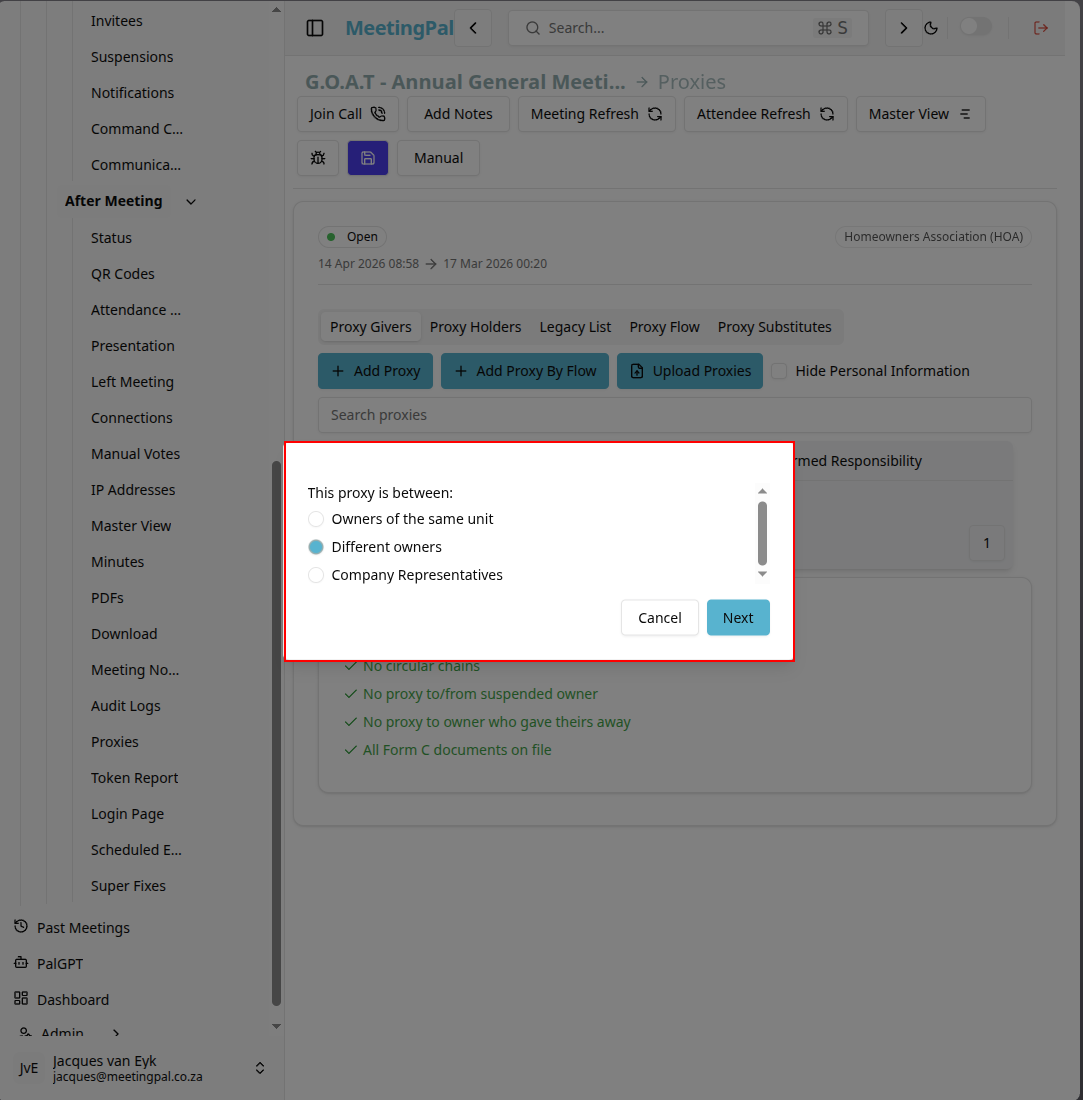
Then a pop-up will appear where you will have to pick what type of proxy you want to assign.
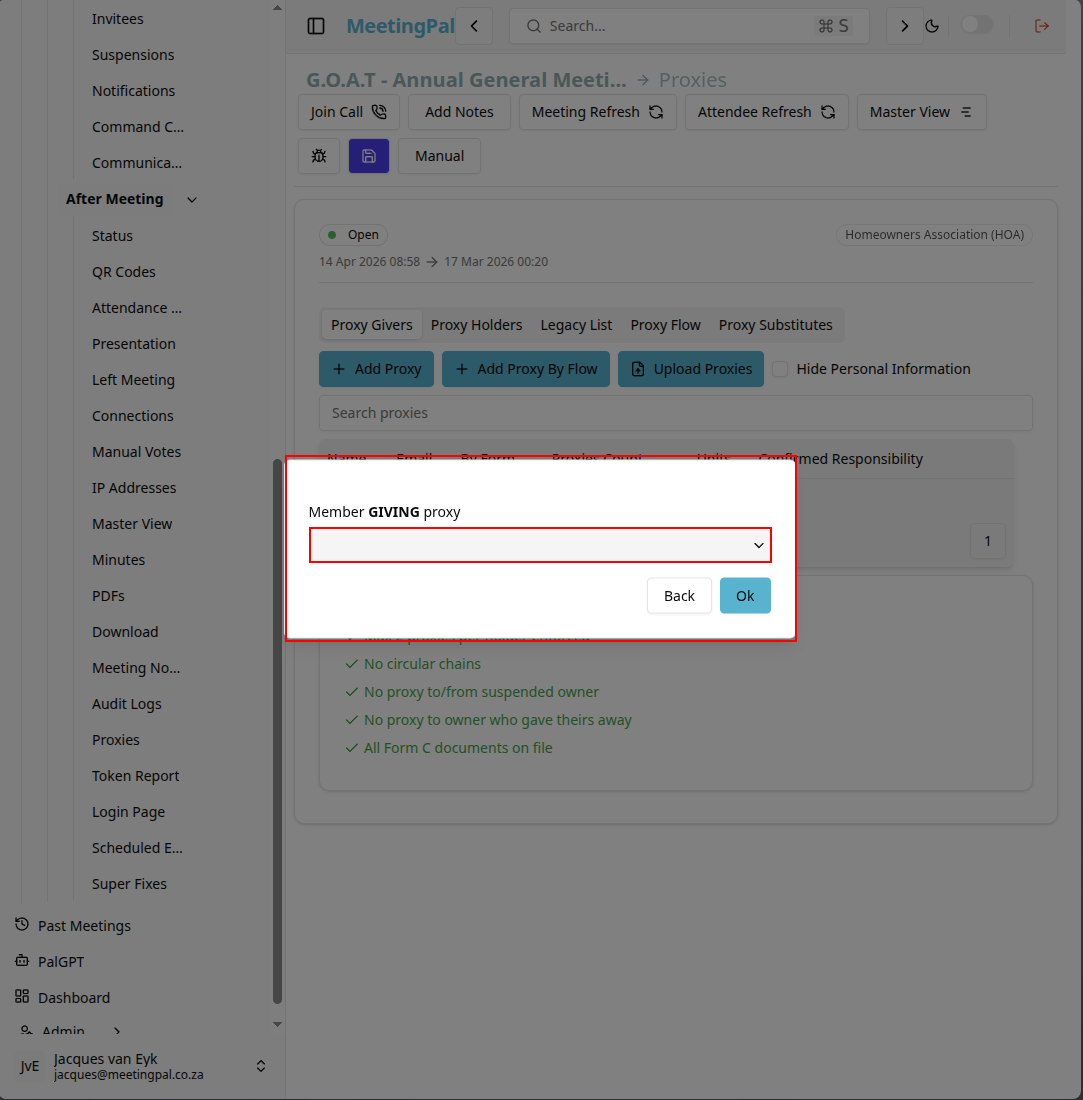
After picking a type, you will have to pick which invitee will be the proxy giver.
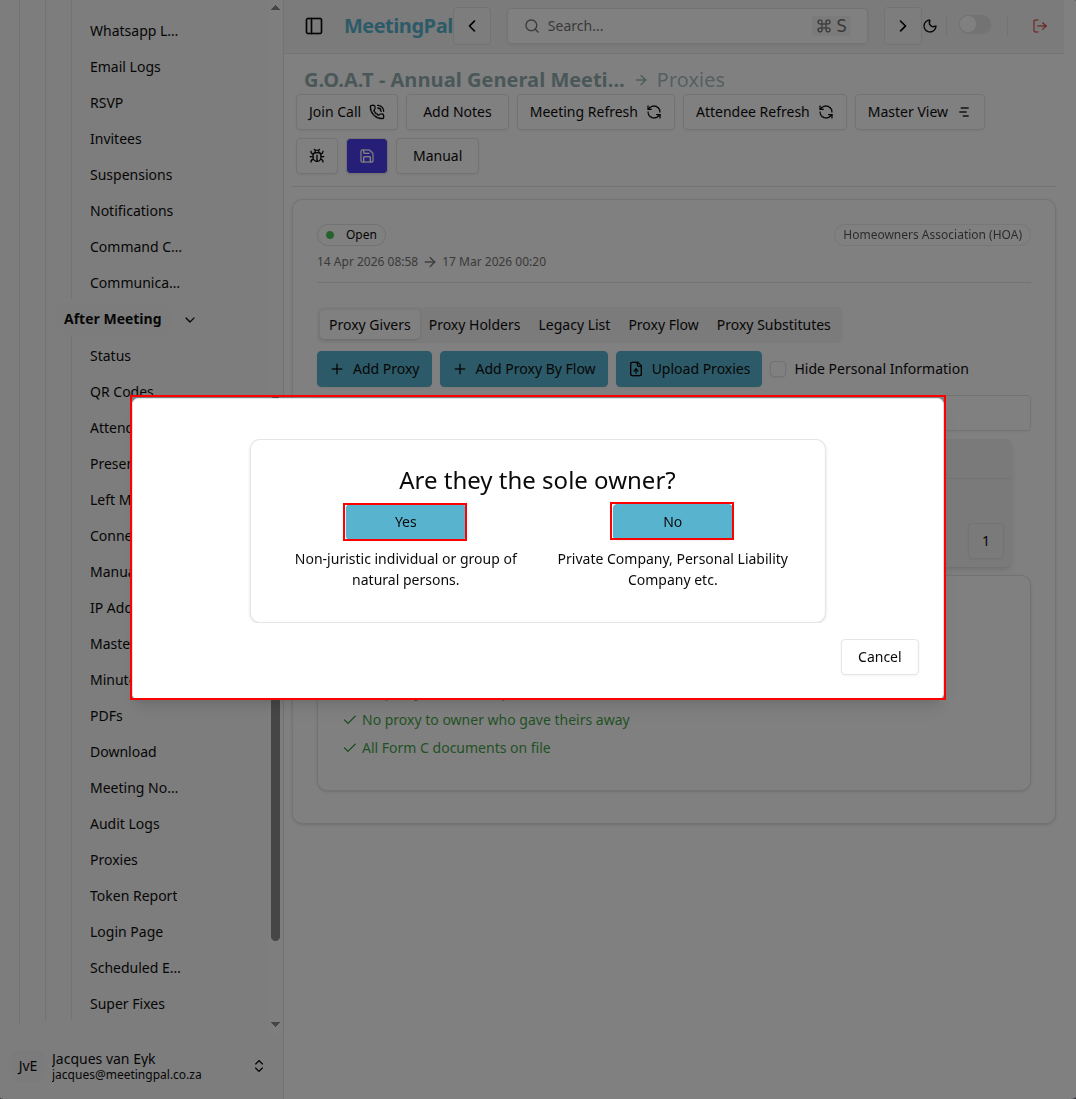
After picking a proxy giver, you will have to pick what type of owner the proxy giver is.
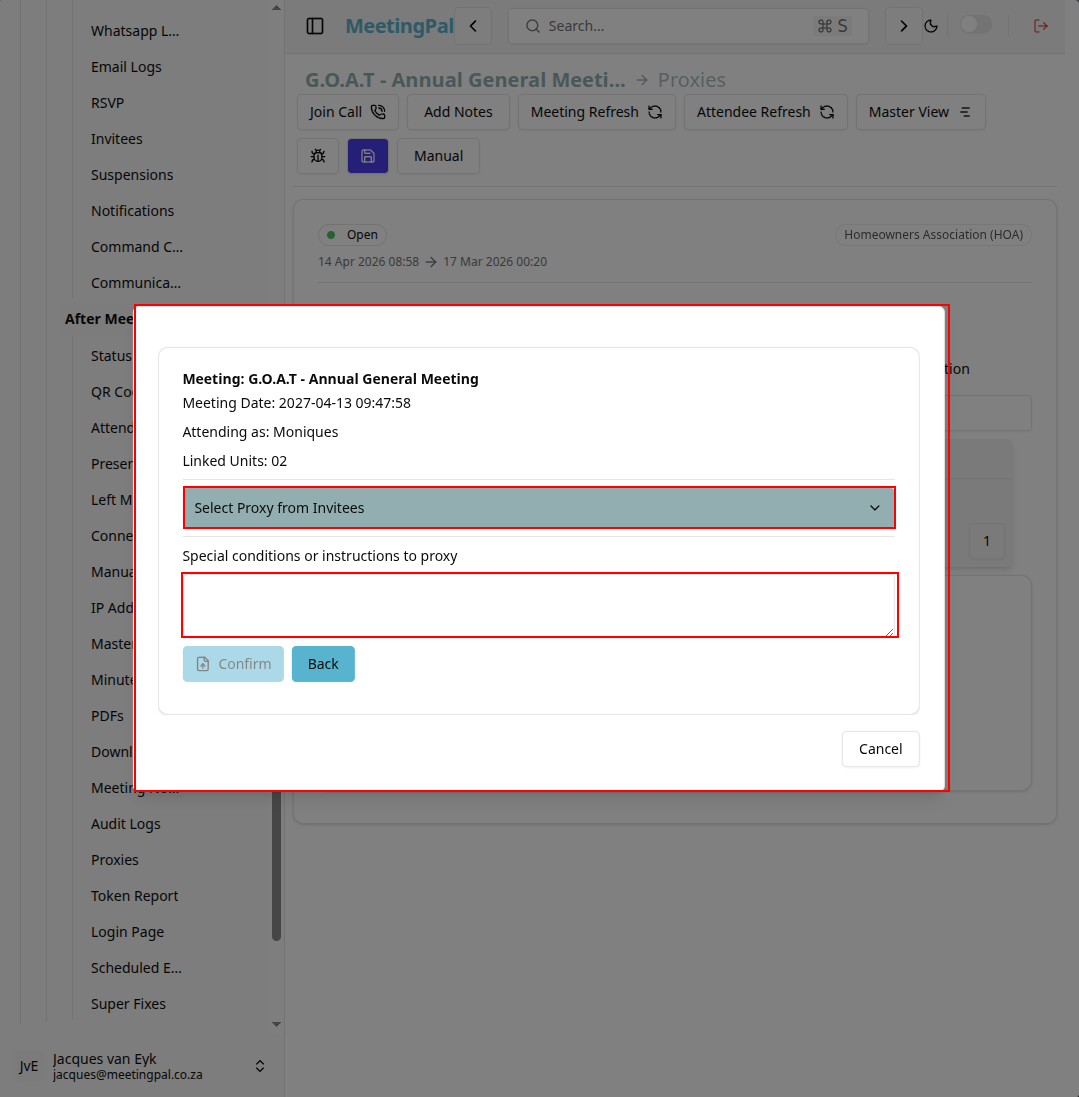
Then in the next phase of the pop-up you will see some information of the proxy giver and you can add additional instructions or conditions for the inivitee receiving the proxy.
You will also have to select a proxy holder by clicking on the 'select proxy from invitees' dropdown button.
Then you will be shown an finished pop-up after picking an proxy holder.
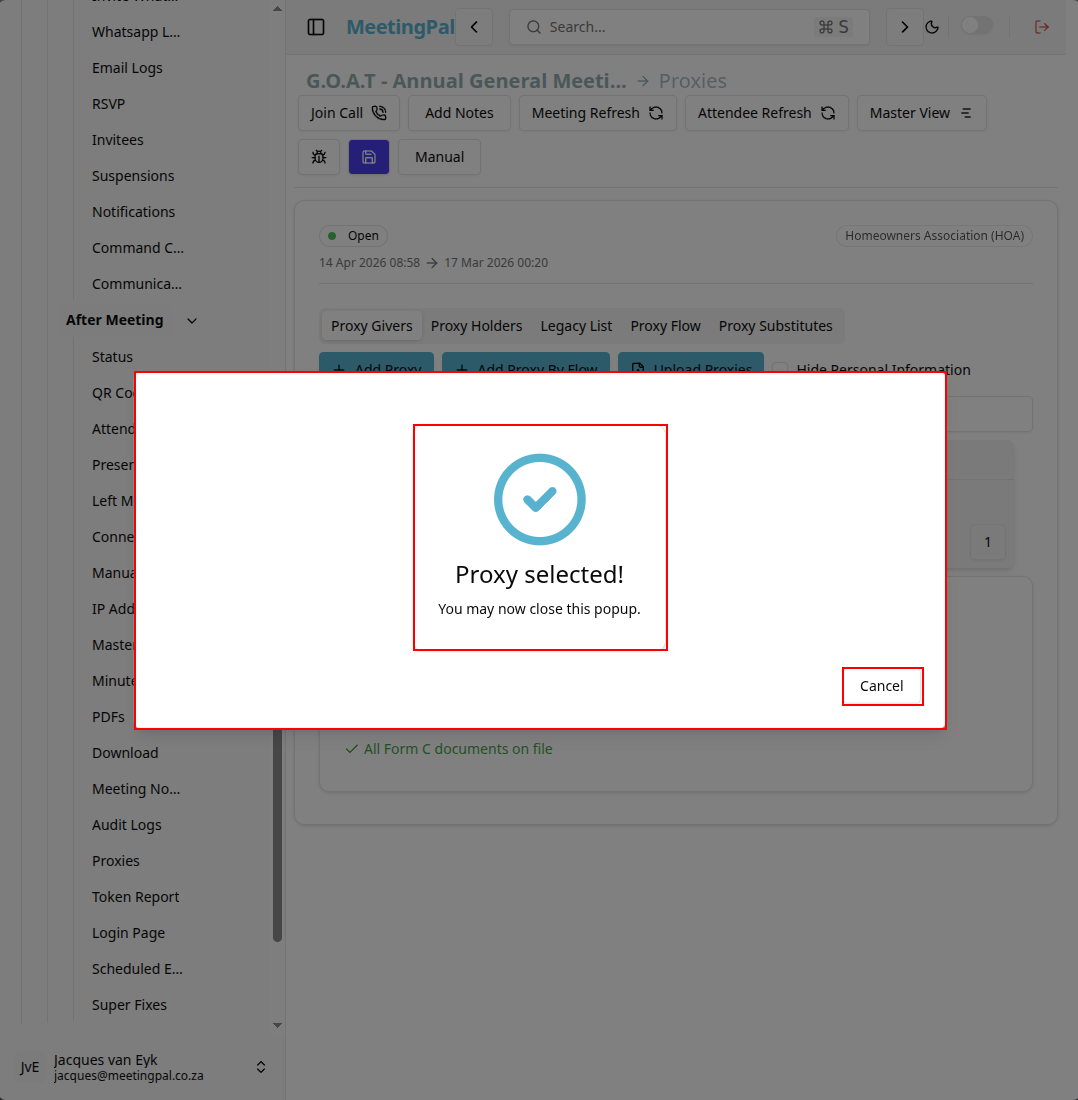
If the proxy giver is not the sole owner
If the proxy giver is not the sole owner, you will be able to add an additional owner to the proxy giver.
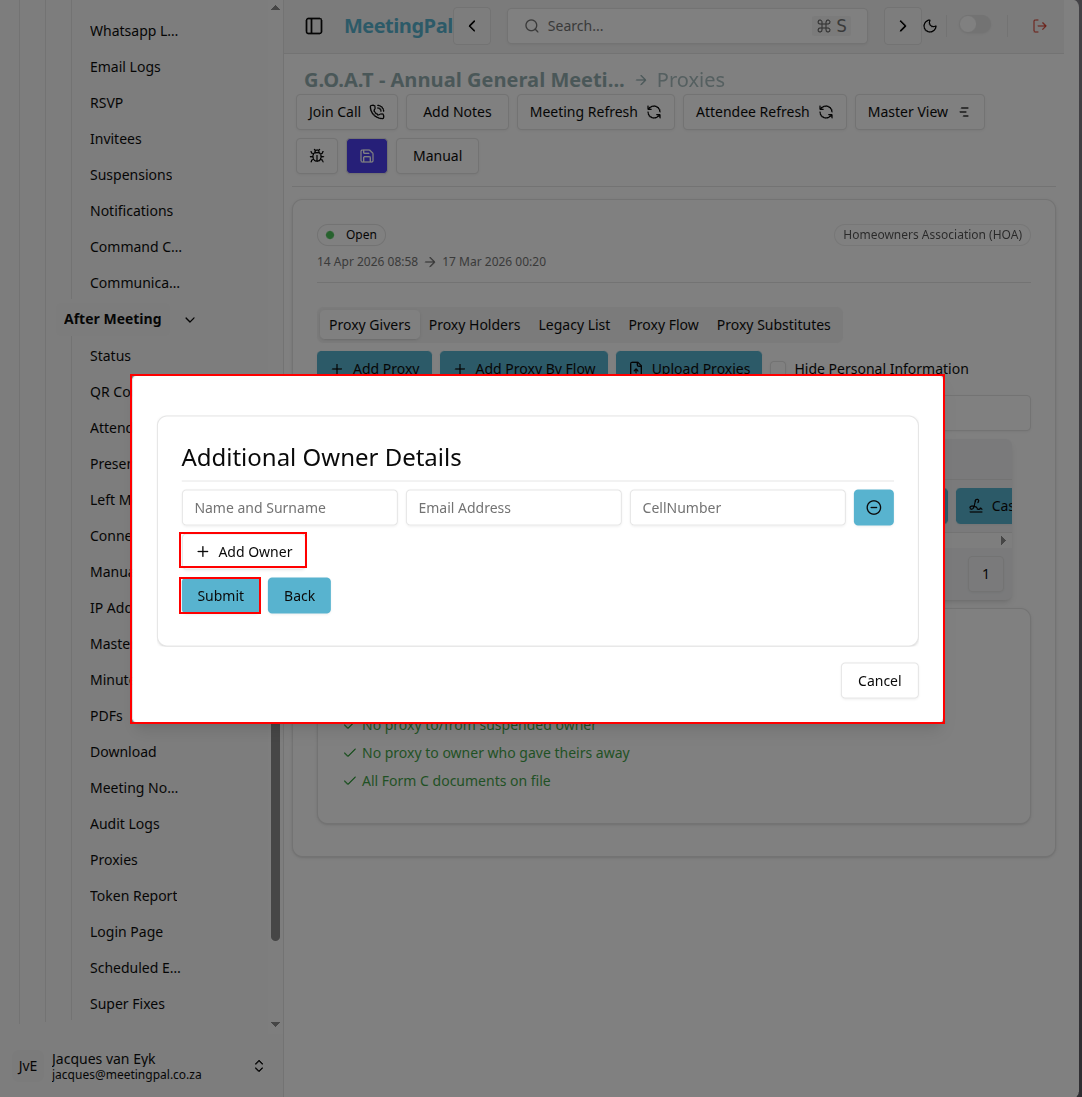
After clicking 'submit' you will be shown that the owner has been added.
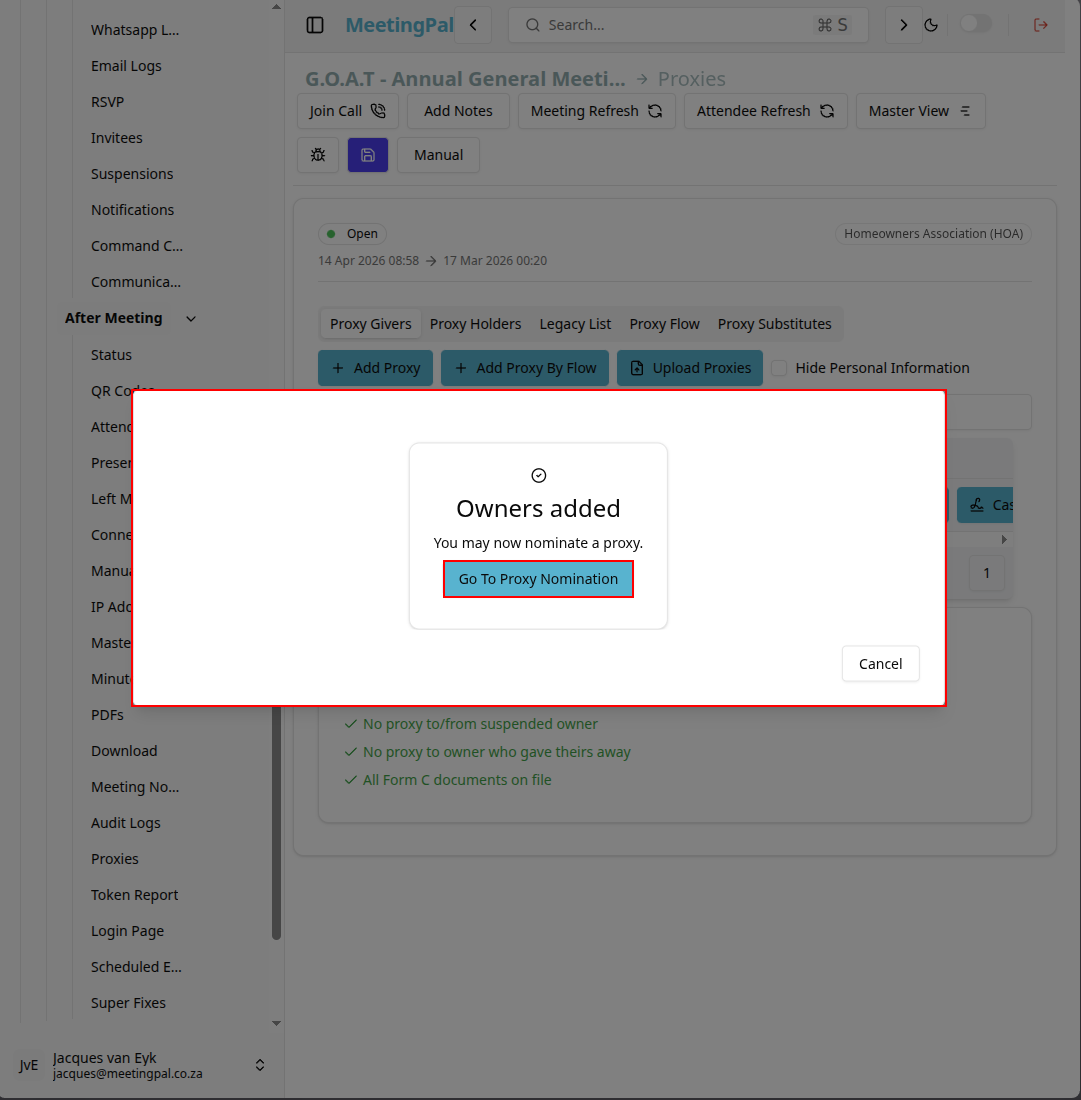
Then you can click on the 'Go To Proxy Nomination' button to see the pop-up display where you can see some information of the proxy giver and you can add additional instructions or conditions for the inivitee receiving the proxy.
You will also have to select a proxy holder by clicking on the 'select proxy from invitees' dropdown button.
After picking an invitee to be the proxy holder, you will be shown an finished pop-up.